
Usage & Setup: Eksa E800 Gaming Headset User Manual
Content
Eksa E800 Gaming Headset
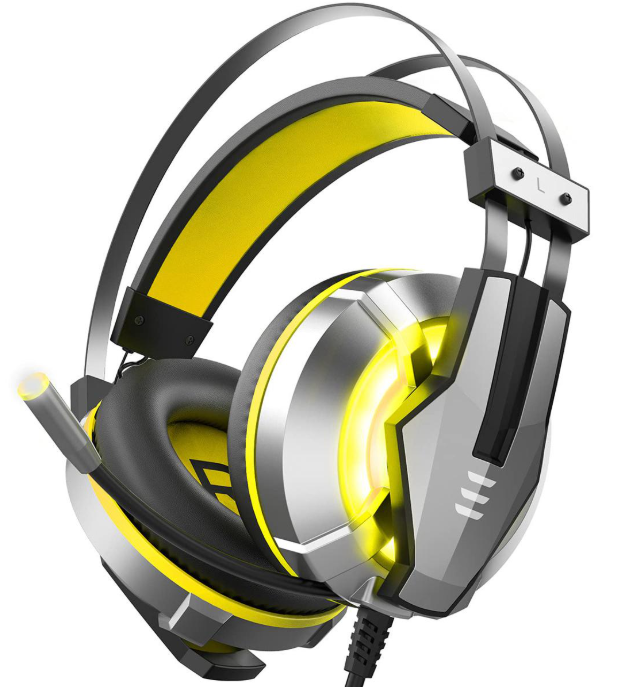
Introduction
The eksa E800 Gaming Headset is a premium audio accessory designed specifically for gamers seeking immersive sound and crystal-clear communication. This headset combines advanced audio technology with ergonomic design, delivering rich, dynamic soundscapes that enhance every gaming session. Equipped with powerful 50mm drivers and 7.1 virtual surround sound, the eksa E800 offers an exceptional auditory experience, allowing you to pinpoint in-game movements and environments with precision.
Key benefits include noise-isolating ear cups for uninterrupted gameplay, a flexible noise-canceling microphone for clear team communication, and robust build quality ensuring durability during intense gaming marathons. The headset’s compatibility spans multiple platforms including PC, PS4, Xbox One, and Nintendo Switch, making it a versatile choice for a wide range of gamers from casual players to eSports professionals.
Priced competitively in the mid-range gaming headset market, typically between $50 and $70, the eksa E800 balances affordable cost with premium features. It is widely available through online marketplaces and gaming retailers, making it accessible for gamers looking to upgrade their audio gear without breaking the bank. Its target audience includes PC and console gamers who prioritize both sound quality and communication in multiplayer settings.
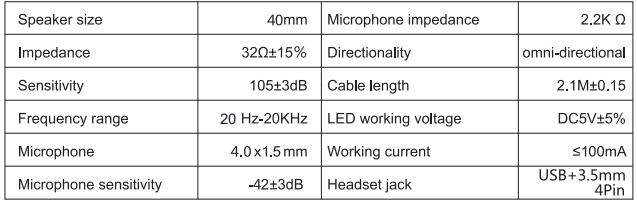
Specifications of the eksa E800 Gaming Headset
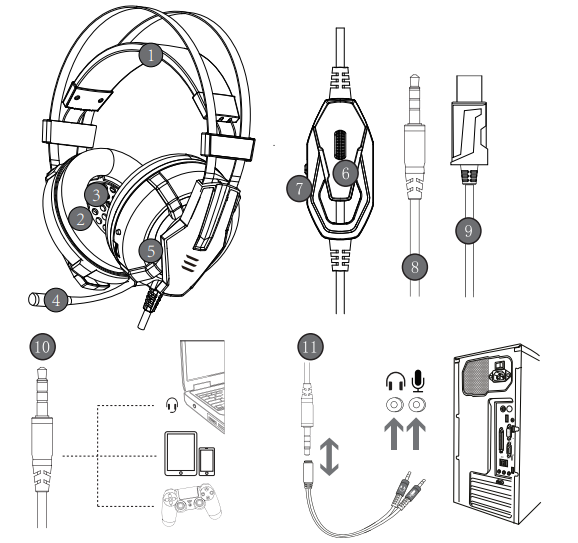
Packing list
- Gaming headset X1
- Operating instructions X1
- 3.5mm Jack cable 1 to 2 X1
- Carry Pouch X1
Features
- Supports PlayStation 4, New Xbox One, PC, Nintendo 3DS, Laptop, PSP, Tablet, iPad,
- Computer, Mobile Phone. An extra Microsoft Adapter (Not Included) is needed when connecting to an old version Xbox One controller.
- Clear sound, strong, brassy operation, splendid ambient noise isolation, and high-precision 40mm magnetic neodymium driver; acoustic positioning precision enhances the sensitivity of the speaker unit. The headset-integrated omnidirectional microphone can transmit high-quality communication with its premium noise-cancelling feature.
- Long flexible mic design very convenient to adjust the angle of the microphone.
- Superiorly comfortable and good air permeability protein over-ear pads, multi-point headband, in accordance with human body engineering specification can reduce hearing impairment and heat sweat.
- Skin-friendly leather material for a longer period of wearing.
- Glaring LED lights designed on the earcups to highlight game atmosphere.
- High tensile strength, anti-winding braided USB cable with rotary volume controller and key microphone mute effectively prevents the 49-inch long cable from twisting.
Setup Guide for the eksa E800 Gaming Headset
- Connect the Headset: Plug the USB connector into your PC or compatible console USB port. The headset is plug-and-play with most systems.
- Configure Audio Settings: On Windows, right-click the sound icon, select “Sounds,” then set the eksa E800 as the default playback and recording device. For consoles, navigate to audio settings and select the headset accordingly.
- Adjust Volume and Microphone: Use the in-line volume control to set your preferred sound level and mute/unmute the microphone as needed.
- Test Surround Sound: Enable 7.1 virtual surround sound through the headset’s software (if available) or system sound settings for optimal spatial audio.
- Troubleshooting Tips: If no sound occurs, ensure the USB cable is firmly connected and the headset is selected as the default device. Restart the system if necessary.
- Safety Precautions: Avoid excessive volume levels to prevent hearing damage. Do not expose the headset to water or extreme temperatures.
Microphone Isn't Working
On PS4
- Make sure the sound switch on the microphone has been turned on.
- Make sure your PS4 settings are configured correctly. If your Microphone was detected on the
Adjust Microphone Level screen, then the headset and mic are working with the PS4 properly.
If other players still cannot hear you in chat, check your network connection or in-game chat settings. - Review your PS4 settings to make sure they are configured as follows:
- Go to "Settings"> "Devices"> “Audio Devices”
- Set "Input & Output Device to Headset " to “Connected to Controller”
- Set "Output to Headphones" to “All Audio”
- Set "Volume Control" (Headphones) level to maximum
- Select "Adjust Microphone" Level and follow the on-screen instructions to calibrate your microphone
- Plug the headset into a mobile phone and try making a call. If someone is able to hear
you in the call, then the headset and microphone are working properly.
On PC
- Connect the Separate Splitter (Included) to the 3.5mm jack for this headset to work on
PC/Laptop - Make sure you insert the right jack (the yellow for the microphone)
- Make sure none of the microphones are disabled or muted or something.
Please find the "Speaker" icon in the computer taskbar, and double-click to enter the volume control for settings. And enter the "Voice" for settings on the "Control Panel"; Control Panel<
Sound< Recording< right-click and select "Show Disabled Devices"< Microphone should appear in the box now<click on Microphone and select"Enable" - Try disabling "Front mic" on recording devices. Update the Sound Card Drivers.
On PS4
- Make sure that the headset is plugged securely into the headphone jack; there should be no loose connections. Adjust or rotate the 3.5mm interface until both sides of the headphones have smooth sound output
- Turn up the sound switch on the microphone
On PC
- You MUST use the 1-to-2 3.5mm jack splitter cable to ensure that each jack is connected properly and securely plugged in.
- Disconnect the separate splitter cable and then connect the headphones directly. If the issue is resolved, with the extension cable disconnected, the splitter cable is the cause.
Pros & Cons of the eksa E800 Gaming Headset
- Pros:
- High-quality 7.1 virtual surround sound enhances gaming immersion
- Comfortable memory foam ear cushions suitable for long sessions
- Clear noise-canceling microphone ideal for team communication
- Wide compatibility with PC and major gaming consoles
- Good value for money compared to similar headsets with fewer features
- Cons:
- Wired connection limits mobility compared to wireless alternatives
- No dedicated software for advanced audio customization in some versions
- Plastic construction may feel less premium for some users
- Occasional driver compatibility issues with certain operating system updates
Customer Reviews of the eksa E800 Gaming Headset
Users generally praise the eksa E800 Gaming Headset for its crisp sound quality and reliable microphone performance. Many gamers highlight the headset’s comfort during extended play and its effective surround sound, which improves in-game awareness. Star ratings commonly range between 4 and 4.5 out of 5.
Common complaints include the wired design restricting movement and occasional connectivity glitches on newer console firmware updates. Despite these, the majority recommend the eksa E800 as a budget-friendly yet feature-rich headset, especially suitable for multiplayer gaming and streaming setups.
One reviewer noted, “The sound staging is impressive for the price, and the mic picks up my voice clearly even in noisy environments.” Another mentioned, “It could benefit from wireless freedom, but the audio quality makes up for it.”
Faqs
How do I set up the eksa E800 Gaming Headset for the first time on PC and consoles?
What can I do if the eksa E800 Gaming Headset microphone is not working or is unclear?
Can the eksa E800 Gaming Headset be used with smartphones and tablets?
What are the key audio features of the eksa E800 Gaming Headset that enhance gaming experience?
How do I optimize sound and microphone performance on the eksa E800 Gaming Headset?
Is the eksa E800 Gaming Headset compatible with older Xbox One controllers?
How should I clean and maintain my eksa E800 Gaming Headset to ensure durability?
What might cause the LED light on the eksa E800 Gaming Headset to not turn on and how can I fix it?
More eksa manuals
- Usage & Setup: Eksa E910 5.8GHz Wireless Gaming Headset User Manual
- Usage: Eksa E900 Plus Gaming Headset User Manual
- Setup & Usage: Eksa E5 BT 2.4 GHz Wireless Gaming Headset User Manual
- Usage: Eksa Air Joy Plus Gaming Headset User Manual
- Usage: Eksa Fenrir S Stereo Gaming Headset User Manual
- Usage & Setup: Eksa E5 ANC Wireless Headphones User Manual
Leave a Comment