
Setup: Eksa EM110 RGB Gaming Mouse User Manual
Content
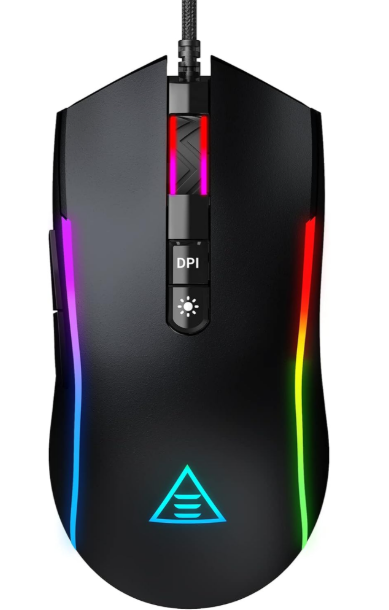
Eksa EM110 RGB Gaming Mouse
Introduction
The Eksa EM110 RGB Gaming Mouse is a high-performance gaming peripheral designed for enthusiasts seeking precision, customization, and style. Equipped with an advanced optical sensor and vibrant RGB lighting, this mouse elevates gaming experiences across genres such as FPS, MOBA, and RPG. Its ergonomic build ensures comfortable use during extended sessions, appealing to both casual gamers and competitive players.
Key benefits include customizable DPI settings up to 6400 DPI for rapid, accurate tracking, six programmable buttons for enhanced control, and dynamic RGB lighting that can be personalized to match gaming setups or moods. The EM110’s durable design features high-quality switches rated for millions of clicks, ensuring longevity.
Targeted at PC gamers who value responsive, customizable input devices, the eksa EM110 excels in esports, streaming, and general gaming applications. Its plug-and-play USB connectivity supports Windows and macOS systems, making it versatile across setups. The estimated price ranges between $25 and $40, positioning it as an affordable yet feature-rich option widely available through online retailers and electronics stores.
Specifications of eksa EM110 RGB Gaming Mouse
- Model: EM110
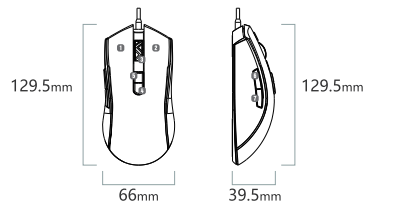
- Dimensions: 129.5mm*66mm*39.5mm (5.1 * 2.6* 1.56 inches)
- Weight: 125g (+3g)
- Programmable Buttons: 7
- Cable: 1.5m/4.92ft Braided Cable (with anti-interference ring)
- Connection Type: USB
- Switch Lifecycle: 5 Million Clicks
- Resolution(CPI/DPI): 800 (Green) - 1600 (Purple) - 2400 (Blue) -3200 (Red) - 4800 (Cyan) - 8000 (Yellow) (Default: 1600)
- Max Speed (IPS): 60
- RGB Mode: 7 RGB Lighting Modes (including switch-off mode)
- Working Voltage/Current: 5V = 80mA
- Operating Systems: Windows 7/8/10/VISTA/XP, Mac
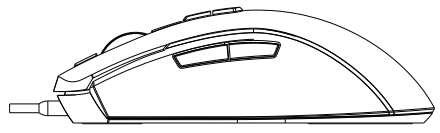
Setup Guide for eksa EM110 RGB Gaming Mouse
- Connect the Mouse: Plug the USB cable into an available USB port on your PC or Mac.
- Driver Installation: The mouse supports plug-and-play; basic functions work immediately. For advanced customization, download and install the eksa EM110 software from the official eksa website.
- Configure Settings: Use the eksa software to adjust DPI levels, program the six buttons, and customize RGB lighting effects.
- Test the Mouse: Verify responsiveness and button functions in your preferred games or desktop applications.
- Troubleshooting: If the mouse is unresponsive, try reconnecting the USB cable or testing on another port. Ensure software is up to date.
Safety Precautions: Avoid exposing the mouse to liquids or extreme temperatures. Disconnect during thunderstorms or when cleaning. Use the mouse on a flat, stable surface for best tracking.
Buttons Function
- Left Button
- Right Button
- Scroll Wheel Button
- RGB Adjustment Button
- DPI Button
- Forward
- Backward
Quickly press the DPI button to switch between 6 DPI levels
- Green 800dpi
- Purple 1600dpi
- Blue 2400dpi
- Red 3200dpi
- Cyan 4800dpi
- Yellow 8000dpi
Troubleshooting the eksa EM110 RGB Gaming Mouse
- Mouse Not Detected: Check USB connection, try a different port, and restart the computer.
- Buttons Not Responding: Reinstall the eksa software and reprogram buttons. If persistent, inspect for debris under buttons.
- RGB Lighting Issues: Ensure software is running in the background; update firmware if available.
- DPI Settings Not Changing: Reset DPI via software or use the dedicated DPI toggle button on the mouse.
- Cursor Jumping or Lag: Clean the sensor window and use a quality mouse pad. Update drivers.
To prevent common issues, avoid sudden unplugging and keep firmware and drivers updated. The eksa EM110 typically comes with a 12-month limited warranty covering manufacturing defects. For support, contact eksa customer service via their official website or authorized sellers.
Pros & Cons of the eksa EM110 RGB Gaming Mouse
- Pros:
- Affordable price with rich feature set ideal for entry- to mid-level gamers
- High DPI range up to 6400 for precise control
- Customizable RGB lighting enhances gaming ambiance
- Ergonomic design comfortable for extended use
- Software enhances button programming and lighting personalization
- Cons:
- No adjustable weights for fine-tuning mouse feel
- Wired only; no wireless option for cable-free gaming
- Software interface may be less intuitive compared to premium brands
- Limited to 6 buttons, fewer than some high-end gaming mice
Compared to alternatives like the Logitech G203 or Redragon M815, the eksa EM110 RGB offers competitive DPI and lighting but lacks wireless capability and weight customization. Its value-for-money ratio remains strong for gamers on a budget.
Customer Reviews of eksa EM110 RGB Gaming Mouse
Users praise the eksa EM110 RGB Gaming Mouse for its responsive sensor and vibrant RGB lighting, often noting it as an excellent budget-friendly option. Many highlight the comfortable grip and effective software customization as standout features. Common complaints include occasional software glitches and the lack of wireless connectivity. The mouse consistently receives star ratings around 4 out of 5.
A typical testimonial reads: "Great mouse for the price. DPI settings are accurate, and the RGB looks cool on my desk. The wired connection has never lagged in intense gaming sessions."
Most users recommend the eksa EM110 for casual to mid-tier gamers looking for reliable performance without a premium price tag. Frequent mentions also suggest pairing it with a quality mouse pad to maximize sensor accuracy.
Faqs
How do I set up the eksa EM110 RGB Gaming Mouse for the first time?
What should I do if my eksa EM110 RGB Gaming Mouse is not responding or lagging?
How can I customize the RGB lighting and DPI settings on the eksa EM110 RGB Gaming Mouse?
Is the eksa EM110 RGB Gaming Mouse compatible with macOS and Windows systems?
What are the key features that enhance gaming performance in the eksa EM110 RGB Gaming Mouse?
How do I clean and maintain my eksa EM110 RGB Gaming Mouse for longevity?
Can I reprogram the 7 buttons on the eksa EM110 RGB Gaming Mouse for different games or applications?
What should I do if the DPI button on my eksa EM110 RGB Gaming Mouse stops changing sensitivity levels?
More eksa manuals
- How to Use: Eksa W1 RGB Headset Stand User Manual
- Usage: Eksa Fenrir S Stereo Gaming Headset User Manual
- Setup: Eksa EM500 Superlight Gaming Mouse User Manual
- Setup & Usage: Eksa E5 BT 2.4 GHz Wireless Gaming Headset User Manual
- Usage : Eksa EM600 RGB Gaming Mouse User Manual
- Usage & Setup: Eksa E910 5.8GHz Wireless Gaming Headset User Manual
Leave a Comment