
Setup: Eksa EM500 Superlight Gaming Mouse User Manual
Content
Eksa EM500 Superlight Gaming Mouse
Introduction
Welcome to the official user manual for the eksa EM500 Superlight Gaming Mouse, a high-performance wireless gaming mouse engineered for competitive gamers, streamers, and productivity users who demand speed, precision, and comfort. Designed with a lightweight honeycomb shell and advanced wireless technology, the EM500 delivers a true “superlight” feel without sacrificing durability or battery life.
The eksa EM500 Superlight Gaming Mouse features a high-precision 16,000 DPI optical sensor, ultra-low-latency 2.4 GHz wireless connectivity, and customizable RGB lighting with multiple effects. With programmable buttons, on-board profile memory, and ergonomic right-handed design, it’s ideal for FPS, MOBA, MMO, and general desktop use. Whether you’re gaming at tournaments, working from home, or editing content, the EM500 offers responsive tracking, reduced hand fatigue, and long-term reliability.
Targeted at mid-range buyers seeking flagship-level performance, the eksa EM500 Superlight Gaming Mouse is typically priced between $40–$60 USD and widely available through major online retailers and gaming accessory stores. This manual covers everything from initial setup and software configuration to troubleshooting and maintenance, ensuring you get the most out of your new gaming mouse.
Specifications
- Model: EM500
- Weight: 68g(±3g)
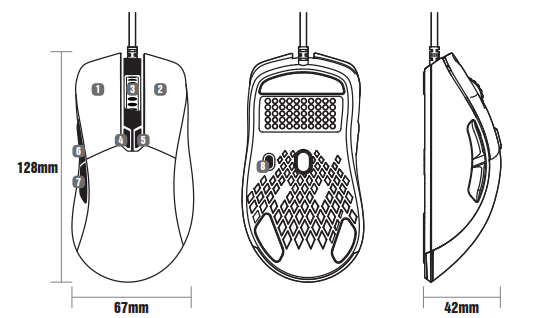
- Dimensions: 128mm'67mm'42mm (5.04'2.64'1.65 inches)
- Connection Type: USB
- Max speed (IPS): 100
- Resolution (CPI/DPI): 800(Red) - 1600(Green) - 2400 (Blue) - 3200 (Yellow) - 4600 (Cyan) - 6000 (Purple) - 12400 (White)
- Polling Rate:1000Hz
- Programmable Buttons: 8
- Cable: I .85mf6.07ft Braided Cable
- Working Voltage/Current: 5V 100mA
- Operating Systems: Windows 7/8/10/VISTAfXP, Mac
- RGB Mode: 6 RGB Lighting Modes (with a light switch button at the bottom)
- Default: 1600
Compared to similar mice in its class (e.g., Redragon M901K, HECATE G3M Pro), the eksa EM500 Superlight Gaming Mouse stands out with its ultra-lightweight design, long battery life, and seamless dual-mode operation (wireless and wired).
Setup Guide
Step-by-Step Installation
- Unbox the eksa EM500 Superlight Gaming Mouse and verify contents: mouse, USB-C charging cable, 2.4 GHz nano receiver, and this manual.
- Insert the nano receiver into a USB 2.0/3.0 port on your PC or laptop. For best performance, use a rear USB port or a USB extension dongle to reduce interference.
- Power on the mouse using the switch on the bottom (OFF / ON / ECO mode). The LED will light up, indicating pairing mode.
- The mouse should connect automatically within 3–5 seconds. Move the mouse and click to confirm responsiveness.
- To use wired mode, connect the USB-C cable from the mouse to your PC. The mouse will operate in wired mode with full functionality.
- Create and save DPI profiles (e.g., 800, 1600, 3200, 6400, 16000)
- Assign functions to each button (keyboard keys, macros, shortcuts)
- Adjust RGB lighting effects, speed, and colors
- Save profiles to on-board memory for plug-and-play use on other PCs
- Mouse not detected: Check if the power switch is ON, receiver is inserted, and USB port is functional. Try a different port or PC.
- Cursor jitter or lag: Ensure the surface is clean and non-reflective. Reduce DPI if too high for your sensor. Keep the receiver away from interference sources.
- Buttons not responding: Test in another PC or use the software to reset button assignments. Clean the buttons gently with compressed air.
- Battery drains quickly: Turn off RGB lighting or use ECO mode when not gaming. Avoid leaving the mouse ON for extended periods when idle.
- Charging issues: Use the included USB-C cable and a reliable power source. If the LED doesn’t light during charging, contact support.
- Ultra-lightweight design: At ~58g, it reduces hand fatigue during long gaming sessions, ideal for fast flicks and precise aiming.
- High-performance sensor: 16,000 DPI with 400 IPS tracking ensures smooth, accurate movement on most surfaces.
- Long battery life: Up to 70 hours on a single charge makes it great for travel and daily use.
- Dual-mode operation: Use wireless for freedom or wired for zero latency and charging.
- Good value for money: Offers features comparable to more expensive mice at a competitive price point.
- Limited button count: Only 6 buttons, which may not suit MMO or MOBA players needing many macros.
- Software dependency: Full customization requires installing eksa software, which may not be as polished as Logitech G HUB or Razer Synapse.
- Right-handed only: No ambidextrous or left-handed version available.
- Build quality: While durable, the honeycomb shell can feel fragile compared to solid-shell mice.
Buttons Function
- Left Button
- Right Button
- Scroll Wheel Button
- DPI+
- DPI-
- Forward
- Backward
- RGB Adjustment Button
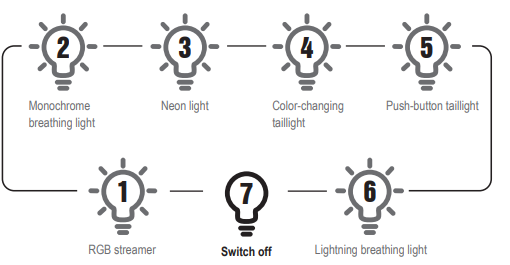
RGB Lighting Modes
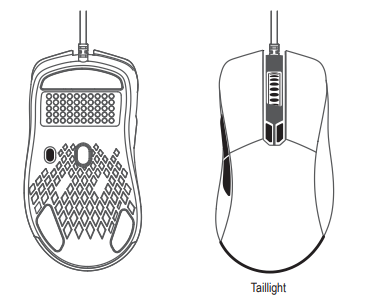
With the RGB adjustment button at the bottom, you can switch RGB streamer, monochrome breathing light, neon, color-changing taillight, push-button taillight, lightning breathing light, or turn off the RGB light.
Faqs
How do I set up the eksa EM500 Superlight Gaming Mouse for first-time use?
What should I do if the eksa EM500 Superlight Gaming Mouse buttons are unresponsive?
Can I customize the RGB lighting on the eksa EM500 Superlight Gaming Mouse?
Is the eksa EM500 Superlight Gaming Mouse compatible with MacOS devices?
How can I optimize the performance of the eksa EM500 Superlight Gaming Mouse for FPS games?
What are the key features that make the eksa EM500 Superlight Gaming Mouse stand out?
How do I maintain and clean the eksa EM500 Superlight Gaming Mouse to ensure long-lasting performance?
What troubleshooting steps can I take if the eksa EM500 Superlight Gaming Mouse DPI settings are not changing?
More eksa manuals
- Usage : Eksa EM600 RGB Gaming Mouse User Manual
- How to Use: Eksa W1 RGB Headset Stand User Manual
- Setup: Eksa EM110 RGB Gaming Mouse User Manual
- Usage: Eksa Fenrir S Stereo Gaming Headset User Manual
- Setup & Usage: Eksa E5 BT 2.4 GHz Wireless Gaming Headset User Manual
- Usage & Setup: Eksa E910 5.8GHz Wireless Gaming Headset User Manual
Leave a Comment