
Usage : Eksa EM600 RGB Gaming Mouse User Manual
Content
Introduction to the eksa EM600 RGB Gaming Mouse
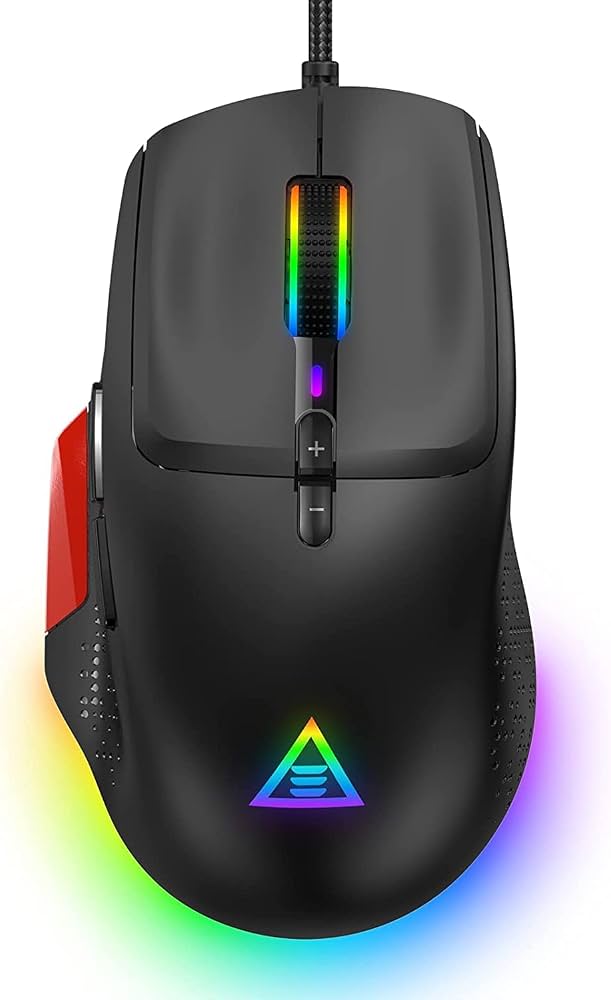
The eksa EM600 RGB Gaming Mouse is a high-performance, visually striking peripheral designed specifically for gamers seeking precision, customization, and style. Featuring advanced optical sensor technology and vibrant RGB lighting, this gaming mouse provides smooth, accurate tracking essential for competitive gaming and immersive gameplay experiences. Its ergonomic design ensures comfortable use during extended sessions, making it ideal for casual players and esports enthusiasts alike.
Key benefits include fully customizable RGB lighting effects, adjustable DPI settings up to 16,000 DPI for versatile sensitivity control, and programmable buttons that enhance gameplay efficiency. The robust build quality paired with responsive switches guarantees durability and swift reactions. The eksa EM600 is perfect for FPS, MOBA, and RPG gamers who demand accuracy and personalization from their gear.
Available through popular online retailers and select electronics stores, the eksa EM600 RGB Gaming Mouse is priced competitively in the mid-range segment, typically around $40 to $60 USD, offering excellent value for features usually found in higher-end models.
Specifications of the eksa EM600 RGB Gaming Mouse
- Sensor: Optical sensor with up to 16,000 DPI adjustable in increments for precise sensitivity control
- Polling Rate: 1000 Hz for ultra-responsive tracking
- Buttons: 7 programmable buttons including left/right clicks, scroll wheel, DPI switch, and side buttons
- RGB Lighting: Multi-zone RGB with customizable effects via dedicated software
- Connectivity: Wired USB connection with braided cable for durability
- Ergonomics: Ambidextrous design with textured grips for enhanced comfort
- Dimensions: Approximately 125mm x 65mm x 40mm
- Weight: Around 115 grams, providing a balanced feel optimal for fast movements
Compared to similar gaming mice in its class, such as the Logitech G203 or Redragon M711, the eksa EM600 offers higher DPI capability and more customizable RGB zones, making it a strong contender for gamers seeking advanced lighting and precise control without a premium price tag.
Setup Guide for the eksa EM600 RGB Gaming Mouse
- Unbox the eksa EM600 and connect the USB plug to an available port on your PC or gaming laptop.
- Wait for the operating system to automatically recognize and install basic drivers—no manual installation is usually necessary.
- Download and install the eksa EM600 customization software from the official eksa website to unlock full control over DPI settings, RGB lighting patterns, and button programming.
- Launch the software and assign preferred DPI levels and lighting effects. Save profiles to the mouse’s onboard memory for portability.
- Test button configurations within games or applications and adjust as needed.
Troubleshooting tips: If the mouse is unresponsive, check the USB connection and try different ports. Restart your computer if drivers fail to install. Ensure the latest drivers and software versions are used.
Safety precautions: Avoid exposing the mouse to liquids or extreme temperatures. Use on appropriate surfaces to maintain sensor accuracy and prevent damage.
Troubleshooting Common Issues with the eksa EM600 RGB Gaming Mouse
- Mouse not detected: Reconnect USB cable, try another USB port, and verify driver installation.
- Buttons not responding: Reassign button functions via the eksa software and check for firmware updates.
- Inconsistent cursor movement: Clean sensor and mouse feet; use on a proper mouse pad.
- RGB lighting not working: Confirm software is running and the mouse firmware is updated. Restart software if necessary.
Preventive measures include regularly cleaning the mouse sensor and cable, avoiding sharp bends in the cable, and keeping software updated. The eksa EM600 typically comes with a one-year manufacturer warranty covering defects and hardware failures.
For further support, contact eksa customer service via their official website support page or through authorized retailers.
Pros & Cons of the eksa EM600 RGB Gaming Mouse
- Pros:
- High DPI range up to 16,000 for precise tracking across different game genres.
- Customizable RGB lighting with multiple effects for personalization.
- Ergonomic design suitable for long gaming sessions.
- Fast 1000 Hz polling rate ensures minimal latency.
- Affordable pricing offering excellent value compared to premium models.
- Cons:
- Wired connection may limit mobility for some users preferring wireless.
- Software interface could be more intuitive for beginners.
- Weight is fixed, lacking adjustable weights found in some competitors.
- Limited ambidextrous features for left-handed users despite ergonomic claims.
Overall, the eksa EM600 RGB Gaming Mouse balances performance and affordability well, making it an excellent choice for gamers who want advanced features without a steep price.
Customer Reviews of the eksa EM600 RGB Gaming Mouse
Users widely praise the eksa EM600 for its smooth sensor performance and vibrant RGB lighting customization. Many highlight its comfortable grip and reliable button response during intense gaming sessions. Star ratings typically range from 4 to 4.5 out of 5, reflecting strong overall satisfaction.
Common complaints include occasional software glitches and a desire for wireless options. However, most reviewers recommend the mouse as a value-packed choice for gamers upgrading from basic models.
Testimonials emphasize the mouse’s solid build quality and competitive performance, making it a popular recommendation for both casual and dedicated gamers looking for a dependable RGB gaming mouse.
Faqs
How do I set up the eksa EM600 RGB Gaming Mouse for optimal performance?
What should I do if the eksa EM600 RGB Gaming Mouse buttons are not responding correctly?
How can I customize the RGB lighting on my eksa EM600 RGB Gaming Mouse?
Is the eksa EM600 RGB Gaming Mouse compatible with Mac OS and Windows systems?
How can I optimize the eksa EM600 RGB Gaming Mouse for FPS games?
What maintenance steps should I follow to keep my eksa EM600 RGB Gaming Mouse in good condition?
Why is the eksa EM600 RGB Gaming Mouse considered lightweight and how does it benefit gamers?
What do I do if the DPI buttons on my eksa EM600 RGB Gaming Mouse are not adjusting sensitivity?
More eksa manuals
- Setup: Eksa EM500 Superlight Gaming Mouse User Manual
- How to Use: Eksa W1 RGB Headset Stand User Manual
- Setup: Eksa EM110 RGB Gaming Mouse User Manual
- Usage: Eksa Fenrir S Stereo Gaming Headset User Manual
- Setup & Usage: Eksa E5 BT 2.4 GHz Wireless Gaming Headset User Manual
- Usage & Setup: Eksa E910 5.8GHz Wireless Gaming Headset User Manual
Leave a Comment