
Epson EcoTank All-In-One Printer L3150 User Manual
Content
Introduction to the Epson EcoTank All-In-One Printer L3150
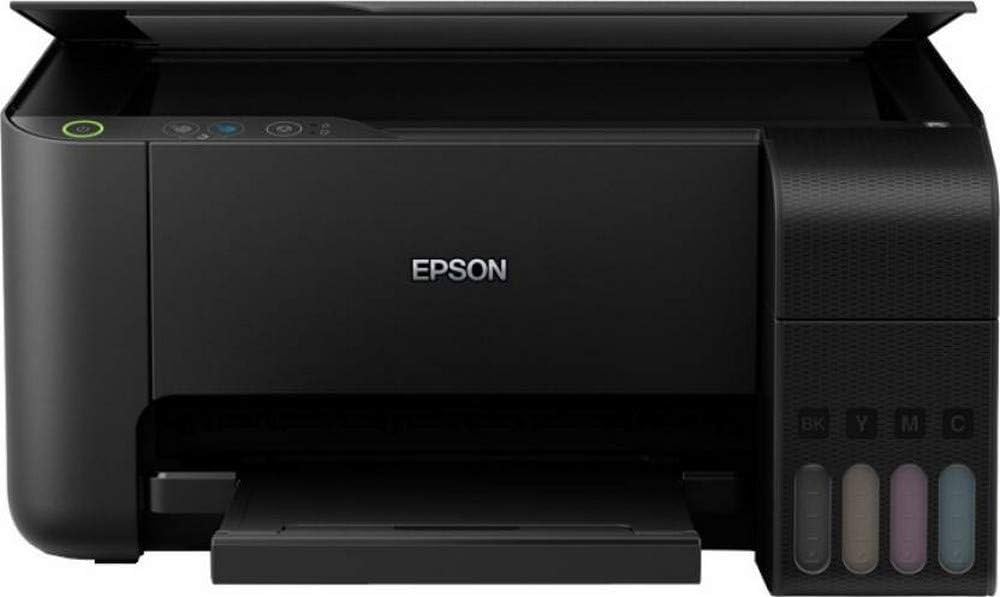
The Epson EcoTank All-In-One Printer L3150 is a compact ink tank printer designed for home users, students, and small offices that need low-cost, high-volume printing. Built around Epson’s cartridge-free EcoTank system, it replaces traditional ink cartridges with refillable tanks, helping reduce running costs and print interruptions. The result is a practical all-in-one solution for printing, scanning, and copying everyday documents, school assignments, forms, and photos.
This model is especially appealing to users who print frequently and want a reliable wireless printer with strong page yield. It supports Wi-Fi and Wi-Fi Direct, making it easy to print from laptops, smartphones, and tablets without complicated setup. The Epson EcoTank All-In-One Printer L3150 also offers borderless photo printing and a compact footprint, so it fits comfortably on a desk or shelf in tight spaces.
In terms of value, the Epson EcoTank All-In-One Printer L3150 is typically positioned in the budget-to-mid-range category, with an estimated price range of about $150 to $250 depending on region, promotions, and bundle offers. Availability remains broad in many markets, though pricing and stock can vary by country and retailer. For buyers comparing ink tank printers, it stands out for its balance of affordability, ease of use, and long-term savings.
Specifications: Epson EcoTank L3150 Technical Details
- Printer type: Ink tank all-in-one printer for print, scan, and copy
- Printing technology: MicroPiezo 4-color inkjet system
- Maximum print resolution: Up to 5760 x 1440 optimized dpi
- Print speed: Up to 33 ppm black and 15 ppm color; ISO speed around 10.5 ppm black and 5 ppm color
- Scan resolution: Up to 1200 x 2400 dpi optical resolution
- Ink system: Refillable EcoTank design with high-capacity bottles
- Page yield: Up to 4,500 pages black and 7,500 pages color, depending on usage and conditions
- Connectivity: USB, Wi-Fi, and Wi-Fi Direct
- Mobile printing: Supported through Epson mobile printing apps and wireless printing workflows
- Paper handling: Suitable for everyday A4 document printing and borderless photo output
Compared with entry-level cartridge printers, the Epson EcoTank All-In-One Printer L3150 delivers much lower cost per page and far fewer refill interruptions. Against larger office-grade ink tank models, it is more compact and simpler, but it does not offer advanced features such as automatic duplex printing or Ethernet networking.
Detailed Description of the Epson EcoTank L3150
The Epson EcoTank All-In-One Printer L3150 is designed to simplify everyday printing by removing the need for disposable cartridges. Users fill integrated ink tanks with compatible bottles, and the printer meters ink automatically for consistent output. This approach is ideal for frequent printing because it lowers waste and helps reduce long-term ownership costs.
In real-world use, the device handles homework, office reports, shipping labels, invoices, and borderless photos with ease. Its compact chassis makes it a strong choice for apartments, dorm rooms, reception desks, and small workgroups. The build quality is practical rather than premium, with a lightweight body and simple control layout that favors easy operation.
The Epson EcoTank All-In-One Printer L3150 offers a straightforward user experience. Setup is manageable for first-time buyers, wireless printing is convenient, and the scanner adds value for document archiving and copying. For people who want a reliable home ink tank printer without complex business features, this model remains a strong everyday option.
Setup Guide for Epson EcoTank All-In-One Printer L3150
Setting up the printer is simple if you follow the steps in order. Place the device on a stable, level surface near a power outlet and make sure there is enough ventilation around it. Remove all packaging materials, unlock any transport locks, and install the ink bottles carefully to avoid spills.
- Connect the power cord and turn on the printer.
- Fill each ink tank with the correct color bottle until the tank reaches the indicated level.
- Load plain paper into the rear input tray.
- Run the initial ink charging process and wait for completion.
- Install the printer driver or mobile app on your computer or smartphone.
- Choose USB setup for a direct connection or Wi-Fi/Wi-Fi Direct for wireless printing.
- Print a test page to confirm alignment and connectivity.
For wireless use, connect the printer and device to the same network when using standard Wi-Fi. Wi-Fi Direct is useful when no router is available. Keep ink bottles upright, avoid touching electrical contacts, and never tilt the printer while tanks are open. If setup fails, restart the printer, check the network password, and confirm that the wireless indicator is active.
Troubleshooting the Epson EcoTank L3150
Common issues with the Epson EcoTank All-In-One Printer L3150 usually involve connectivity, print quality, or ink handling. If the printer does not connect to Wi-Fi, move it closer to the router, verify the password, and reset the wireless connection. If printouts look faded or streaked, run a nozzle check and cleaning cycle, then confirm that the ink tanks are filled properly.
- Paper jam: Turn off the printer, gently remove jammed paper, and check the rear feed path.
- Blank pages: Run a head cleaning cycle and confirm ink tank levels.
- Wi-Fi connection failure: Re-enter the network details or switch to Wi-Fi Direct.
- Slow printing: Use standard print mode for drafts and check the driver settings.
- Scanning not detected: Reinstall the scanner software and verify USB or wireless connectivity.
Preventive care helps reduce downtime. Print regularly to avoid clogged nozzles, keep the printer clean and dust-free, and use genuine or compatible supplies recommended for the model. Warranty coverage varies by region, but Epson typically provides manufacturer support through its official service channels, authorized service centers, and regional customer care lines. If you need help, check your local Epson support website, product registration portal, or retailer service desk for the correct contact information.
Pros & Cons of the Epson EcoTank L3150
Pros
- Low running cost thanks to refillable ink tanks
- Good print yield for home and small office use
- Compact design fits in small spaces
- Wireless printing with Wi-Fi and Wi-Fi Direct
- Strong value for money compared with cartridge printers
- Suitable for documents, schoolwork, and casual photo printing
Cons
- No automatic duplex printing for double-sided jobs
- No Ethernet port for wired network offices
- Print speed is practical but not ideal for heavy business workloads
- Basic display and controls compared with premium models
- Photo printing quality is good for the class, but not professional-grade
For users comparing alternatives, the Epson EcoTank All-In-One Printer L3150 is best suited to budget-conscious households and light productivity tasks. Larger EcoTank models may offer faster speeds or duplex support, while cartridge printers usually cost less upfront but more over time.
Customer Reviews and User Feedback
Overall user feedback for the Epson EcoTank All-In-One Printer L3150 is positive, with many owners rating it around 4 out of 5 stars for affordability and convenience. Customers often praise the low ink cost, easy refilling process, and compact size. A common comment is that it “prints clearly and saves a lot on ink,” especially for school and home office use.
Frequent complaints usually focus on the lack of automatic duplex printing and the need for occasional maintenance when the printer is not used regularly. Some users also mention that wireless setup can take a few attempts depending on the router or device. Despite these issues, most buyers consider it a smart purchase for everyday printing.
If you want a reliable wireless ink tank printer for home or small office tasks, the Epson EcoTank All-In-One Printer L3150 remains a strong recommendation, especially for users prioritizing value and low running costs.
Faqs
How do I set up the epson EcoTank All-In-One Printer L3150 for the first time?
Why is my epson EcoTank All-In-One Printer L3150 not connecting to Wi-Fi?
What should I do if the epson EcoTank All-In-One Printer L3150 prints blank pages or faded text?
Can the epson EcoTank All-In-One Printer L3150 print, scan, and copy without a computer?
Which devices and operating systems work with the epson EcoTank All-In-One Printer L3150?
How can I get faster print speeds from the epson EcoTank All-In-One Printer L3150?
How do I maintain the epson EcoTank All-In-One Printer L3150 to avoid ink clogs and poor print quality?
What paper sizes and print jobs are best suited for the epson EcoTank All-In-One Printer L3150?
More epson manuals
Leave a Comment