
Epson EX3260 Multimedia Projector User Manual
Content
Introduction to the Epson EX3260 Multimedia Projector
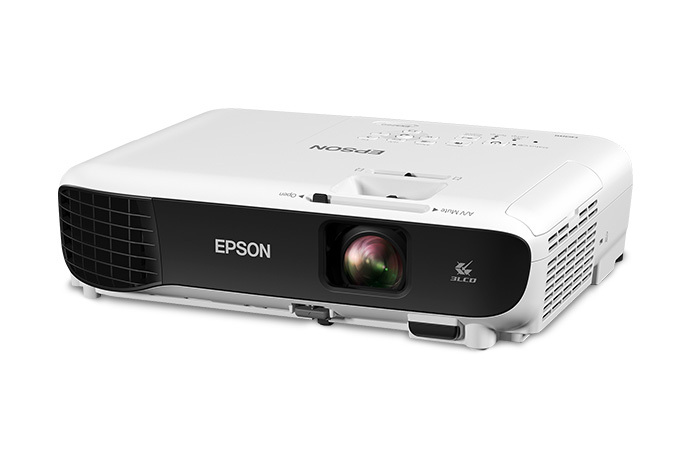
The Epson EX3260 Multimedia Projector is a compact SVGA 3LCD projector designed for presentations, classrooms, training rooms, and everyday multimedia use. It delivers 3,300 lumens of color and white brightness, making it a strong choice for well-lit environments where image visibility matters. With 3LCD technology, users get balanced color output and reliable image performance for slides, spreadsheets, videos, and casual streaming.
This projector is especially appealing for teachers, small business owners, home office users, and anyone needing a dependable portable projector with simple setup and broad connectivity. Its native 800 x 600 resolution is ideal for standard presentations and legacy content, while HDMI support makes it compatible with modern laptops, media players, and streaming devices. The Epson EX3260 Multimedia Projector also includes manual and auto keystone correction, helping users quickly align the image without complex adjustments.
In terms of value, the estimated price range is around $380 to $500 depending on condition, seller, and region. New or official retail listings generally sit near the upper end, while certified refurbished units and marketplace options can be lower. Availability is typically good through Epson channels and major electronics retailers. If you want an affordable business projector with bright output, easy controls, and dependable everyday performance, this model remains a practical option.
Specifications for the Epson EX3260 Multimedia Projector
- Display technology: Epson 3LCD, 3-chip projection system
- Native resolution: 800 x 600 SVGA
- Brightness: 3,300 lumens color brightness and 3,300 lumens white brightness
- Contrast ratio: Up to 15,000:1 for improved shadow detail in presentations
- Lamp type: 210W UHE lamp
- Lamp life: Up to 6,000 hours in normal mode and up to 10,000 hours in ECO mode
- Aspect ratio: 4:3, suited to traditional business and classroom content
- Keystone correction: Vertical ±30° and horizontal ±30°
- Zoom ratio: 1.0 to 1.35
- Throw distance: Approximately 30 to 350 inches depending on placement
- Connectivity: HDMI, VGA, composite video, USB Type-A, USB Type-B, audio input
- Noise level: About 28 dB in ECO mode and 37 dB in normal mode
Compared with higher-resolution projectors such as WXGA or Full HD models, the Epson EX3260 Multimedia Projector focuses on brightness and ease of use rather than sharpness for detailed graphics. It is best suited to text-based presentations, classroom instruction, and general multimedia viewing.
Detailed Description of the Epson EX3260 Multimedia Projector
The Epson EX3260 Multimedia Projector uses 3LCD projection to produce bright, consistent images with no color wheel rainbow effect. This makes it comfortable for long viewing sessions and useful for mixed-content presentations that include charts, photos, video clips, and slides. The projector’s compact chassis and lightweight design make it easy to move between rooms or carry for mobile presentations.
In real-world use, the projector works well in conference rooms, classrooms, and small meeting spaces where ambient light is difficult to control. The HDMI input supports modern devices, while the VGA connection keeps it compatible with older laptops and desktop systems. The USB ports add convenience for plug-and-play connectivity and simple file or peripheral support.
The build quality is practical and business-focused, using a durable plastic housing with a clean, two-tone finish. User experience is straightforward: image setup is fast, menus are simple, and the focus and zoom controls are easy to adjust. For everyday business projection, the Epson EX3260 Multimedia Projector offers a reliable, no-frills experience that prioritizes brightness, portability, and long lamp life.
Setup Guide for Epson EX3260 Multimedia Projector
- Place the projector on a stable surface or mount it according to your room layout.
- Connect the power cable and press the power button.
- Attach your laptop, media player, or other source device using HDMI or VGA.
- Select the correct input source from the projector menu or remote control.
- Adjust the zoom and focus ring until the image is clear and properly framed.
- Use vertical and horizontal keystone correction if the projected image appears skewed.
- Configure sound output if using an external speaker or audio cable.
- Test a presentation slide or video clip before regular use.
For best results, position the projector so the lens is centered with the screen to reduce distortion. Keep ventilation openings unobstructed and allow the lamp to cool before unplugging after use. Avoid looking directly into the lens when the lamp is on, and never block airflow with books, fabric, or wall surfaces. If the image does not appear, check input selection, cable seating, and source device display settings.
Troubleshooting the Epson EX3260 Multimedia Projector
- No image on screen: Confirm the correct input source, inspect HDMI or VGA cable connections, and make sure the source device is outputting video.
- Image is blurry: Re-focus the lens, clean the lens gently, and verify the projector is at the proper throw distance.
- Image is tilted or trapezoid-shaped: Adjust keystone correction and reposition the projector more centrally to the screen.
- Overheating or shutdown: Clear ventilation areas, reduce room temperature, and let the unit cool before restarting.
- Lamp warning indicator: Replace the lamp when brightness drops significantly or the lamp life limit is reached.
- Weak audio or no sound: Check volume settings, audio cable placement, and the source device’s audio output.
Preventive care includes regular dust removal, proper shutdown after use, and storing the projector in a dry, cool place. Epson support for this model includes limited warranty coverage in supported regions, and users can contact Epson customer service through the official support channels listed for the EX3260 series. Keeping the model number and serial number handy will speed up service requests.
Pros & Cons of the Epson EX3260 Multimedia Projector
Pros
- Bright output: 3,300 lumens makes it effective in rooms with ambient light.
- Easy setup: Simple controls and keystone correction reduce installation time.
- Reliable connectivity: HDMI and VGA support both new and older devices.
- Long lamp life: ECO mode extends operating life and helps lower maintenance frequency.
- Good value: Competitive pricing for a business-ready portable projector.
Cons
- SVGA resolution: Not ideal for detailed spreadsheets, high-definition video, or sharp graphics.
- Basic feature set: Lacks advanced smart features found in newer wireless models.
- Standard throw design: Requires enough distance for large images.
- Audio limitations: External speakers may be needed for larger rooms.
For users who want a budget-friendly presentation projector, the Epson EX3260 Multimedia Projector offers strong brightness and dependable daily use. Compared with WXGA or 1080p alternatives, it trades image detail for affordability and simplicity.
Customer Reviews of the Epson EX3260 Multimedia Projector
Typical customer feedback is generally positive, especially from teachers, presenters, and small office users. Many reviews praise the bright image, quick startup, and easy setup, often giving it around 4 out of 5 stars for everyday business use. Users frequently mention that it performs well in lit rooms and works smoothly with laptops through HDMI or VGA.
Common complaints focus on the SVGA resolution, which some buyers find limiting for modern video and detailed graphics. A few users also note that the built-in speaker is adequate only for small spaces. Overall, it is often recommended for presentations, classrooms, and utility use rather than home theater applications. If your priority is a bright, affordable projector for slides and meetings, this model is a practical buy.
Faqs
How do I set up the epson EX3260 Multimedia Projector for the first time?
What should I do if the epson EX3260 Multimedia Projector shows a blurry or distorted image?
Can the epson EX3260 Multimedia Projector connect to laptops, streaming devices, and older presentation equipment?
Why is my epson EX3260 Multimedia Projector not displaying a signal from my computer?
How bright is the epson EX3260 Multimedia Projector for classroom or office use?
What resolution works best with the epson EX3260 Multimedia Projector?
How often should I clean and maintain the epson EX3260 Multimedia Projector?
How can I improve the image quality on the epson EX3260 Multimedia Projector?
Tags
More epson manuals
Leave a Comment