
Epson ET-2980 Series EcoTank Printer User Manual
Content
epson ET-2980 Series EcoTank Printer: Complete Product Manual and Buyer Guide
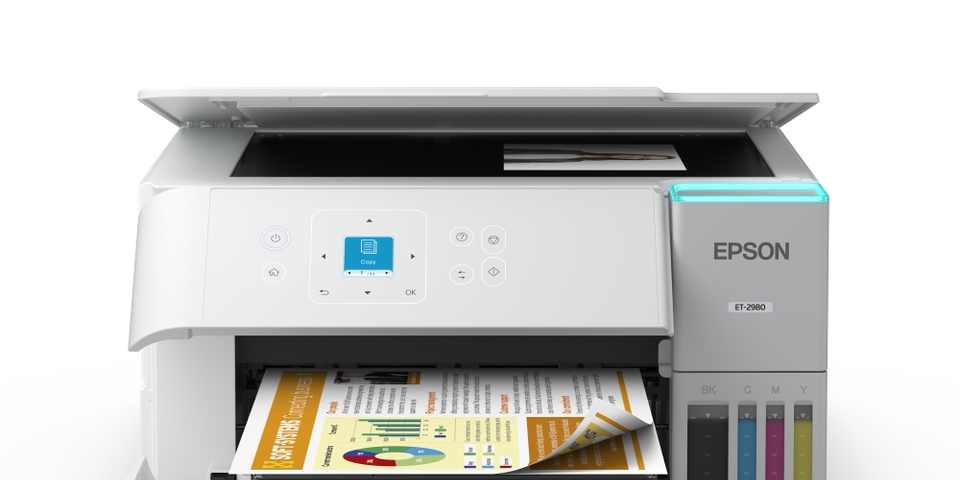
The Epson ET-2980 Series EcoTank Printer is a compact all-in-one ink tank printer designed for home users, students, and small office environments that need low-cost, high-volume printing. It combines printing, scanning, and copying in one wireless device, making it a practical choice for everyday documents, schoolwork, shipping labels, photos, and light business use. A major advantage of the Epson ET-2980 Series EcoTank Printer is its refillable ink tank system, which helps reduce cartridge replacement costs and supports long-term savings for frequent print users. It also includes automatic two-sided printing, a color display, and wireless connectivity for simple day-to-day operation.
Users looking for an affordable EcoTank printer with strong ink efficiency will find this model appealing. It is especially useful for families, remote workers, and anyone who prints regularly but wants to avoid the ongoing expense of traditional cartridges. The printer’s compact footprint makes it suitable for desks, shelves, and smaller workspaces, while the wireless setup supports printing from laptops, smartphones, and tablets. The Epson ET-2980 Series EcoTank Printer is typically positioned in the mid-range home printer category, with an estimated price around $229.99 to $329.99 depending on color, retailer, and whether the unit is new or certified refurbished. Availability is generally strong through Epson’s store and major electronics retailers. For buyers comparing EcoTank models, it offers a balanced mix of affordability, convenience, and long-term value.
Specifications for Epson ET-2980 Series EcoTank Printer
- Print technology: 4-color dye and pigment ink tank system with MicroPiezo printhead
- Print speed: Up to 15 ISO ppm black and 8 ISO ppm color
- Auto duplex printing: Yes, with two-sided print support
- Print resolution: Up to 4800 x 1200 dpi
- Scan resolution: Up to 1200 x 2400 dpi optical scan performance
- Copy speed: Up to 11 ISO cpm black and 5.5 ISO cpm color
- Paper capacity: 100-sheet rear feed tray
- Display: 1.44-inch color LCD for menu navigation
- Connectivity: Wi-Fi, Wi-Fi Direct, Hi-Speed USB, and mobile printing support
- Supported functions: Print, scan, copy
- Ink included: Enough ink for up to 6,600 black pages and 5,500 color pages
- Monthly use profile: Best suited for light to moderate home office workloads
Compared with standard cartridge printers, the Epson ET-2980 Series EcoTank Printer offers far lower running costs and much higher page yields. Against larger EcoTank models, it is more compact and simpler, but it trades away advanced features like an automatic document feeder and fax support. That makes it a smart pick for users who want efficient everyday printing without extra complexity.
Detailed Description of the Epson ET-2980 Series EcoTank Printer
This EcoTank printer uses refillable ink bottles instead of disposable cartridges, which helps reduce waste and lower the cost per page. The system is designed for easy refilling, and the transparent tanks let users check ink levels at a glance. The printer handles everyday jobs such as homework packets, office forms, travel documents, and color photos with reliable quality. Its 4800 x 1200 dpi output supports crisp text and vivid graphics, while the scanner and copier functions make it a versatile all-in-one solution.
The build quality feels practical and compact, with a design focused on usability rather than premium styling. Materials are lightweight but sturdy enough for regular home use. The control panel is simple, and the 1.44-inch color screen makes setup and maintenance tasks easier. In real-world use, the printer is a strong fit for households that print often but do not need heavy-duty office hardware. The Epson ET-2980 Series EcoTank Printer delivers a good balance of print quality, ink efficiency, and space-saving design, especially for families and remote workers.
Setup Guide for Epson ET-2980 Series EcoTank Printer
Start by removing the packaging materials and placing the printer on a stable, level surface near a power outlet and Wi-Fi router. Open the ink tank cover, fill each tank with the correct bottle color, and make sure the ink reaches the indicated fill line. Turn on the printer and follow the on-screen prompts on the color display to complete initial ink charging. This process may take several minutes, and the printer should remain plugged in during setup.
Next, connect the printer to Wi-Fi using the display menu or Epson mobile setup instructions. For mobile printing, enable Wi-Fi Direct or add the printer through your phone’s print settings. Install the driver or Epson software on a computer if you plan to print from a desktop or laptop. Load paper into the rear tray and run a test print or nozzle check to confirm proper alignment. Avoid touching internal parts during setup, keep ink bottles upright, and never force a bottle into the wrong tank. If wireless setup fails, restart the router, move the printer closer to the network, and re-enter the password carefully.
Troubleshooting Common Epson ET-2980 Series Issues
If print quality looks faded, streaked, or incomplete, run a nozzle check and print head cleaning cycle from the maintenance menu. For Wi-Fi problems, confirm that the printer and router are on the same network, then reconnect using Wi-Fi Direct or the standard wireless setup again. If paper jams occur, gently remove the paper from the rear or output path and check that the tray is not overloaded or misaligned. Poor scan results usually improve by cleaning the scanner glass and placing documents flat on the platen.
Common alerts typically relate to low ink, paper feed issues, or connection failures. When the printer shows an error, restart the device and review the display instructions before repeating the job. To prevent recurring problems, use quality paper, store ink bottles properly, and keep firmware updated. The printer generally includes standard manufacturer warranty coverage, and support is available through Epson customer service, online troubleshooting guides, and authorized repair channels. For help, contact Epson support directly through the company’s official customer service options or the retailer where the unit was purchased.
Pros and Cons of the Epson ET-2980 Series EcoTank Printer
Pros
- Low running costs thanks to refillable ink tanks
- Strong page yield for home and light office printing
- Compact design that fits smaller workspaces
- Automatic two-sided printing saves paper
- Wireless, USB, and mobile printing support
- Good print quality for documents and casual photo use
Cons
- No automatic document feeder for multi-page scanning or copying
- No fax function for users who need office-style communication tools
- Slower than larger business printers for heavy workloads
- Basic control screen compared with premium models
- Best for home use, not ideal for fast-paced office environments
For value for money, this model stands out because ink costs are much lower than typical cartridge-based alternatives. Compared with some competing home office printers, it offers better long-term savings, though advanced users may prefer a model with faster automation features. The Epson ET-2980 Series EcoTank Printer is best for buyers who want dependable everyday printing rather than advanced business functions.
Customer Reviews and User Feedback on Epson ET-2980 Series EcoTank Printer
Typical customer feedback highlights easy setup, excellent ink efficiency, and reliable wireless printing. Many users give it around 4 to 4.5 stars for home use, especially praising the low cost per page and the convenience of refillable tanks. Common positive comments mention clear text, good photo output for a home printer, and the convenience of not buying cartridges every few weeks.
Frequent complaints usually focus on the lack of an automatic document feeder, slower scanning for multi-page jobs, and occasional Wi-Fi setup challenges. Some buyers also note that the printer is best suited for moderate use rather than heavy office production. For most families, students, and remote workers, the recommendation is positive, especially if the main goal is affordable, everyday printing. Users who need advanced scanning or faster document handling may want to compare it with higher-end EcoTank alternatives.
Faqs
How do I set up the epson ET-2980 Series EcoTank Printer for the first time?
Why is my epson ET-2980 Series EcoTank Printer not connecting to Wi-Fi?
What should I do if the epson ET-2980 Series EcoTank Printer prints blank pages or faded text?
Is the epson ET-2980 Series EcoTank Printer compatible with AirPrint, Mopria, and mobile printing apps?
What paper sizes and print features does the epson ET-2980 Series EcoTank Printer support?
How can I improve print speed and reduce paper jams on the epson ET-2980 Series EcoTank Printer?
How often should I clean and maintain the epson ET-2980 Series EcoTank Printer?
Why is my epson ET-2980 Series EcoTank Printer not scanning to my computer or cloud service?
More epson manuals
Leave a Comment