
Epson Home Cinema 3200 Projector User Manual
Content
Epson Home Cinema 3200 Projector Review and Manual
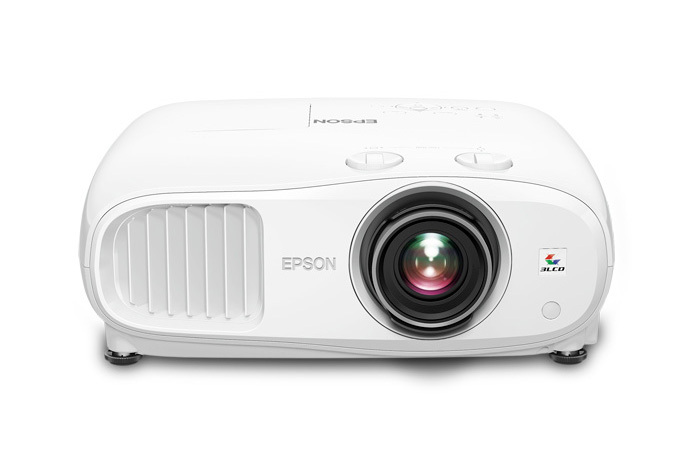
Introduction
The Epson Home Cinema 3200 projector is a popular 4K PRO-UHD home theater model designed for users who want a bright, flexible, and cinematic big-screen experience without moving into premium-priced laser projectors. Built around Epson’s 3LCD technology and 4K enhancement processing, it delivers sharp-looking Ultra HD content, strong color performance, and useful HDR support for movies, streaming, sports, and gaming. With two HDMI inputs, wide lens shift, and a large projection range, it is especially appealing to users who want an easy-to-place projector for a dedicated media room or living room setup.
One of the biggest advantages of the Epson Home Cinema 3200 projector is its combination of brightness and image flexibility. Rated at 2,900 lumens for both white and color brightness, it performs well in rooms that are not fully dark, making it suitable for daytime TV, family movie nights, and console gaming. It also supports full 10-bit HDR and HLG, which helps improve contrast and color detail in compatible content. The 1.62x manual zoom and generous vertical and horizontal lens shift make installation easier than many competing projectors in the same class.
This model typically sells in the approximate $1,300 to $1,600 range depending on retailer, promotions, and condition, with refurbished units sometimes lower. It remains widely available through major electronics retailers and Epson’s home theater lineup, making it a strong option for buyers searching for a reliable 4K projector for home entertainment.
Specifications
- Display technology: 3LCD with 4K PRO-UHD processing
- Native resolution: 1920 x 1080 with pixel-shifted 4K enhancement
- Brightness: 2,900 lumens white brightness and 2,900 lumens color brightness
- Contrast ratio: Up to 40,000:1 dynamic contrast
- HDR support: Full 10-bit HDR and HLG compatibility
- Light source: 250W UHE lamp
- Lamp life: Up to about 3,500 hours high, 4,000 hours medium, and 5,000 hours ECO mode
- Lens: 1.62x manual zoom and manual focus
- Lens shift: Horizontal +/-24% and vertical +/-60%
- Throw ratio: 1.32:1 to 2.15:1
- Image size: Approximately 39.7 inches to 300.4 inches
- Connections: 2 HDMI inputs, USB ports, audio out, 12V trigger, and RS232C
- Gaming support: HDMI 2.0 with 4K HDR at 60 fps
- Weight: About 14.6 lb
Compared with the Epson Home Cinema 3800, the 3200 is typically the more affordable sibling while still offering the same 4K PRO-UHD class image experience. Against similarly priced DLP models, it stands out for brighter color output and the absence of rainbow artifacts.
Detailed Description
The Epson Home Cinema 3200 projector is designed to create a large, immersive screen image using Epson’s 3LCD light engine and 4K enhancement processing. Instead of using a native 4K panel, it rapidly shifts pixels to reproduce a sharper 4K-style image while maintaining strong brightness and color accuracy. This approach is especially useful for users who want a balanced projector for movies, TV, live sports, and gaming in a home theater or mixed-use room.
Real-world use cases include streaming 4K content from media sticks, watching Blu-ray movies, playing console games at 4K HDR 60 fps, and projecting content onto screens up to 300 inches. The projector’s wide lens shift and manual zoom help it fit into rooms with shelf mounting, ceiling mounting, or off-center placement. The build is solid and practical, with a large chassis, glass lens assembly, and a straightforward control layout aimed at dependable long-term use.
User experience is generally strong for buyers who value brightness, ease of placement, and rich color. The fan noise is noticeable in brighter modes but acceptable for most home theater setups. Because the unit uses a lamp instead of a laser light source, owners should expect eventual lamp replacement as part of normal maintenance.
Setup Guide
- Place the projector on a stable surface or ceiling mount with enough ventilation around all sides.
- Connect your video source to one of the two HDMI inputs using a high-speed HDMI cable.
- Power on the projector, then adjust zoom and manual focus until the image is sharp.
- Use the vertical and horizontal lens shift controls to align the picture with the screen before relying on keystone correction.
- Select the appropriate picture mode for your content, such as Cinema, Bright Cinema, or HDR mode.
- If using Bluetooth audio, pair the projector with a compatible speaker or sound system through the audio settings.
- For gaming, enable low-latency settings on your console and confirm the HDMI input is set for 4K HDR output.
Keep the projector away from heat sources, avoid blocking the intake or exhaust vents, and never look directly into the lens when the lamp is on. If the image is misaligned, re-check lens shift and projector placement before using keystone adjustment. If there is no signal, test another HDMI cable or source device.
Troubleshooting
- No image: Confirm the HDMI source is on, the correct input is selected, and the cable is fully seated.
- Dim picture: Switch out of ECO mode, check lamp hours, and clean the air filter.
- Blurred image: Re-adjust manual focus and verify the projector is level with the screen.
- Overheating or shutdown: Improve airflow, clean vents, and make sure the projector is not enclosed in a tight cabinet.
- Audio not playing through Bluetooth: Re-pair the device and confirm the external speaker supports the required profile.
- Keystone or alignment issues: Use lens shift first, then apply only minimal digital correction if needed.
There are no widely used public error codes for everyday setup issues on this model, so most problems are resolved through input checks, lamp maintenance, and ventilation improvements. Preventive care includes cleaning the filter regularly, keeping firmware current if updates are offered through Epson support, and replacing the lamp when brightness declines. Warranty and repair assistance are available through Epson support channels; customers in the U.S. can contact Epson support at the published Epson Home Cinema 3200 support line listed on Epson’s product support page.
Pros & Cons
Pros
- Bright 2,900-lumen output works well in moderately lit rooms.
- Strong color performance from 3LCD technology.
- Wide lens shift makes installation easier than many competitors.
- Two HDMI 2.0 ports support modern streaming devices and game consoles.
- Good value for buyers seeking a midrange 4K home theater projector.
- Large image support up to 300 inches for immersive movie viewing.
Cons
- Not a true native 4K projector, since it relies on pixel-shifting enhancement.
- Lamp-based design requires future lamp replacement.
- Fan noise can be noticeable in brighter picture modes.
- Built-in audio is limited, so external speakers are recommended.
- Heavier and larger than compact lifestyle projectors.
For value for money, the Epson Home Cinema 3200 projector compares well against many similarly priced 4K home theater models because it balances brightness, color accuracy, and placement flexibility. Buyers who want a true native 4K image or a laser light source may prefer more expensive alternatives, but those users will usually pay significantly more.
Customer Reviews
Customer feedback for the Epson Home Cinema 3200 projector is generally positive, with many users praising the bright image, vivid color, and easy setup. A common rating pattern is around 4.5 out of 5 stars, especially among buyers using it for movies and gaming in medium-sized rooms.
- “Great picture even with some room light.” Users frequently praise its brightness and color performance for family rooms.
- “Easy to install with lens shift.” Many reviewers like the flexible placement options.
- “Not truly native 4K, but looks very sharp.” Some buyers note the difference between enhanced 4K and native 4K, but still feel the image quality is excellent.
- “External speakers are a must.” Audio is one of the most common complaints.
Most purchase recommendations favor movie fans, sports viewers, and gamers who want a reliable midrange projector with strong brightness. Buyers who prioritize silent operation or built-in smart TV features may want to compare it with newer alternatives before purchasing.
Faqs
How do I set up the epson Home Cinema 3200 Projector for the first time in a living room or home theater?
What is the best way to get a sharp image from the epson Home Cinema 3200 Projector without distortion?
Why is my epson Home Cinema 3200 Projector showing a dim or washed-out picture?
Can the epson Home Cinema 3200 Projector work with 4K streaming devices and game consoles?
How do I fix epson Home Cinema 3200 Projector if it keeps losing signal from my HDMI device?
What picture settings should I use on the epson Home Cinema 3200 Projector for movies, sports, and gaming?
How often should I clean and maintain the epson Home Cinema 3200 Projector to keep it performing well?
What should I do if the epson Home Cinema 3200 Projector fan is noisy or the projector overheats?
More epson manuals
Leave a Comment