
Epson PowerLite S39/W39/X39 Projector User Manual
Content
Introduction to the Epson PowerLite S39/W39/X39 Projector
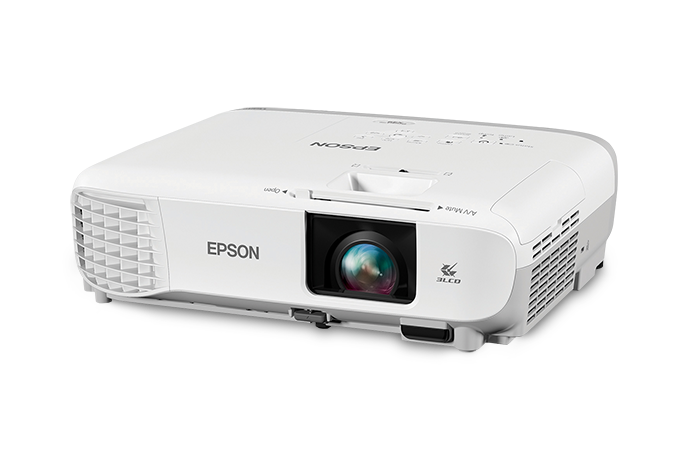
The Epson PowerLite S39/W39/X39 Projector series is designed for classrooms, meeting rooms, training spaces, and everyday business presentations. Built on 3LCD projection technology, these models deliver bright, color-accurate images that remain easy to see in well-lit environments. The series includes three native resolutions to match different content needs: SVGA for the S39, XGA for the X39, and WXGA for the W39. That flexibility makes the line suitable for everything from basic slideshows to widescreen lessons and data-rich presentations.
One of the biggest advantages of the Epson PowerLite S39/W39/X39 Projector lineup is brightness. The S39 offers 3,300 lumens, while the X39 and W39 deliver 3,500 lumens, helping images stay vivid in classrooms and conference rooms without needing total darkness. These projectors also support large image sizes and long projection distances, which makes them practical for medium to large spaces. The optical aspect ratio varies by model, with the S39 and X39 using 4:3 and the W39 using 16:10 for widescreen content.
This series is a strong fit for teachers, office teams, IT departments, and presenters who want a dependable projector with straightforward setup and broad compatibility. Based on the original launch pricing and current reseller availability, estimated market prices typically range from about $300 to $600 depending on model, condition, and seller. Units may still be found through authorized resellers, refurbished channels, and secondary marketplaces, making them a budget-conscious choice for organizations that need reliable projection without moving into premium-class pricing.
Specifications for Epson PowerLite S39/W39/X39 Projector
- Display technology: Poly-silicon TFT active matrix with 3LCD imaging.
- Native resolution: S39: 800 × 600 SVGA; X39: 1024 × 768 XGA; W39: 1280 × 800 WXGA.
- Brightness: S39: 3,300 lumens; X39: 3,500 lumens; W39: 3,500 lumens.
- Eco brightness: S39: 2,050 lumens; X39: 2,230 lumens; W39: 2,280 lumens.
- Aspect ratio: S39/X39: 4:3; W39: 16:10.
- Lens: S39: F=1.44, focal length 16.7 mm; X39/W39: F=1.49 to 1.72, focal length 16.9 to 20.28 mm.
- Color performance: Up to 1 billion colors for smooth gradients and clearer graphics.
- Image size: S39: 23 to 350 inches; X39: 30 to 300 inches; W39: 33 to 320 inches.
- Projection distance: S39: 0.88 to 10.44 m; X39: 0.89 to 10.95 m; W39: 0.91 to 10.89 m.
- Performance comparison: The S39 is best for basic presentation needs, the X39 balances resolution and brightness for classrooms, and the W39 is ideal for widescreen content and modern office layouts.
Detailed Description of the Epson PowerLite S39/W39/X39 Projector
The Epson PowerLite S39/W39/X39 Projector family is built to make everyday projection simple and dependable. Each model uses Epson’s 3LCD architecture, which helps produce consistent color brightness and reduces the rainbow artifacts often seen in single-chip DLP projectors. In practical use, that means slides, charts, text, and videos appear more natural and easier to read during long sessions.
The housing is designed for classroom and office use, with a durable plastic chassis that stays lightweight enough for portable setups while still feeling solid on a desk, ceiling mount, or cart. The zoom and lens differences between models give users more flexibility when adjusting throw distance and screen size. The W39 is the strongest choice for widescreen presentations, while the S39 is a straightforward option for standard slide decks and training materials.
In real-world environments, these projectors work well for lessons, boardroom presentations, worship services, and shared workspaces. Users typically value the bright output, easy focus adjustment, and reliable image quality. For many buyers, the appeal of the Epson PowerLite S39/W39/X39 Projector lies in its combination of simplicity, brightness, and low-friction operation rather than advanced smart features.
Setup Guide: How to Install and Configure the Epson PowerLite S39/W39/X39 Projector
- Place the projector on a stable surface or mount it securely on the ceiling, leaving enough ventilation space around the air intakes and exhaust vents.
- Connect the power cable and wait for the indicator light to confirm standby readiness.
- Attach your source device using HDMI, VGA, or another available input on the projector and the external device.
- Turn on the projector, then select the correct input source from the menu or remote control.
- Adjust the zoom and focus ring until the image is sharp and properly framed on the screen.
- Use keystone correction only when necessary, since excessive correction can slightly reduce image quality.
- Configure brightness, color mode, and aspect ratio to match the room lighting and content type.
For wireless or multi-device sharing, use the supported external Epson options if your unit includes them or if your installation requires network-based projection. If the image does not appear, check that the cable is firmly connected, the correct input is selected, and the source device is outputting to an external display. Always power off the projector properly before disconnecting cables.
Safety warning: avoid blocking vents, handling the lamp area immediately after use, or placing the projector near moisture, heat, or unstable surfaces.
Troubleshooting the Epson PowerLite S39/W39/X39 Projector
- No image on screen: Confirm the input source, cable connection, and source device display settings.
- Fuzzy or blurry picture: Refocus the lens, clean the projection path, and reduce excessive keystone correction.
- Overheating warning: Ensure vents are unobstructed, the air filter is clean, and the projector is used in a cooler room.
- Dim image: Switch from ECO mode to Normal mode, check lamp age, and verify the room lighting is not overpowering the display.
- Image mismatch or cropping: Adjust aspect ratio and resolution settings on both the projector and the connected device.
- Intermittent shutdowns: Inspect the power source, extension cord, and ventilation clearance.
For prevention, clean filters regularly, let the projector cool down after use, and avoid operating it in dusty spaces. If a lamp or hardware issue persists, Epson support provides warranty-based assistance and product-specific service options. U.S. support information includes Epson PrivateLine at (800) 637-7661 and support specialist access at (562) 276-4394. Additional regional support options are available through Epson’s official support channels.
Pros and Cons of the Epson PowerLite S39/W39/X39 Projector
Pros
- Bright output makes it suitable for classrooms and meeting rooms with ambient light.
- 3LCD technology delivers strong color performance and readable text.
- Multiple native resolution options let buyers choose between SVGA, XGA, and WXGA.
- Simple setup is ideal for schools, offices, and shared spaces.
- Good value for organizations looking for a reliable mainstream projector.
Cons
- The S39’s SVGA resolution is less detailed than newer widescreen alternatives.
- These models lack the advanced smart features found in newer premium projectors.
- Keystone-heavy setups can slightly reduce sharpness.
- Older-generation hardware may be harder to find new in some regions.
For value for money, the Epson PowerLite S39/W39/X39 Projector remains attractive for buyers who need dependable brightness and a straightforward user experience rather than premium networking or interactive tools. Compared with newer budget projectors, it often wins on proven classroom usability and image clarity, while newer competitors may offer more wireless convenience.
Customer Reviews of the Epson PowerLite S39/W39/X39 Projector
User feedback commonly gives the series around 4 out of 5 stars for reliability, brightness, and ease of use. Many buyers praise the clear image output in lit rooms, especially the X39 and W39 for presentations and classroom use. Teachers and office users often mention that text remains readable and setup is quick.
Common complaints include the more basic resolution of the S39 and the lack of modern built-in smart streaming features. Some users also note that fan noise is noticeable in quiet rooms and that keystone correction should be minimized for best clarity.
Typical testimonial themes include: “Excellent for classrooms,” “Very bright for the price,” and “Easy to install and operate.” The strongest purchase recommendation is for buyers who want a durable, practical projector for presentations, training, and standard AV use rather than home theater or ultra-portable entertainment.
Frequently Asked Questions About Epson PowerLite S39/W39/X39 Projector
What is the best model for widescreen presentations?
The W39 is the best choice for widescreen content because it uses a native 16:10 aspect ratio and 1280 × 800 WXGA resolution.
Which model is best for basic classroom use?
The X39 offers a strong balance of brightness and XGA detail, while the S39 is suitable for simpler presentation needs and smaller budgets.
How bright is the Epson PowerLite S39/W39/X39 Projector?
The S39 delivers 3,300 lumens, and the X39 and W39 each deliver 3,500 lumens for strong visibility in well-lit rooms.
Is the Epson PowerLite S39/W39/X39 Projector still worth buying?
Yes, for buyers who want a dependable projector with proven performance, easy setup, and strong classroom or office usability, it remains a practical choice.
Faqs
How do I set up the epson PowerLite S39/W39/X39 Projector for the first time?
Why is my epson PowerLite S39/W39/X39 Projector showing no signal from my laptop or HDMI device?
What resolution and source settings work best with the epson PowerLite S39/W39/X39 Projector?
Can the epson PowerLite S39/W39/X39 Projector connect to smartphones, tablets, or streaming devices?
How do I improve brightness and image quality on the epson PowerLite S39/W39/X39 Projector in a lit room?
What should I do if the epson PowerLite S39/W39/X39 Projector image looks blurry or distorted?
How often should I clean and maintain the epson PowerLite S39/W39/X39 Projector?
What is the best way to troubleshoot overheating or unexpected shutdowns on the epson PowerLite S39/W39/X39 Projector?
More epson manuals
Leave a Comment