
Hp 2540 All-in-One Series Deskjet User Manual
Content
HP Deskjet 2540 All-in-One Series: Product Overview, Features, and Setup Guide
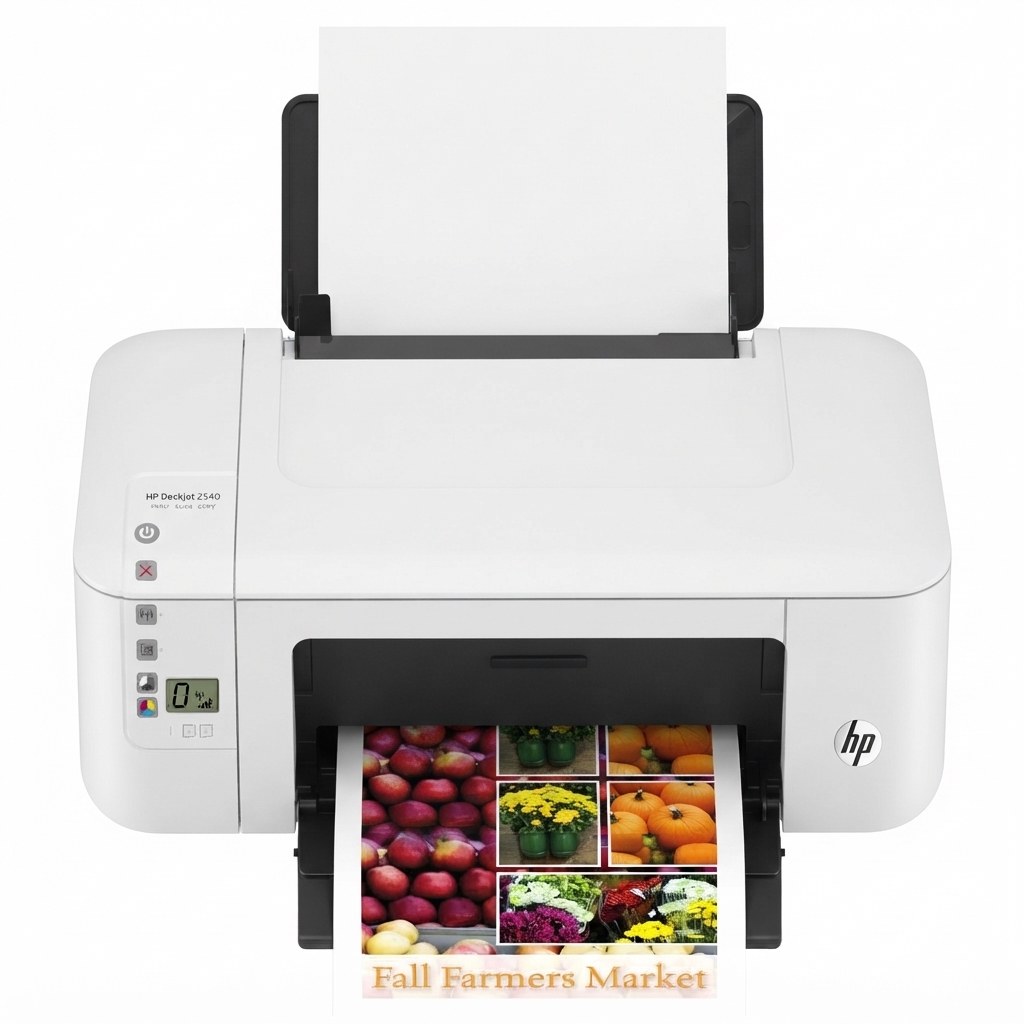
The hp 2540 All-in-One Series Deskjet is a compact inkjet multifunction printer designed for everyday home and small-office use. It combines printing, scanning, and copying in one lightweight device, making it a practical choice for users who need a simple, affordable all-in-one printer for documents, homework, labels, and occasional photo printing. With thermal inkjet technology, a two-cartridge system, and support for both black-and-white and color output, it delivers a balanced mix of convenience and value.
This model is especially useful for students, remote workers, families, and budget-conscious buyers who want a straightforward printer without a complicated setup. Typical performance includes up to 7 ppm in black and up to 4 ppm in color for ISO printing, with faster draft speeds for everyday tasks. The scanner supports up to 1200 dpi optical resolution, which is suitable for digitizing forms, receipts, and basic images. The printer also supports manual duplex printing, standard USB 2.0 connectivity, and wireless printing on supported versions, depending on the exact unit configuration.
In terms of cost, the hp 2540 All-in-One Series Deskjet is generally found in the budget range on the used and refurbished market, with prices often varying by condition, cartridge status, and warranty coverage. It is no longer a current flagship model, so availability is usually strongest through third-party sellers, refurbished resellers, and remaining retail stock. For users who need a dependable entry-level printer, the Deskjet 2540 remains an attractive option thanks to its low upfront cost, compact footprint, and easy-to-understand operation.
Troubleshooting the HP 2540 All-in-One Series Deskjet
Common issues with the hp 2540 All-in-One Series Deskjet usually involve paper jams, cartridge recognition errors, wireless setup problems, and slow or faded print quality. If the printer shows a paper jam, turn it off, open the access doors, and gently remove any stuck paper from the input and output paths. If printouts are streaky or missing colors, run the printer cleaning utility and check whether the black or tri-color cartridge needs replacement.
Error messages such as cartridge problems or general printer status warnings often clear after reseating the ink cartridges and making sure the protective tape has been removed. If the printer is not detected over USB, try a different cable or port and restart both the printer and computer. For wireless issues, reset the connection and reconnect the device through the HP software or mobile app if supported by your unit. Preventive care includes using quality paper, keeping the paper tray properly aligned, and storing ink cartridges in a cool, dry environment.
Warranty coverage depends on the seller and region, so check the purchase documentation for details. For additional help, users can contact HP support through the official support website, live chat, or phone support in their country. If the printer was bought refurbished, contact the reseller for service options and replacement policies.
Pros and Cons of the HP 2540 All-in-One Series Deskjet
Pros
- Compact all-in-one design that saves desk space and works well in small rooms.
- Affordable entry-level pricing, especially on the refurbished and used market.
- Easy setup for basic print, scan, and copy tasks.
- Good enough print quality for schoolwork, forms, and everyday documents.
- Two-cartridge ink system makes maintenance simple for casual users.
Cons
- Print speeds are modest compared with newer budget printers.
- No automatic duplex printing, so double-sided jobs must be handled manually.
- Ink costs can be high if used frequently, especially for color printing.
- Wireless performance may be less convenient than newer smart printers.
- Best suited for light to moderate use rather than high-volume office printing.
For value for money, the hp 2540 All-in-One Series Deskjet works best as a low-cost utility printer. Compared with newer alternatives, it is less advanced, but it can still be a sensible purchase for users who only need the basics and want a simple all-in-one printer rather than a feature-heavy model.
Customer Reviews and User Feedback
Overall user feedback for the hp 2540 All-in-One Series Deskjet is mixed to positive, with many owners giving it around 3.8 to 4.2 out of 5 stars for home use. Buyers often praise its compact size, straightforward setup, and reliable scanning for everyday tasks. A common compliment is that it is “a no-fuss printer that gets the job done for school and home documents.”
Common complaints include slower print speeds, occasional wireless setup frustrations, and the cost of replacement ink cartridges. Some users also mention that it is not ideal for frequent color printing or heavy workloads. Still, many customers recommend it as a budget-friendly option for light use, especially when purchased at a discount or with included cartridges.
For most buyers, this printer is a good fit if the goal is basic printing, copying, and scanning without spending much upfront. It is less suitable for users who need fast output, large-volume printing, or advanced smart-home features.
Frequently Asked Questions About the HP Deskjet 2540
What is the HP Deskjet 2540 best for?
It is best for home users, students, and small workspaces that need an affordable printer for everyday documents, basic scanning, and occasional color printing.
Does the HP Deskjet 2540 support scanning?
Yes, it includes a built-in scanner with up to 1200 dpi optical resolution for copying and digitizing documents.
Is the HP Deskjet 2540 still worth buying?
It can still be worth buying if the price is low and the printer will be used for light, occasional tasks. For heavier use, a newer model may offer better speed and lower long-term hassle.
Faqs
How do I set up the hp 2540 All-in-One Series Deskjet for the first time on Windows or Mac?
Why is my hp 2540 All-in-One Series Deskjet not printing, and what troubleshooting steps should I try first?
What are the scanning features of the hp 2540 All-in-One Series Deskjet and how do I scan a document properly?
Which operating systems and devices are compatible with the hp 2540 All-in-One Series Deskjet?
How can I improve print quality on the hp 2540 All-in-One Series Deskjet when text or images look faded?
How do I fix paper jams in the hp 2540 All-in-One Series Deskjet without damaging the printer?
What maintenance routine should I follow to keep the hp 2540 All-in-One Series Deskjet working reliably?
Can I use the hp 2540 All-in-One Series Deskjet for home office tasks like copying, scanning, and everyday document printing?
More hp manuals
Leave a Comment