
Hp Pavilion Zx5000 Notebook PC User Manual
Content
HP Pavilion zx5000 Notebook PC Overview
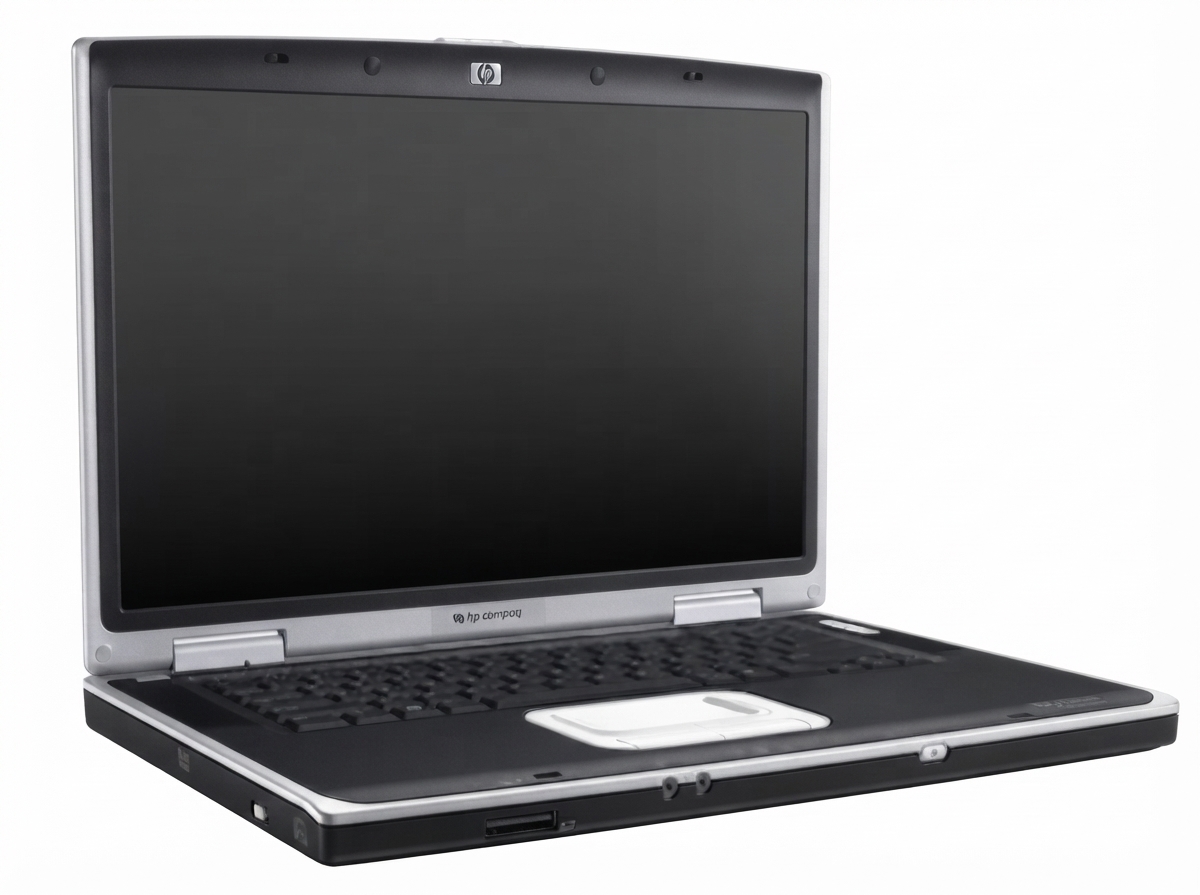
The hp Pavilion Zx5000 Notebook PC is a large-format early-2000s multimedia laptop designed for users who wanted desktop-style performance in a portable chassis. Built around mobile Intel Pentium 4 and AMD Athlon 64-era processors, it was aimed at home users, students, and budget-conscious buyers who needed a capable machine for web browsing, media playback, office work, and basic gaming. The hp Pavilion Zx5000 Notebook PC stands out for its wide 15-inch display, strong port selection, upgrade-friendly design, and multimedia-focused hardware that made it more versatile than many entry-level notebooks of its time.
This model is best known for its robust build and practical expansion options, including PC Card support, multiple USB ports, FireWire connectivity, and discrete ATI Mobility Radeon graphics in some configurations. The system’s size and weight make it less ideal for frequent travel, but that same larger chassis helped HP deliver better cooling and room for storage and serviceable components. For users looking at legacy hardware, it remains a recognizable example of HP’s early Pavilion entertainment laptops.
As a discontinued product, availability is limited to used marketplaces, refurbished listings, and spare-parts sellers. Estimated pricing typically ranges from about $30 to $150 depending on condition, configuration, battery health, and included accessories. Collectors, repair hobbyists, and retro-computing enthusiasts are the most likely buyers today.
Pros and Cons of the hp Pavilion Zx5000 Notebook PC
Pros
- Upgradeable and service-friendly design: The chassis supports easier maintenance than many slim laptops, making memory, storage, and optical-drive service more practical.
- Large multimedia display: The 15-inch screen is well suited for DVD playback, office tasks, and general home use.
- Strong legacy connectivity: USB, FireWire, PC Card slots, Ethernet, and media-reader options add useful flexibility for older peripherals.
- Good value on the used market: For collectors or parts buyers, the hp Pavilion Zx5000 Notebook PC can be inexpensive compared with other vintage laptops in similar condition.
Cons
- Heavy and bulky: At over 8 pounds in many configurations, it is not convenient for daily commuting.
- Outdated performance: Modern software, current web standards, and recent operating systems are beyond its practical limits.
- Battery life is poor by modern standards: Age-related battery wear is common, and replacement packs may be difficult to find.
- Alternative options may be better for everyday use: A refurbished modern budget laptop will outperform it in speed, battery life, and compatibility.
Overall, the hp Pavilion Zx5000 Notebook PC offers nostalgic value and useful legacy hardware support, but it is not a strong choice for current mainstream computing. It makes the most sense as a collector item, repair project, or low-cost spare machine rather than a primary laptop.
Customer Reviews and User Feedback
User impressions of the hp Pavilion Zx5000 Notebook PC are generally mixed, with most ratings landing around 3.5 out of 5 stars in vintage-laptop communities and resale listings. Praise often centers on its sturdy build, generous port selection, and roomy display, while complaints usually focus on heat, fan noise, and aging batteries.
Typical testimonials include comments such as: “Great for retro games and older software,” “Bulky but reliable,” and “The screen and speakers were better than expected for its era.” Common criticism includes: “Too heavy for travel,” “Battery barely holds a charge,” and “Finding replacement parts takes effort.”
If you are considering the hp Pavilion Zx5000 Notebook PC, it is best suited for collectors, technicians, and users who need a compatible legacy system. Buyers should prioritize units with a working charger, intact hinges, and a tested hard drive or SSD conversion, since those are the most frequent failure points in older notebooks.
Key Specifications and Use Cases
- 15-inch class display for home and media use
- Mobile Pentium 4, AMD Athlon 64, or AMD XP-M-era configurations depending on model
- ATI Mobility Radeon graphics in select versions
- Multiple USB ports, FireWire, Ethernet, and PC Card expansion
- Best for retro software, repair work, collecting, and basic offline tasks
Final Verdict
The hp Pavilion Zx5000 Notebook PC is a classic early multimedia notebook with strong expandability, a large screen, and a design that reflects the best of its era. It is a smart purchase only if you specifically want vintage HP hardware, need legacy compatibility, or are restoring older systems. For modern productivity, a newer laptop is the better investment.
Faqs
How do I set up hp Pavilion Zx5000 Notebook PC for the first time without missing important steps?
What should I do if hp Pavilion Zx5000 Notebook PC will not turn on or boots very slowly?
Which accessories and software are compatible with hp Pavilion Zx5000 Notebook PC?
How can I improve battery life on hp Pavilion Zx5000 Notebook PC during daily use?
Why does hp Pavilion Zx5000 Notebook PC overheat, and how can I cool it down safely?
How do I connect hp Pavilion Zx5000 Notebook PC to Wi‑Fi and fix common wireless connection problems?
What are the best ways to keep hp Pavilion Zx5000 Notebook PC running fast over time?
How should I clean and maintain hp Pavilion Zx5000 Notebook PC to avoid damage?
More hp manuals
Leave a Comment