
Hp Pavilion Dv2500 Notebook PC User Manual
Content
HP Pavilion dv2500 Notebook PC: Complete Product Manual and Buyer Guide
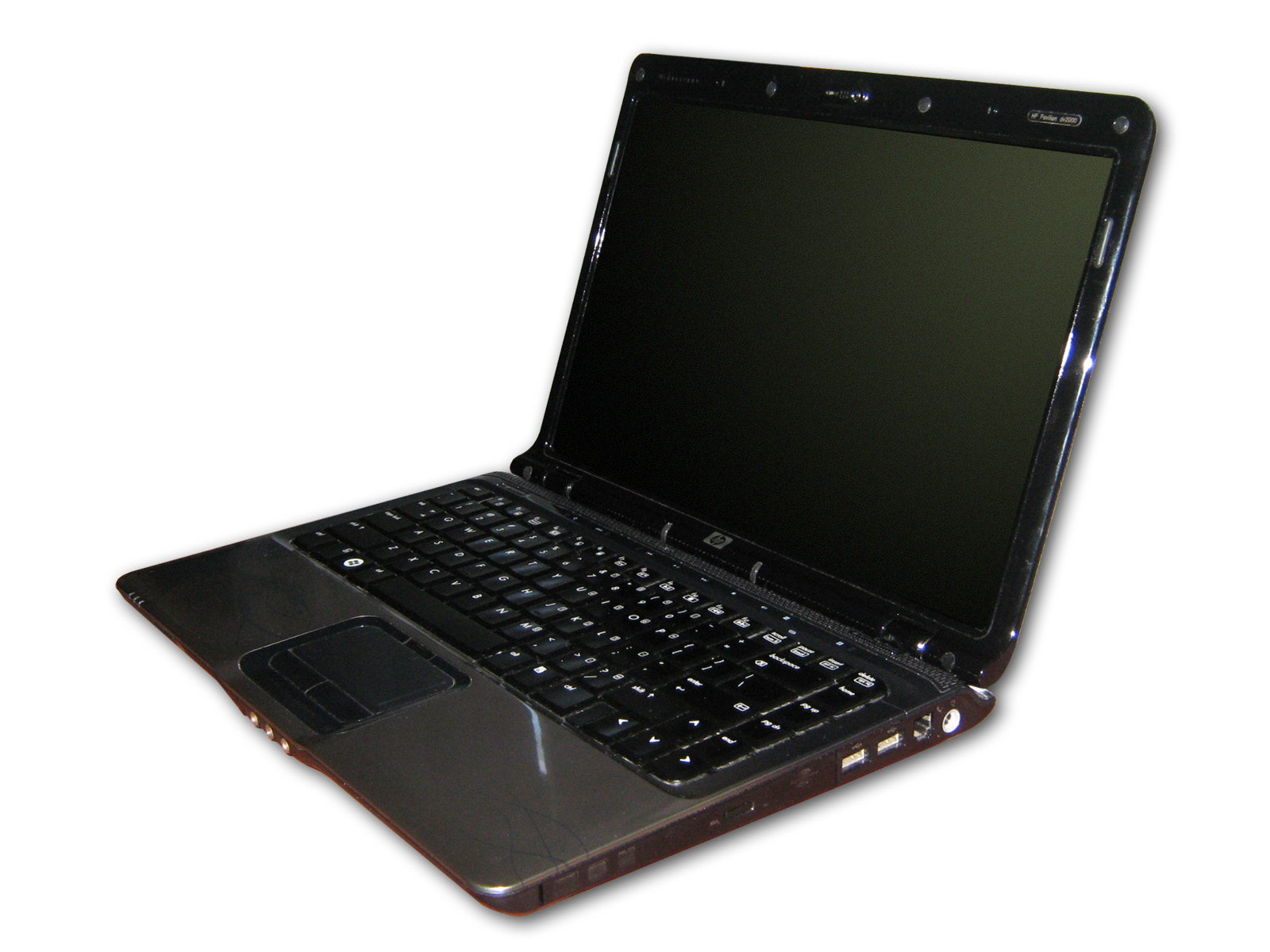
The HP Pavilion dv2500 Notebook PC is a compact consumer laptop built for everyday computing, media playback, office work, and light multitasking. Designed as part of HP’s Pavilion entertainment line, it typically features 14.1-inch display options, Intel Core 2 Duo or Core Duo processors, DDR2 memory, and integrated or discrete graphics depending on the configuration. This makes the HP Pavilion dv2500 Notebook PC a practical choice for users who need a dependable machine for web browsing, document editing, email, and streaming older media formats.
One of its main strengths is its balance of portability and usability. The laptop’s 14-inch form factor is easier to carry than many full-size notebooks, while still offering a comfortable keyboard and usable screen size for daily tasks. Many units also include multiple connectivity options, such as USB ports, Wi-Fi, Ethernet, VGA, and an optical drive, which increases flexibility for school, home, and office use. Depending on the specific configuration, the notebook may also include Altec Lansing speakers and HP BrightView display technology for a more engaging multimedia experience.
Because this model is discontinued, availability is mostly limited to second-hand marketplaces, refurbished resellers, and surplus inventory. Estimated pricing usually falls between $50 and $200, depending on condition, battery health, storage upgrades, and whether the system has been refreshed with a solid-state drive or additional memory. For buyers looking for a low-cost legacy Windows laptop, the HP Pavilion dv2500 Notebook PC remains a budget-friendly option, especially for basic productivity and repair-friendly ownership.
Troubleshooting the HP Pavilion dv2500 Notebook PC
Common problems include slow startup, overheating, weak battery life, no display, and boot failures. If the laptop runs slowly, upgrade from a traditional hard drive to an SSD and increase memory where supported. If the system overheats or shuts down unexpectedly, clean the fan vents, use the laptop on a hard surface, and replace dried thermal paste if needed. A blank screen can often be resolved by reseating memory modules, checking the LCD cable, or testing with an external monitor.
Typical startup symptoms may include BIOS warnings such as “Boot Device Not Found” or hard drive failure messages. These often point to a failing drive, loose connection, or corrupted boot files. If the notebook shows battery-related issues, calibrate the battery, update power settings, or replace the pack if runtime has become very short. Preventive care includes regular dust cleaning, cautious hinge handling, and avoiding blocked airflow. Since this is an older system, warranty coverage is usually expired, but support may still be available through HP documentation, community forums, and third-party repair specialists. For help, check HP’s official support site, consult the product manual, or contact HP customer care through regional support channels.
Pros and Cons of the HP Pavilion dv2500 Notebook PC
Pros
- Portable 14.1-inch design that is easy to carry for school or travel.
- Comfortable for basic tasks such as word processing, email, web browsing, and media playback.
- Upgrade-friendly in many configurations, especially for storage and memory.
- Useful legacy ports and optical drive support for older peripherals and discs.
- Good value for money on the used market if purchased in working condition.
Cons
- Older processors and DDR2-era hardware limit performance for modern workloads.
- Battery life is often poor on used units due to age and wear.
- Heat buildup and fan noise can be noticeable during long sessions.
- Discontinued status means parts may be harder to source over time.
- Not ideal as a primary laptop compared with newer ultraportables or budget Chromebooks.
Compared with modern alternatives, the HP Pavilion dv2500 Notebook PC is best viewed as a legacy machine for light-duty use rather than a replacement for current consumer laptops.
Customer Reviews and User Feedback on the HP Pavilion dv2500 Notebook PC
User feedback is mixed but generally practical: many owners praise the comfortable keyboard, compact size, and solid value as a refurbished or secondary laptop. Common complaints focus on heat, aging batteries, and occasional graphics or motherboard reliability issues. Average user sentiment often lands around 3.5 out of 5 stars for buyers who understand the machine’s age and limitations.
Typical testimonials include comments such as, “Great for basic office work after an SSD upgrade,” and “Perfect for spare parts or a home backup computer.” Customers most often recommend it only if the price is low, the battery is replaceable, and the seller provides clear condition details. Buyers looking for a dependable everyday laptop for heavy multitasking should choose a newer model, while users needing an affordable legacy system may still find the HP Pavilion dv2500 Notebook PC a sensible purchase.
Faqs
How do I set up the hp Pavilion Dv2500 Notebook PC for the first time after unboxing?
What should I do if the hp Pavilion Dv2500 Notebook PC does not power on?
How can I improve slow performance on the hp Pavilion Dv2500 Notebook PC?
Which operating systems and software are compatible with the hp Pavilion Dv2500 Notebook PC?
How do I fix display, Wi‑Fi, or audio problems on the hp Pavilion Dv2500 Notebook PC?
Can I upgrade the RAM or hard drive in the hp Pavilion Dv2500 Notebook PC?
How should I clean and maintain the hp Pavilion Dv2500 Notebook PC to prevent overheating?
What battery care tips help extend the battery life of the hp Pavilion Dv2500 Notebook PC?
More hp manuals
Leave a Comment