
Hp M139 Series LaserJet MFP User Manual
Content
HP LaserJet MFP M139 Series: Compact Monochrome Multifunction Printer for Home and Small Office Use
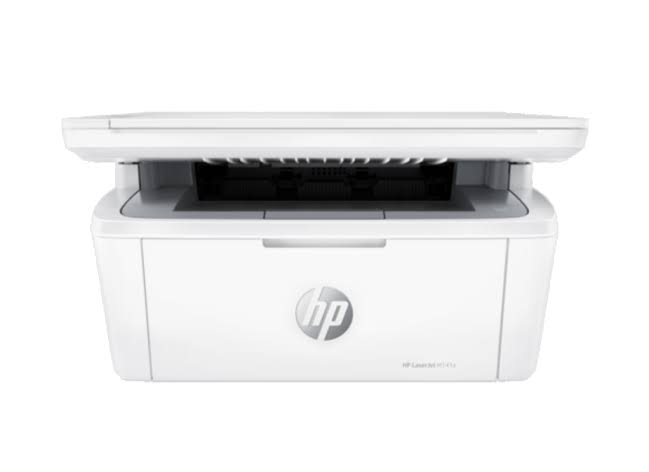
The hp M139 Series LaserJet MFP is a compact black-and-white multifunction printer designed for users who need fast, reliable everyday printing, scanning, and copying in a small footprint. Built around laser technology, this all-in-one printer is a practical choice for home offices, students, freelancers, and small teams that want crisp text output, simple operation, and low-maintenance performance. Its strongest selling points are its compact size, mobile printing support, and straightforward setup, making it well suited to workspaces where desk space is limited but productivity still matters.
With print speeds up to 19 pages per minute, a 150-sheet input tray, and support for Wi-Fi Direct, AirPrint, Mopria, and the HP app on wireless models, the hp M139 Series LaserJet MFP delivers convenience without adding complexity. It is especially useful for invoice printing, school assignments, scanned documents, internal office forms, and other black-and-white tasks. The device is also a good fit for users who want a dependable printer that can handle routine workloads without frequent intervention.
Estimated pricing generally falls in the budget-to-midrange segment, often around $100 to $200 depending on region, model variant, and retailer promotions. Availability is broad through HP stores, major electronics retailers, and online marketplaces, with wireless versions typically priced slightly higher than USB-only models. For buyers seeking a compact monochrome laser MFP with everyday versatility, the hp M139 Series LaserJet MFP remains a strong value-oriented option.
HP LaserJet MFP M139 Series Specifications and Key Features
- Functions: Print, copy, and scan
- Print technology: Monochrome laser
- Print speed: Up to 19 ppm in black
- Print quality: Up to 600 x 600 dpi
- Scan resolution: Up to 600 ppi optical
- Copy resolution: 600 x 400 dpi for black text
- Input capacity: 150-sheet standard tray
- Monthly duty cycle: Up to 8,000 pages
- Connectivity: USB 2.0 on base models; Wi-Fi 802.11b/g/n, Wi-Fi Direct, and Bluetooth on wireless variants
- Mobile printing: Apple AirPrint, Mopria-certified printing, and HP app support
- Typical size: About 360 mm wide, 263 mm deep closed, and 196 mm high
- Weight: About 5.3 kg with cartridges
In real-world use, the hp M139 Series LaserJet MFP performs best in low- to moderate-volume environments where fast monochrome output is more important than color printing. Compared with many inkjet multifunction printers in the same class, it offers sharper text, lower maintenance, and better long-term efficiency for document-heavy tasks. Against similar compact laser MFPs, it stands out for easy mobile printing and a simple, space-saving design, though it does not include automatic duplex printing on most versions.
HP LaserJet MFP M139 Series Troubleshooting Guide: Common Problems and Solutions
If the printer does not power on, check the power cable, wall outlet, and power strip before trying a different outlet. If print jobs are stuck, clear the queue from the computer or mobile device, then restart the printer and reconnect the USB or Wi-Fi link. For poor print quality, remove and gently shake the toner cartridge, verify paper type settings, and run a cleaning cycle if available. For scan issues, confirm the HP software or mobile app is installed and that the device is on the same network when using wireless features.
Common error indicators on this class of printer often relate to paper jams, toner problems, or connectivity failures. A paper jam message usually means paper is misfed in the tray or internal path and should be removed carefully without tearing. A cartridge-related alert can point to improper installation, low toner, or a protective seal that was not fully removed. Wireless connection errors usually improve after restarting the router, moving the printer closer to the access point, or reconnecting through the HP app.
Preventive maintenance helps reduce downtime: use clean, dry paper, avoid overfilling the tray, keep firmware and drivers updated, and store toner cartridges in a cool, dry place. Warranty coverage varies by region, but HP typically offers standard manufacturer support with optional extended service plans. For help, users should visit HP Support, use the embedded printer help in the HP app, or contact regional HP customer service through the official support channel listed for their country.
HP LaserJet MFP M139 Series Pros and Cons
Pros
- Compact design fits easily on a small desk or shelf.
- Fast black-and-white output is ideal for office documents and school work.
- Laser technology produces sharp text and consistent results.
- Wireless models support AirPrint, Mopria, Wi-Fi Direct, and app-based printing.
- Low-maintenance operation suits users who print regularly but not in heavy volumes.
- Strong value for money compared with many color multifunction printers.
Cons
- Monochrome only, so it is not suitable for color graphics or photo printing.
- Most versions lack automatic duplex printing.
- Paper capacity is limited to 150 sheets, which may be small for busier offices.
- Basic feature set compared with larger business MFPs.
- Wireless setup can be less convenient than plug-and-play USB for some users.
For buyers comparing it with inkjet all-in-ones, the hp M139 Series LaserJet MFP is usually the better choice for text-heavy work and long-term reliability. Compared with higher-end laser MFPs, it is more affordable and easier to place, but it sacrifices advanced options such as duplex printing, larger trays, and broader workflow automation.
HP LaserJet MFP M139 Series Customer Reviews and User Feedback
Typical customer feedback for the hp M139 Series LaserJet MFP is generally positive, with many users rating it around 4 out of 5 stars for everyday home and small office use. Buyers often praise its compact size, fast startup, and sharp text quality, especially for invoices, reports, and study materials. One common testimonial theme is that it “prints quickly and takes up very little space,” which reflects its practical design.
Common complaints usually focus on the lack of color printing, the modest paper tray capacity, and the absence of automatic double-sided printing on many models. Some users also mention that wireless setup can take time if the network is unstable. Even so, most reviewers recommend it for customers who want a reliable monochrome laser MFP rather than a feature-heavy all-in-one. For best results, it is a strong choice for households, remote workers, and small offices that value speed, simplicity, and low maintenance.
Faqs
How do I set up hp M139 Series LaserJet MFP for the first time?
Why is my hp M139 Series LaserJet MFP not printing after setup?
How do I connect hp M139 Series LaserJet MFP to Wi-Fi or a wireless network?
Which devices and operating systems are compatible with hp M139 Series LaserJet MFP?
How do I fix poor print quality on hp M139 Series LaserJet MFP?
Can hp M139 Series LaserJet MFP scan documents to email or a computer?
What maintenance does hp M139 Series LaserJet MFP need to stay reliable?
How can I make hp M139 Series LaserJet MFP print faster and more efficiently?
More hp manuals
Leave a Comment