
Hp Multifunction Series T2500 DesignJet User Manual
Content
HP Multifunction Series T2500 DesignJet Product Manual
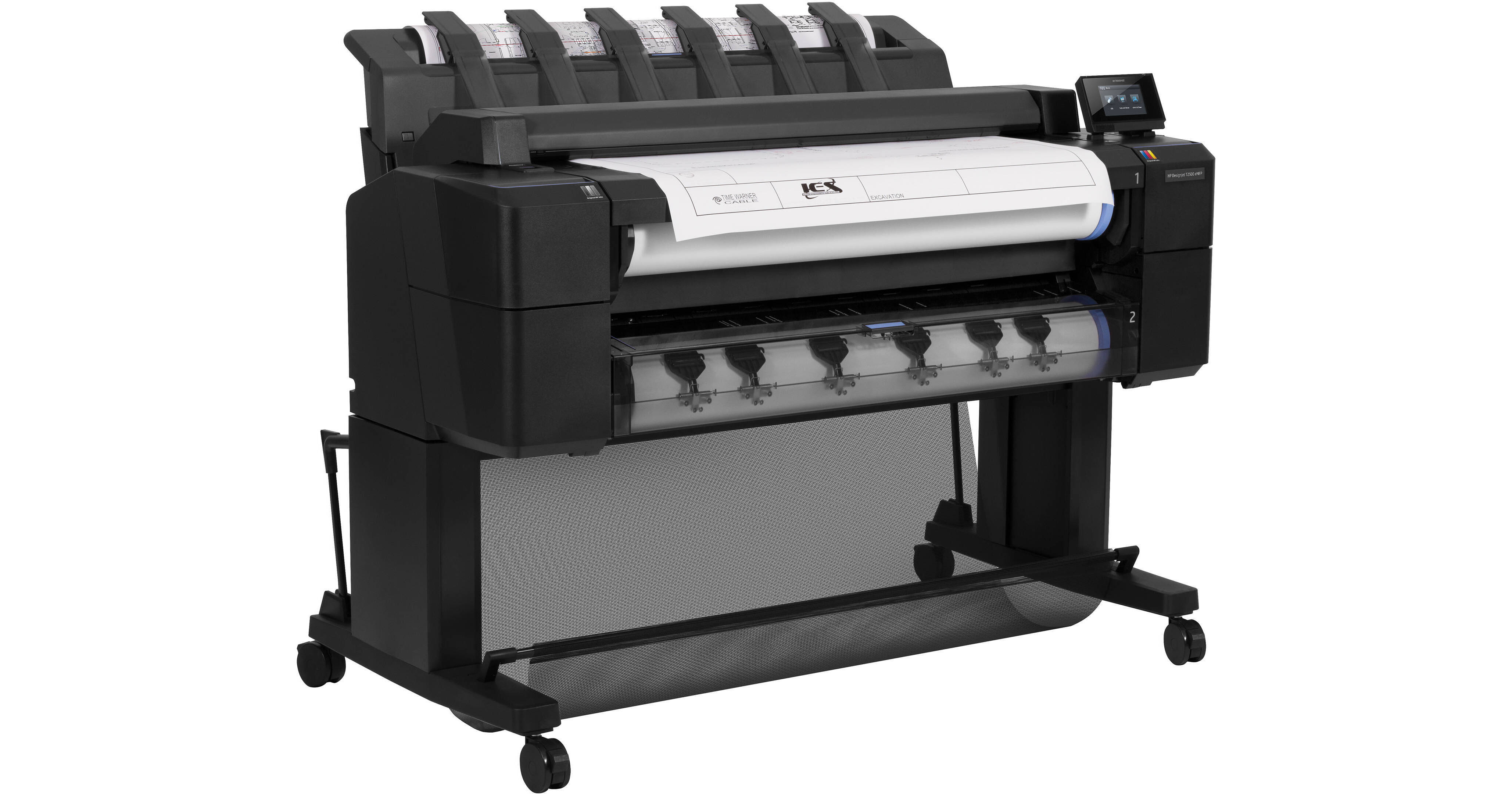
The hp Multifunction Series T2500 DesignJet is a 36-inch wide-format multifunction printer built for technical teams that need fast printing, integrated scanning, and reliable document handling in one device. Designed for CAD drawings, GIS maps, posters, and engineering plans, it combines print, scan, and copy workflows to help offices reduce equipment clutter while improving productivity. Its dual-roll media handling, automatic roll switching, and integrated scanner make it especially useful for architecture, engineering, construction, and reprographics environments where large-format output and digitization are part of daily work.
One of the biggest advantages of the hp Multifunction Series T2500 DesignJet is its balance of speed and precision. It supports up to 2400 x 1200 optimized dpi printing, delivers line-drawing output in about 21 seconds per A1/D page, and includes an integrated color scanner that can scan originals up to 36 inches wide. The system is also built for shared office use, with Gigabit Ethernet connectivity, a touchscreen control interface, and a 320 GB hard drive for queue management. This makes it a strong fit for teams that need dependable output without sending files to external print shops.
Typical market pricing for used, refurbished, or demo units generally falls in the mid-range professional equipment category, often around $4,000 to $9,000 depending on condition, configuration, and included warranty. New stock may be limited because this model is an older professional series printer, but refurbished units and service-backed resale options are still commonly available through office equipment dealers and large-format printer resellers.
Specifications for HP DesignJet T2500 Multifunction Printer Series
- Print technology: HP Thermal Inkjet
- Functions: Print, scan, and copy
- Maximum media width: 36 inches
- Print resolution: Up to 2400 x 1200 optimized dpi
- Print speed: Up to 21 seconds per A1/D line drawing; up to 120 A1/D prints per hour
- Scan width: Up to 36 inches
- Scan speed: Up to 1.5 inches per second in color and 4.5 inches per second in grayscale at 200 dpi
- Ink system: 6 cartridges with cyan, gray, magenta, matte black, photo black, and yellow
- Media handling: Dual-roll input with automatic roll switching
- Memory/storage: 128 GB virtual memory and 320 GB hard disk
- Connectivity: Gigabit Ethernet and USB host support
- Supported languages: HP-GL/2, HP-RTL, TIFF, JPEG, CALS G4, PCL 3 GUI, PDF 1.7, and Adobe PostScript 3 on PostScript models
- Weight and size: Approximately 112 kg, with a width near 139.9 cm
Compared with smaller single-function plotters, the hp Multifunction Series T2500 DesignJet offers much better workflow integration. Compared with newer compact large-format printers, it is bulkier but still valued for its multifunction convenience and production-ready scanning.
Troubleshooting the HP DesignJet T2500 Multifunction Printer
If the printer does not power on, check the power cable, outlet, and voltage compatibility before contacting support. For paper-feed problems, verify that the media is loaded correctly, the roll edge is aligned, and the carriage path is free of scraps or dust.
- Paper jam: Open the access area, remove the media carefully, and reload with clean edges.
- Scan error: Reboot the device, confirm the original is within the supported width, and clean the scanner glass.
- Ink cartridge issue: Reseat the cartridge, replace low or expired supplies, and run a printhead check.
- Network not found: Confirm Gigabit Ethernet connection, restart the printer, and verify router settings.
- Slow print queue: Clear stale jobs, check hard drive status, and reduce oversized file complexity.
Common error indicators on this class of printer typically relate to media loading, scanner calibration, or ink system alerts. Preventive care includes regular cleaning, firmware updates, and using recommended media types to reduce jams and image defects. Warranty coverage depends on seller and service contract, especially for refurbished units. For help, contact HP support through the official HP Support website, your reseller, or an authorized large-format service provider.
Pros and Cons of the HP Multifunction Series T2500 DesignJet
Pros
- All-in-one workflow: Printing, scanning, and copying in one large-format device saves space and simplifies production.
- Fast technical output: A1/D line drawings can print in about 21 seconds, which is useful for busy design offices.
- Dual-roll convenience: Automatic roll switching helps teams move between media sizes with less manual intervention.
- Strong file handling: Built-in storage and wide format support are well suited to multi-user environments.
- Good value in refurbished market: The price-to-capability ratio is attractive for firms needing a capable used plotter.
Cons
- Large footprint: The machine requires substantial office space and is not ideal for compact studios.
- Older platform: It lacks the modern compact design and cloud-first workflow found in newer alternatives.
- Maintenance demands: Ink systems, scanner alignment, and media handling can require ongoing care.
- Availability varies: New units may be difficult to source, making refurbished inventory the main option.
For buyers comparing alternatives, newer wide-format printers may offer simpler setup and lower power use, but the hp Multifunction Series T2500 DesignJet remains a strong choice when multifunction capability and dual-roll productivity matter most.
Customer Reviews of the HP DesignJet T2500
Customer feedback is generally positive, with many users giving the printer around 4 out of 5 stars for print quality, speed, and multitasking. Reviewers often praise the integrated scanner, reliable line accuracy, and convenient roll switching for production drawing rooms.
Common complaints focus on the machine’s size, upkeep requirements, and the cost of consumables. Some users also mention that scanning large originals requires careful calibration for the best results. A typical testimonial theme is that the printer is “excellent for engineering plans and daily plotting, but it needs space and regular maintenance.”
For offices that need a dependable wide-format multifunction device, the hp Multifunction Series T2500 DesignJet is often recommended as a practical buy, especially when sourced refurbished from a trusted dealer with support coverage.
Faqs
How do I set up the hp Multifunction Series T2500 DesignJet for the first time?
Why is my hp Multifunction Series T2500 DesignJet not printing from the network?
What paper sizes and media types work best with the hp Multifunction Series T2500 DesignJet?
How can I fix streaks, banding, or faded output on the hp Multifunction Series T2500 DesignJet?
Can the hp Multifunction Series T2500 DesignJet scan large drawings accurately?
What software and operating systems are compatible with the hp Multifunction Series T2500 DesignJet?
How often should I perform maintenance on the hp Multifunction Series T2500 DesignJet?
How do I reduce paper jams and loading errors on the hp Multifunction Series T2500 DesignJet?
More hp manuals
Leave a Comment