
Setup & Pairing: Jlab Studio Pro Wireless Headphones User Manual
Content
jlab Studio Pro Wireless Headphones
Introduction
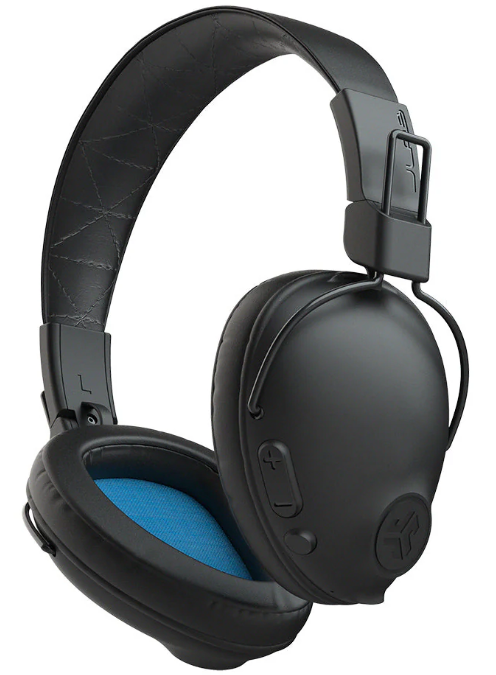
The JLab Studio Pro Wireless Headphones offer an exceptional blend of comfort, durability, and long-lasting performance, designed to elevate your everyday audio experience. Featuring an over-ear design cushioned with ultra-plush Cloud Foam and a feather-light build, these headphones provide all-day comfort whether you're working, gaming, or enjoying your favorite music. With a robust battery life exceeding 50 hours, quick 3-hour charging, and a rapid charge feature offering 1+ hour of playback from just 10 minutes of charging, these headphones are ideal for users who need dependable wireless audio for extended periods.
Equipped with Bluetooth 5 for seamless connectivity up to 30 feet, plus custom EQ3 sound presets including Signature, Balanced, and Bass Boost modes, the Studio Pro allows you to tailor your listening to any genre or environment without relying on an app. The built-in universal microphone ensures crystal-clear voice calls, making these headphones suitable for remote work, calls, and casual conversations.
Targeted at casual listeners, students, and professionals seeking value and quality without the high price tag, the jlab Studio Pro Wireless Headphones balance affordability and premium features. Typically priced around $40-$60, they are widely available through major retailers and online stores, backed by a reassuring 2-year warranty. Whether at home, commuting, or exercising, these headphones deliver versatile, reliable sound with style and comfort.
Specifications of JLab Studio Pro Wireless Headphones
- Speaker: 40mm Dynamic Driver with Neodymium Magnet
- Frequency Response: 20Hz - 20kHz
- Impedance: 32Ω ± 15%
- Output Level: 110 ± 3 dB
- Microphone: MEMS with -38dB ± 3dB sensitivity
- Battery Life: 50+ hours of playback on a full charge
- Charging Time: 3 hours full charge, 10-minute rapid charge for 1+ hour playback
- Bluetooth Version: 5.0 with 30+ ft wireless range
- Sound Modes: Custom EQ3 – Signature, Balanced, Bass Boost (no app needed)
- Weight: 141 grams, lightweight for extended wear
- Build Features: Over-ear Cloud Foam cushions, adjustable headband, foldable design for portability.
- Warranty: 2 years by JLab Audio
Compared to similar products in its price bracket, the jlab Studio Pro excels with superior battery longevity and customization options while maintaining a lightweight form factor. The inclusion of rapid charge and a built-in microphone adds versatility that rivals more expensive models.
FIRST TIME SETUP: BLUETOOTH PAIRING
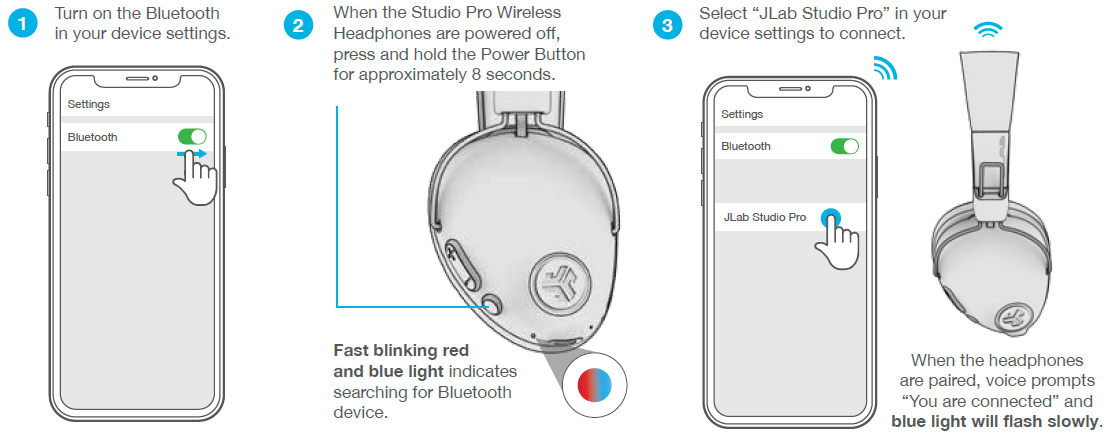
PAIRING NEW / ADDITIONAL DEVICES
Turn OFF Bluetooth on your previously paired device and turn ON Bluetooth on the new device. Repeat FIRST TIME STEUP process for new devices.
Notes:
- Bluetooth is a wireless radio technology, which means it is sensitive to objects between the headphone and the connected device. The headphone is designed to be used within 33 feet (10 meters) of a connected device, with no major objects in between (walls, etc.).
- Once successfully connected, the headphone will memorize your device and automatically pair when turned on in the future.
- Only one device may be connected at a time. To pair a different device, first unpair the current one through its Bluetooth settings.
- If , for any reason Bluetooth connection is lost, manually reconnect your Bluetooth device.
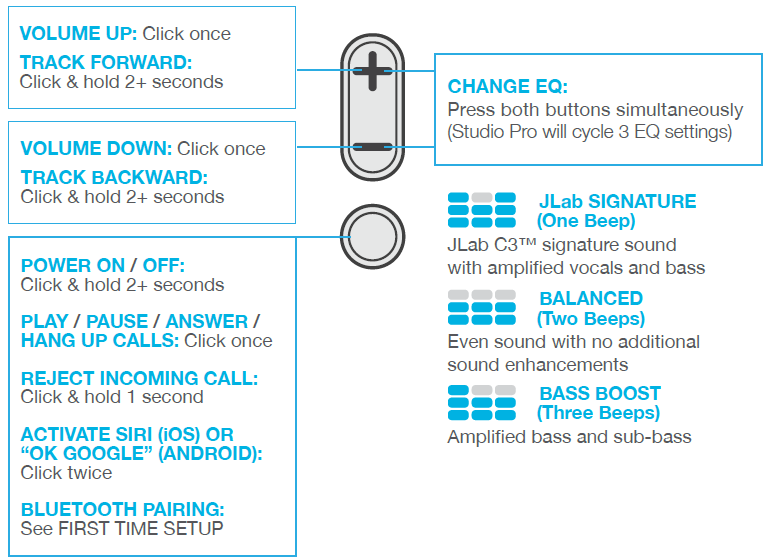
BUTTON FUNCTIONS
CHARGING
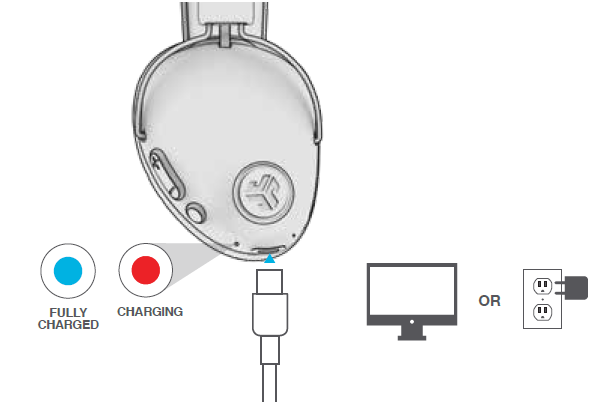
- Connect the USB Type C charging cable (included) to the headphone and connect to a computer or USB 5V/1amp output device (not included).
- Make sure the USB connection has a power output source.
- Solid red light indicates the headphone is charging.
- Solid blue light indicates charging is complete.
CAUTIONS
- Avoid getting moisture or liquids on the headphone cups.
- Avoid extreme heat, cold, and humidity.
- Avoid dropping or crushing headphones, stressing the cable by rapid pulling or extreme force, or bending the cable at a sharp angle.
- Wax may build up in headphone cups, lowering the sound quality. Carefully remove the wax with a cotton swab or other small tool to improve the sound quality.
- If you experience discomfort or pain, try lowering the volume or discontinuing use temporarily.
- If you experience regular discomfort while using this product, discontinue use and consult your physician.
- We recommend you treat your headphones as you would a nice pair of sunglasses and keep them in a safe location when not in use.
Shop products | Product alerts | Burn-in your headphones
JLab Audio + Burn-in Tool

Troubleshooting JLab Studio Pro Wireless Headphones
- No Power or Won't Turn On: Ensure the headphones are charged; connect via USB Type-C cable and check indicator lights (red while charging, blue when full). Hold the power button for 2 seconds to power on.
- Bluetooth Pairing Issues: Turn off and on the headphones, enable Bluetooth on your device, and press the power button to enter pairing mode. Forget previous connections if pairing fails and retry.
- Audio Distortion or Low Volume: Cycle through the three EQ sound settings by pressing volume + and – buttons together to select Signature, Balanced, or Bass Boost for optimal sound.
- Microphone Not Working: Check device settings to ensure microphone permissions are enabled. Make calls in a quiet environment to improve clarity.
- Battery Drains Quickly: Fully charge the headphones before use; avoid extreme temperatures. Use rapid charge for quick top-ups when needed.
Preventive Tips: Store headphones in a cool, dry place, avoid exposure to liquids, and charge regularly to maintain battery health. The product comes with a 2-year warranty covering manufacturing defects. For additional support, contact JLab’s customer service via their official website or through authorized retailers.
Pros & Cons of JLab Studio Pro Wireless Headphones
- Pros:
- Exceptional battery life exceeding 50 hours for uninterrupted listening
- Multiple custom EQ settings allow personalized sound without needing an app
- Lightweight and comfortable Cloud Foam cushions for long-term wear
- The rapid charge feature delivers quick playback after brief charging
- Foldable design enhances portability
- Affordable price point with premium features and 2-year warranty
- Cons:
- Lacks active noise cancellation found on higher-end models
- No IP rating, so not suitable for heavy sweat or water exposure
- The microphone quality is adequate but not premium for professional calls
- Limited Bluetooth range of 30 feet compared to some competitors
Overall, the JLab Studio Pro Wireless Headphones provide remarkable value for the price, especially for users prioritizing battery life, comfort, and sound customization. They stand out as a strong choice among budget wireless headphones without compromising core performance.
Customer Reviews of jlab Studio Pro Wireless Headphones
Users widely praise the JLab Studio Pro Wireless Headphones for their unbeatable battery life and comfortable fit, often highlighting the soft Cloud Foam cushions as a major plus for extended use. Many appreciate the easy-to-use controls and clear voice call quality via the integrated microphone. The customizable EQ3 sound modes receive positive feedback for allowing tailored audio preferences without extra apps.
Common complaints include a lack of noise cancellation and the absence of water resistance, limiting outdoor or active use in wet conditions. Some users note the Bluetooth range could be stronger, but most report stable connectivity within 30 feet. Average star ratings hover around 4 out of 5, with many recommending the headphones as a budget-friendly option for casual listening, studying, and remote work.
Faqs
How do I connect my jlab Studio Pro Wireless Headphones to a new device for the first time?
What should I do if my jlab Studio Pro Wireless Headphones won’t pair or connect to my phone?
How do I switch between EQ presets on the jlab Studio Pro Wireless Headphones?
Are the jlab Studio Pro Wireless Headphones compatible with both iPhone and Android devices?
How do I control music playback and calls with the jlab Studio Pro Wireless Headphones?
How long does the battery last on the jlab Studio Pro Wireless Headphones, and how do I charge them?
How do I clean and maintain my jlab Studio Pro Wireless Headphones for long-term use?
What do I do if the sound quality on my jlab Studio Pro Wireless Headphones seems off or distorted?
More jlab manuals
- Pairing & Setup: Jlab Jbuddies Pop Wireless Headphones User Manual
- Pairing: Jlab Rewind Wireless Retro Headphone User Manual
- Pairing & Usage: Jlab Epic Lux Lab Edition Headphones User Manual
- Pairing & Usage: Jlab Work Buds User Manual
- Usage & Pairing: Jlab Jbuds Air Pro Earbuds User Manual
- Setup & Pairing: Jlab Flex Open Earbuds User Manual
Leave a Comment