
How to Use: Motorola Wireless Car Adapter MA1 User Manual
Content
Motorola Wireless Car Adapter MA1
Introduction
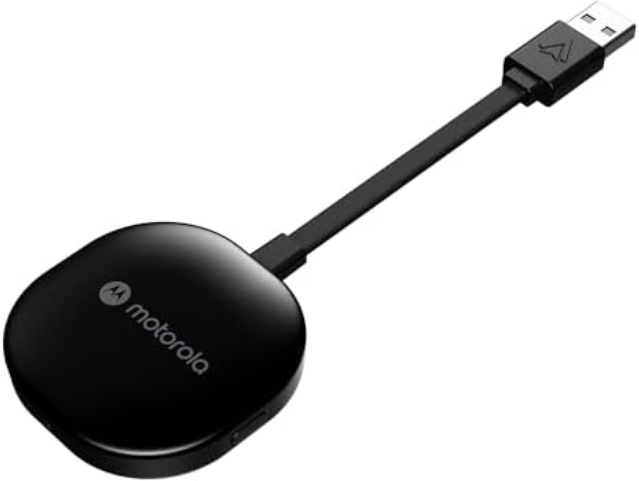
The Motorola Wireless Car Adapter MA1 is a sleek, compact solution designed to bring wireless Android Auto functionality to any car equipped with a wired Android Auto system. With seamless Bluetooth and 5GHz Wi-Fi connectivity, the MA1 eliminates the need to plug in your phone every time you drive, offering a hassle-free experience for Android users. This adapter is perfect for anyone who wants to enjoy their favorite maps, music, and messaging apps on their car’s display without the clutter of cables.
Key benefits include fast media transmission, automatic connection when the engine starts, and a lightweight design that fits discreetly in any vehicle. The MA1 is ideal for daily commuters, frequent travelers, and anyone seeking a safer, more convenient way to use their phone while driving. It’s compatible with Android 11 and higher, making it suitable for most modern smartphones.
Available at major retailers and online stores, the Motorola Wireless Car Adapter MA1 typically retails between $80 and $100, offering excellent value for those looking to upgrade their car’s infotainment system without buying a new vehicle.
Specifications
- Platform Compatibility: Android 11 and higher
- Connection Type: USB-A (with non-removable 5-inch cable)
- Wireless Protocols: Bluetooth 5.0, 5GHz Wi-Fi
- Weight: 31g
- Dimensions: 6.5 x 2.1 x 0.3 inches
- Media Transmission: Fast, stable streaming via 5GHz Wi-Fi
- Design: Compact puck-style dongle with LED indicator
- Setup: Plug-and-play, no app required
- Compatibility: Works with over 800 vehicle models supporting Android Auto
The Motorola MA1 outperforms many similar adapters with its reliable connection speed and minimal latency, closely matching the performance of built-in wireless Android Auto systems found in premium vehicles.
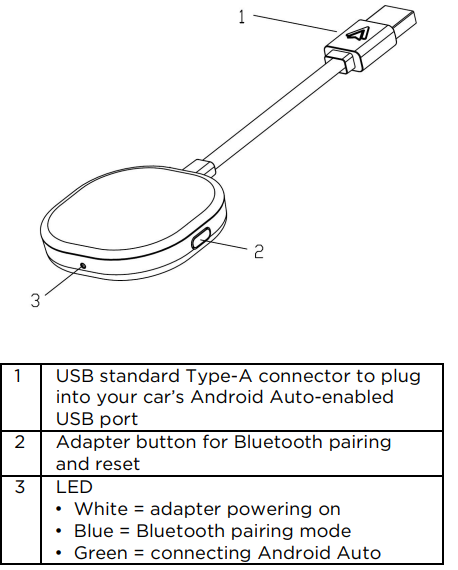
Getting to know your adapter
Attach the adapter (OPTIONAL)
You can find a Gel pad inside the pack. This can be used to fix the adapter on your car.
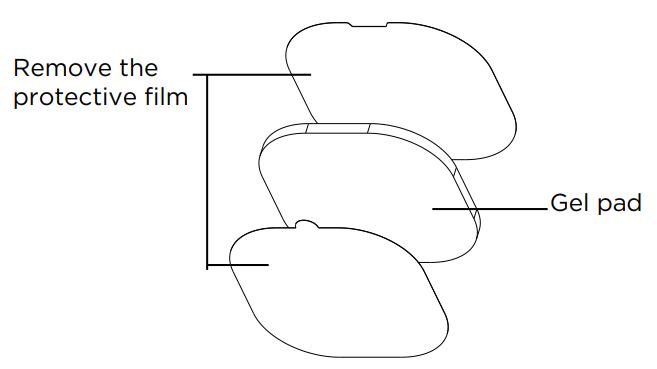
- Remove the protective film on any one side of the Gel pad.
- Place the Gel pad on your car, where it is close to the USB port of your car.
- Remove the protective film from the other side of the Gel pad.
- Place your adapter on the Gel pad.
Setting up your adapter
- Check for any updates available to Android Auto for your mobile device via the Google Play app store.
- Check that Wireless Android Auto is enabled in the Android Auto settings on your mobile device.
- Before setting up your adapter, connect your phone to Android Auto using a wired USB connection following your vehicle manufacturer's instructions.
- While the Android Auto connection is active on your car screen, unplug your phone from the car and immediately plug your adapter into the same USB port.
- To use Android Auto wirelessly, your phone should be running version 11 or higher of the Android operating system.
Pair with the wireless car adapter
- When the adapter LED flashes blue, pair your phone with it (look for 'AndroidAuto-XXXX' under Settings > Bluetooth on your phone).
- Now, wait for your phone to automatically re-establish its Android Auto connection wirelessly through the adapter; this may take a while.
- On subsequent drives, Android Auto will start wirelessly after the car connects to your phone for hands-free calling (HFP) from the car's Bluetooth menu.
Cleaning
- Clean the adapter with a damp (not wet) cloth, or an anti-static wipe.
- Never use household polish as this will damage the product. Never use a dry cloth, as this may cause static shock.
Consumer Products and Accessories Warranty
Thank you for purchasing a Motorola-branded product manufactured under license by Meizhou Guo Wei Electronics Co., LTD. (“MZGW”)
What Does this Warranty Cover?
Subject to the exclusions contained below, MZGW warrants that Motorthe Motorola-branded product (“Product”) or certified accessory (“Accessory”) sold for use with this product, which it manufactured to be free from defects in materials and workmanship under normal consumer usage for the period outlined below. This Limited Warranty is your exclusive warranty and is not transferable.
Who is covered?
This warranty extends only to the first consumer purchaser, and is not transferable.
What will MZGW do?
MZGW or its authorized distributor, at its option and within a commercially reasonable time, will at no charge repair or replace any Products or Accessories that do not conform to this limited warranty. We may use functionally equivalent reconditioned/refurbished / pre-owned or new Products, Accessories, or parts.
What Other Limitations Are There?
ANY IMPLIED WARRANTIES, INCLUDING WITHOUT LIMITATION THE IMPLIED WARRANTIES OF MERCHANTABILITY AND FITNESS FOR A PARTICULAR PURPOSE, SHALL BE LIMITED TO THE DURATION OF THIS LIMITED WARRANTY. OTHERWISE, THE REPAIR OR REPLACEMENT PROVIDED UNDER THIS EXPRESS LIMITED WARRANTY IS THE EXCLUSIVE REMEDY OF THE CONSUMER, AND IS PROVIDED INSTEAD OF ALL OTHER WARRANTIES, EXPRESS OR IMPLIED. IN NO EVENT SHALL MOTOROLA OR MZGW BE LIABLE, WHETHER IN CONTRACT OR TORT (INCLUDING NEGLIGENCE) FOR DAMAGES IN EXCESS OF THE PURCHASE PRICE OF THE PRODUCT OR ACCESSORY, OR FOR ANY INDIRECT, INCIDENTAL, SPECIAL OR CONSEQUENTIAL DAMAGES OF ANY KIND, OR LOSS OF REVENUE OR PROFITS, LOSS OF BUSINESS, LOSS OF INFORMATION OR OTHER FINANCIAL LOSS ARISING OUT OF OR IN CONNECTION WITH THE ABILITY OR INABILITY TO USE THE PRODUCTS OR ACCESSORIES TO THE FULL EXTENT THESE DAMAGES MAY BE DISCLAIMED BY LAW.
Some jurisdictions do not allow the limitation or exclusion of incidental or consequential damages, or limitation on the length of an implied warranty, so the above limitations or exclusions may not apply to you. This warranty gives you specific legal rights, and you may also have other rights that vary from one jurisdiction to another.
Troubleshooting Common Issues
Most users find the Motorola Wireless Car Adapter MA1 easy to set up, but occasional issues may arise. Common problems include connection dropouts, slow pairing, or failure to connect. If the adapter fails to pair, try resetting it by pressing the small button on the device. Ensure your phone’s Bluetooth and Wi-Fi are enabled, and that your car’s infotainment system supports Android Auto.
Occasional Bluetooth interference in certain locations (such as near hospitals) may cause brief dropouts, but the MA1 typically reconnects automatically within 20 seconds. For persistent issues, check for firmware updates or contact Motorola support. The MA1 comes with a standard one-year warranty, and support is available via Motorola’s official website or customer service hotline.
Pros and Cons of the Motorola Wireless Car Adapter MA1
Pros
- Seamless wireless Android Auto experience
- Simple plug-and-play setup, no app required
- Compact, discreet design
- Fast, reliable connection with minimal lag
- Compatible with a wide range of vehicles
Cons
- Relatively high price compared to some alternatives
- The adhesive pad included is not very strong
- A wireless connection does not charge your phone
- Occasional Bluetooth dropouts in certain environments
The Motorola MA1 offers excellent value for those seeking a premium wireless Android Auto solution, though budget-conscious buyers may want to compare with other adapters.
Car User Manuals
Car Owner's Manuals
Customer Reviews and Feedback
The Motorola Wireless Car Adapter MA1 has received positive feedback from users, with an average rating of 4.2 out of 5 stars on major retail sites. Customers praise its ease of use, reliable performance, and the convenience of wireless Android Auto. Common complaints include the stiff cable and occasional Bluetooth dropouts, but most users report that these issues are minor and do not significantly impact daily use. Many recommend the MA1 for anyone looking to upgrade their car’s infotainment system without buying a new vehicle.
Faqs
How do I set up the motorola Wireless Car Adapter MA1 for wireless Android Auto?
What should I do if the motorola Wireless Car Adapter MA1 LED turns red?
Can I use the motorola Wireless Car Adapter MA1 with any Android phone?
How do I perform a factory reset on the motorola Wireless Car Adapter MA1?
Why is my motorola Wireless Car Adapter MA1 not connecting to Android Auto?
Does the motorola Wireless Car Adapter MA1 support hands-free calling and music streaming?
How can I optimize the performance of the motorola Wireless Car Adapter MA1?
How do I clean and maintain the motorola Wireless Car Adapter MA1?
More motorola manuals
- Motorola Moto Watch Fit XT2541-1 User Manual
- Setup: Motorola Corded Telephone Machine CT610 User Guide
- Motorola Moto-G Stylus Smartphone 2020 User Manual
- Motorola HD Connect Video Camera PIP1610-4 User Guide
- Motorola Video Baby Monitor MBP36XL-4 User Guide
- Motorola Moto Smart Phone G5S Plus Instruction Manual
Leave a Comment