
Philips 8079 Series Television 43PUS8079 User Manual
Content
Philips 8079 Series Television 43PUS8079: 4K Ambilight Smart TV Review and User Manual
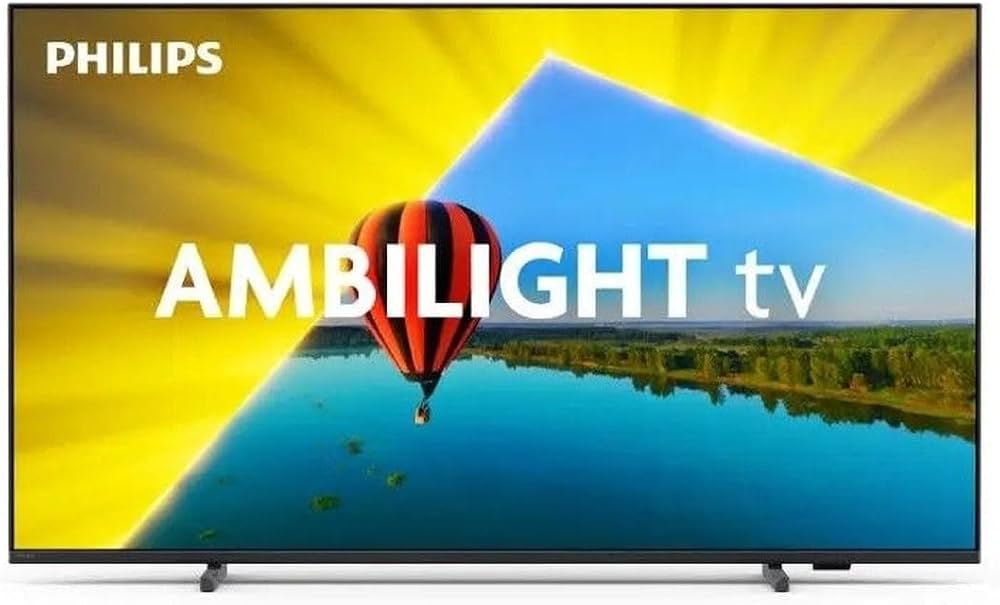
The philips 8079 Series Television 43PUS8079 is a 43-inch 4K Ultra HD smart TV designed for viewers who want a compact screen without sacrificing premium features. It combines Philips’ signature Ambilight technology with a 3840 x 2160 LED panel, Pixel Precise Ultra HD processing, Dolby Atmos audio, and the Titan OS smart platform for an easy, modern streaming experience. For bedrooms, small living rooms, apartments, gaming setups, and secondary entertainment spaces, this model offers a strong balance of style, image quality, and everyday usability.
One of the biggest selling points of the philips 8079 Series Television 43PUS8079 is Ambilight, which projects matching light onto the wall behind the TV to make movies, sports, and games feel more immersive. The TV also supports HDR formats such as HDR10, HDR10+, and HLG, helping boost contrast and detail in compatible content. With three HDMI ports, two USB ports, Wi-Fi, Bluetooth, Ethernet, and support for major digital tuners, it covers the connectivity most users need for streaming boxes, game consoles, sound systems, and broadcast TV.
This model is best suited to users who want a feature-rich 43-inch smart TV for mixed use: Netflix and other apps, casual gaming, sports, and everyday TV viewing. Based on current market listings, the estimated price range is roughly €300 to €450, depending on retailer, region, and promotions. Availability is generally broad through online electronics stores and major retail chains, though stock can vary by country and season. For buyers comparing compact 4K TVs, the philips 8079 Series Television 43PUS8079 stands out for its Ambilight experience and well-rounded feature set.
Pros and Cons of the Philips 43PUS8079 4K Ambilight TV
Pros
- Ambilight creates a more immersive viewing experience by extending light beyond the screen, especially effective in dark rooms and movie nights.
- Sharp 4K picture quality with Pixel Precise Ultra HD and HDR support improves detail in streaming, broadcast, and console content.
- Titan OS smart platform keeps streaming apps and menus simple for everyday use.
- Good connectivity with 3 HDMI ports, 2 USB ports, Wi-Fi, Bluetooth, and Ethernet makes setup flexible.
- Strong value for money for buyers who want Ambilight without moving into a much higher price bracket.
Cons
- 60 Hz panel is fine for general viewing but less ideal for serious competitive gaming or premium motion performance.
- Audio is adequate rather than powerful, so a soundbar may be needed for fuller bass and louder cinema-style sound.
- Best suited to small and medium rooms, not large home theater spaces where a bigger panel would be preferable.
- Compared with some alternatives from LG, Samsung, or TCL, the interface and audio can feel less advanced, though Ambilight helps it stand apart.
Overall, the value proposition is strong if Ambilight matters to you. If you mainly want the fastest smart TV platform or the strongest native gaming performance, some alternatives may offer better motion handling or app ecosystems. If you want the most distinctive viewing experience in this size class, the philips 8079 Series Television 43PUS8079 remains a compelling choice.
Customer Reviews for the Philips 43PUS8079: What Buyers Say
Buyer feedback is generally positive, with many owners praising the Ambilight effect, the clean 4K picture, and the TV’s compact size for bedrooms and apartments. Typical ratings trend around 4 out of 5 stars, with comments such as: “Excellent for movie nights, and Ambilight makes a real difference” and “Easy to set up, looks premium, and works well with streaming apps.”
Common complaints focus on the built-in sound, which many users describe as serviceable but not exceptional, and on the 60 Hz refresh rate, which can feel limited for fast action or gaming enthusiasts. Some customers also mention that the smart interface is straightforward but not as polished as premium rival platforms. Most reviewers recommend it for buyers who value design, immersive visuals, and everyday convenience over high-end audio or advanced gaming features. For users seeking a balanced compact 4K TV, the philips 8079 Series Television 43PUS8079 is often described as a smart purchase.
Faqs
How do I set up philips 8079 Series Television 43PUS8079 for the first time?
What should I do if philips 8079 Series Television 43PUS8079 is not connecting to Wi‑Fi?
Which HDMI ports and gaming features does philips 8079 Series Television 43PUS8079 support?
How do I improve picture quality on philips 8079 Series Television 43PUS8079 for 4K HDR content?
Why is the sound on philips 8079 Series Television 43PUS8079 quiet or unclear?
Can philips 8079 Series Television 43PUS8079 work with Amazon Alexa or Google Assistant?
How often should I update and maintain philips 8079 Series Television 43PUS8079?
What should I check if philips 8079 Series Television 43PUS8079 keeps losing channels or shows no signal?
More philips manuals
Leave a Comment