
How to Install: Samsung Galaxy Tab A T580 User Manual | Set Up Accounts
Content
Samsung Galaxy Tab A T580
Introduction
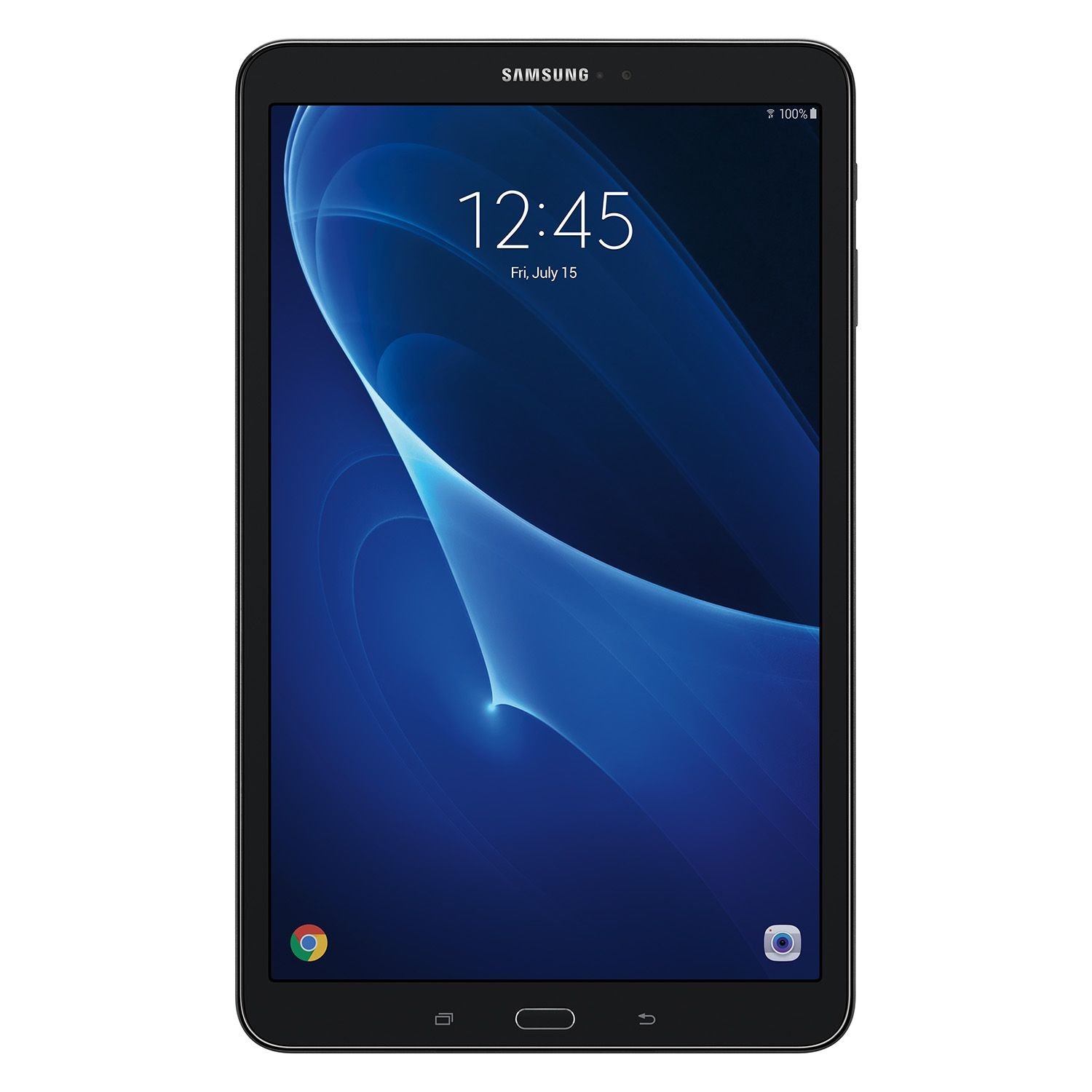
The Samsung Galaxy Tab A T580 is a versatile tablet that offers a wide range of features and functionalities. Whether you're using it for work or entertainment, this tablet is designed to enhance your productivity and provide an immersive multimedia experience.
Specifications
- Display: 10.1-inch TFT LCD touchscreen with a resolution of 1920 x 1200 pixels
- Processor: 1.6 GHz Octa-Core processor
- Operating System: Android 6.0 Marshmallow
- Storage: 16GB internal storage, expandable up to 256GB with a microSD card
- RAM: 2GB
- Camera: 8MP rear camera, 2MP front camera
- Battery: 7,300mAh
- Connectivity: Wi-Fi 802.11 a/b/g/n/ac, Bluetooth 4.2, USB 2.0
Instructions
- Power on the tablet by pressing and holding the power button.
- Follow the on-screen instructions to set up your tablet.
- Connect to a Wi-Fi network to access the internet.
- Install your favorite apps from the Google Play Store.
- Customize your tablet settings according to your preferences.
Front View
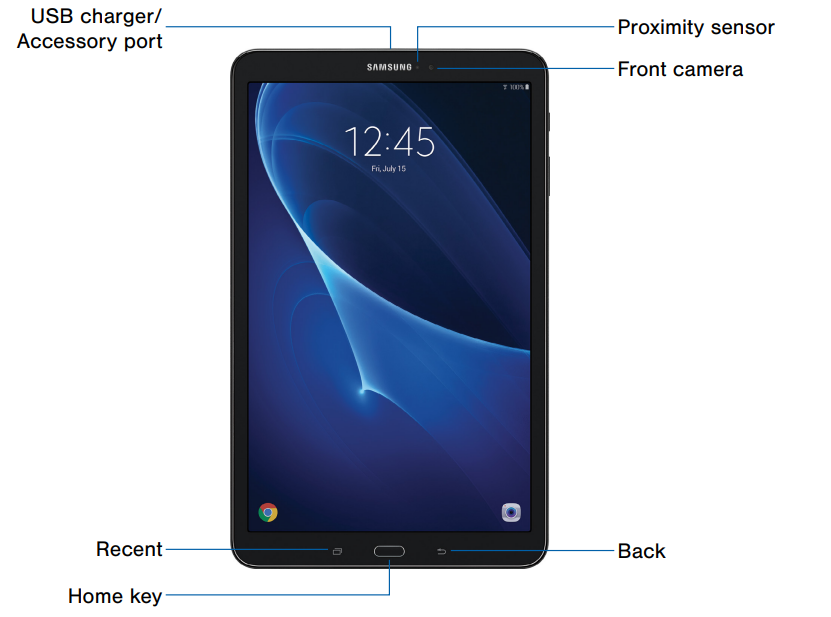
- Proximity sensor: Detect the presence of objects near the device.
- Front camera: Take self-portraits and record videos of yourself.
- Back: Return to the previous screen, or close a dialog box, menu, or keyboard.
- Home key: Return to the Home screen.
- Recent: Tap to display recent apps, or touch and hold for Multi window.
- USB charger/Accessory port: Connect the USB charger (included) and other optional accessories (not included).
Back View
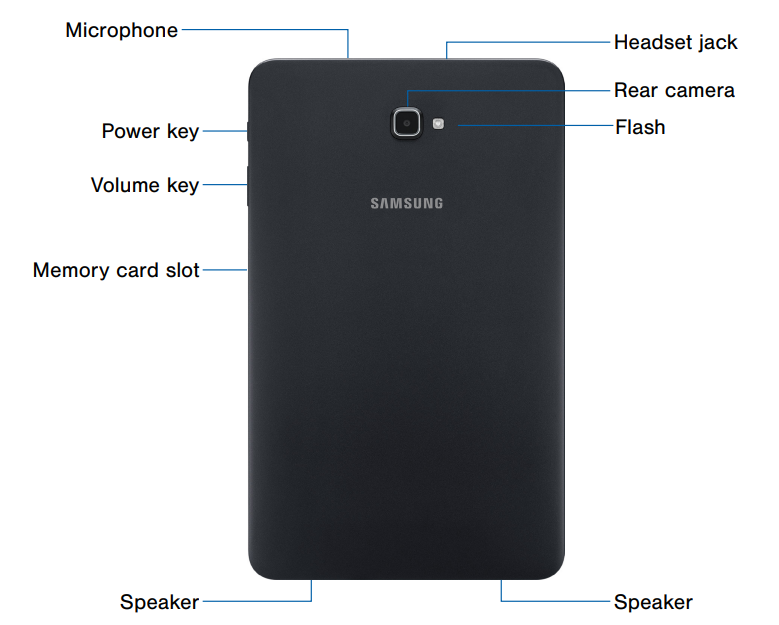
- Headset jack: Connect an optional headset (not included).
- Rear camera: Take pictures and record videos.
- Flash: Illuminate subjects in low-light environments when taking a photo or recording video.
- Speaker: Play music and other sounds.
- Memory card slot: Install an optional memory card (not included) for storage of files.
- Volume key: Adjust the volume of your device’s sounds and audio playback.
- Power key: Press to lock or wake up the screen. Press and hold to turn the device on or off, restart it, or for Airplane mode.
- Microphone: Record audio and detect voice commands.
Set Up Your Device
Turn Your Device On or Off
The instructions below explain how to turn your device on or off.
Turn the Device On
- Press and hold the Power key until the device turns on.
Turn the Device Off
- Press and hold the Power key until the Device options menu is displayed.
- Tap Power off, and confirm if prompted.
Initial Set Up
The first time you turn your device on, the Welcome screen is displayed. It guides you through the basics of setting up your device.
Follow the prompts to choose a default language, connect to a Wi-Fi® network, set up accounts, choose location services, learn about your device’s features, and more.
Note: Voice Assistant provides voice prompts and descriptions of items on the screen to improve accessibility. During setup, you can enable or disable Voice Assistant by pressing the Home key quickly three times.
Secure Your Device
Use your device’s screen lock features to secure your device.
Lock the Device
By default, the device locks automatically when the screen times out.
To lock the device:
- Press the Power key.
Unlock the Device
The default Screen lock on your device is Swipe.
Note: To choose a more secure screen lock, see Set a Screen Lock.
To unlock your device:
- Press the Power key or Home key, and then drag your finger across the screen.
Know Your Device
Learn some of the key features of your mobile device, including the screens and icons, as well as how to navigate the device and enter text using the keyboard.
Warning: Please note that a touch screen responds best to a light touch from the pad of your finger or a capacitive stylus. Using excessive force or a metallic object when pressing on the touch screen may damage the tempered glass surface and void the warranty.
Home Screen
The Home screen is the starting point for using your device.
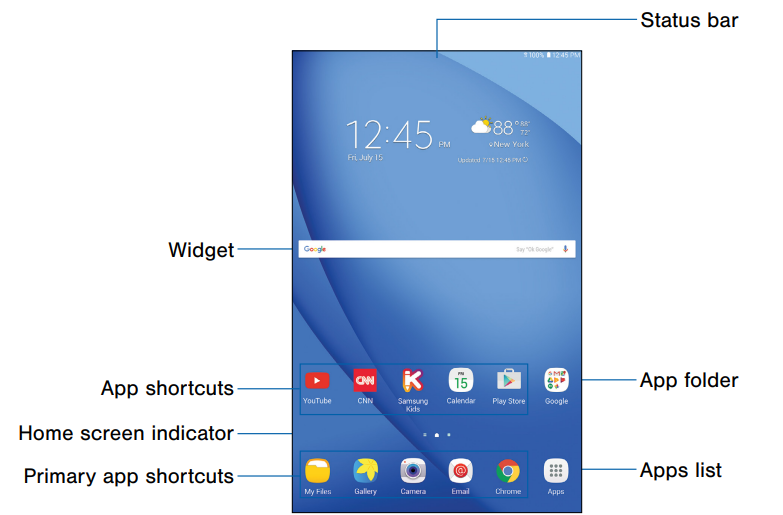
- Status bar: Displays device status icons on the right, and notification icons on the left. For more information, see Status Bar.
- App folder: Groups multiple apps into a folder.
- Apps list: Allows quick access to all of your applications.
- Primary app shortcuts: Displays these shortcuts on all Home screens.
- Home screen indicator: Indicates which Home screen is currently visible.
- App shortcuts: Launch your favorite applications.
- Widget: Runs as a simple application extension (not a shortcut) on a Home screen.
Status Bar
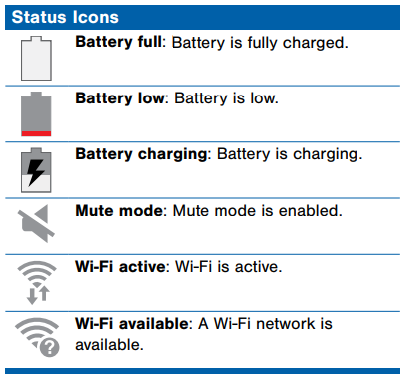
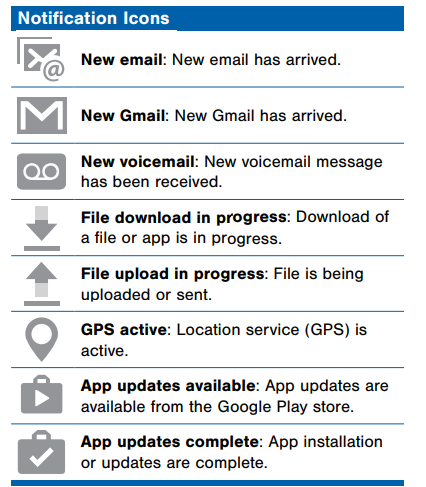
The Status bar at the top of the Home screen provides device information (such as network status, battery charge, and time) on the right side and notification alerts on the left.
Navigation
Learn the basics for how to navigate through your device.
Touchscreen Navigation
Use the following motions and gestures on your touchscreen to navigate the device.
Tap
Lightly tap items to select or launch them.
- Tap the keyboard to enter characters or text.
- Tap an item to select it.
- Tap an app shortcut to launch the application.
Touch and Hold
Touch and hold items on the screen to activate them.
- Touch and hold a widget on a Home screen to move it.
- Touch and hold a field to display a pop-up menu of options.
Swipe
Lightly drag your finger vertically or horizontally across the screen.
- Swipe the screen to unlock the device.
- Swipe the screen to scroll through the Home screens or menu options.
Drag
Touch and hold an item, and then move it to a new location.
- Drag an app shortcut to add it to a Home screen.
- Drag a widget to place it in a new location on a Home screen.
Pinch and Spread
Pinch the screen using your thumb and forefinger or spread by moving your fingers apart.
- Pinch the screen to zoom out while viewing a picture or a web page.
- Spread your fingers on the screen to zoom in while viewing a picture or a web page.
Notification Panel
Notification icons on the Status bar display calendar events, device status, and more. For details, open the Notification panel.
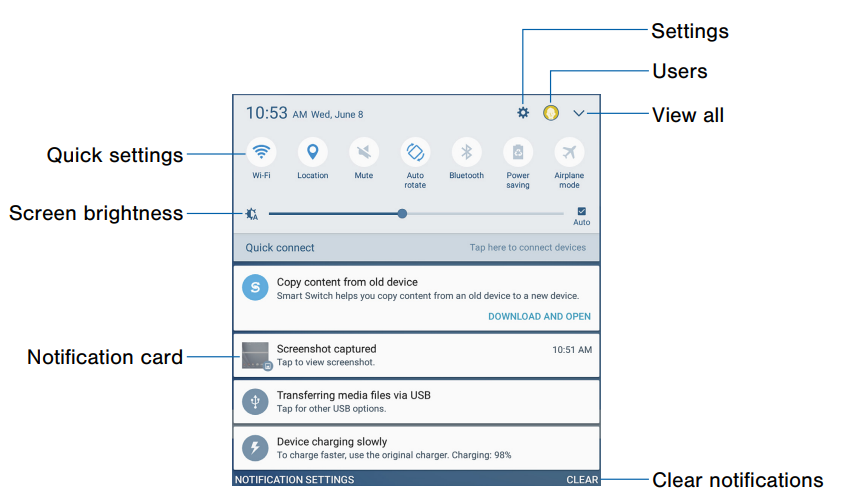
- Settings: Display the Settings screen.
- Users: Select and change the user profile.
- View all: View all of the Quick settings.
- Clear notifications: Clear all notifications.
- Notification card: View details about a notification.
- Screen brightness: Adjust screen brightness.
- Quick settings: Quickly enable or disable a feature.
Multi Window
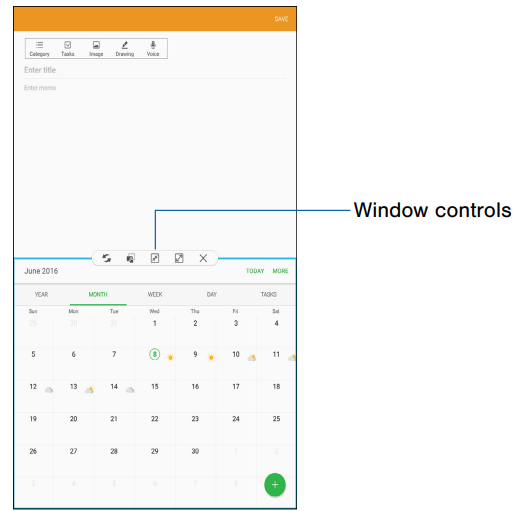
Multitask by using multiple applications at the same time.
Activate Multi Window
Apps that support multi-window display together on a split screen. You can switch between the apps, adjust the size of their display on the screen, and copy information from one app to the other.
Note: Multi-window is not available for all apps.
- From any screen, touch and hold Recent.
- Tap two apps that support Multi window to open them in split screen view.
If you are currently using an app that supports Multi window, tap another app to add it to the split screen view.
Advanced Features
Configure features on your device that make it easier to use.
You can control certain device actions by picking up the device and by touching the screen with the palm of your hand or turning over the device.
- From a Home screen, tap
 Apps >
  Settings.
 - Tap Advanced features.
- Tap On/Off to enable each of the following:
- Pop-up view gesture: View an app in pop-up view by swiping downwards diagonally from either corner at the top of the screen while the app is open and shown on the screen.
- Smart capture: Capture an image of any scrollable areas of the screen that are currently hidden, as well as the area that is visible, and crop and share the screenshot immediately.
- Palm swipe to capture: Capture an image of the screen by swiping the edge of your hand across it, from side to side, keeping in contact with the screen.
- Easy mute: Mute sounds and video by covering the screen or turning the device over.
Faqs
What is the screen size of the Samsung Galaxy Tab A T580?
Can I expand the storage of the Samsung Galaxy Tab A T580 tablet?
What operating system does the Samsung Tab A T580 run on?
How long does the battery last for Samsung Galaxy Tab A T580?
Does the Samsung Galaxy Tab A T580 support Wi-Fi and Bluetooth connectivity?
What is the resolution of the tablet's display?
Can I use the Samsung Galaxy Tab A T580 for video calls?
Does the Samsung Galaxy Tab A T580 come with any pre-installed apps?
What is the processor of the Samsung Galaxy Tab A T580?
Is the Samsung Galaxy Tab A T580 lightweight and portable?
More samsung manuals
- Samsung SSD Data Migration v3.1 Setup Guide
- Set Up: Samsung Tab E nook T560NU User Manual
- Usage Guide: Samsung S20 FE 5G G781U User Manual
- Settings & Configuration: Samsung S10e and S10+ Mobile User Manual
- Samsung Tab S2 T810 User Manual | Settings & Configurations
- How to Pair: Samsung SM-R322 Gear VR User Manual | Functions
Leave a Comment