
Settings & Configuration: Samsung S10e and S10+ Mobile User Manual
Content
Samsung S10e and S10+
Introduction
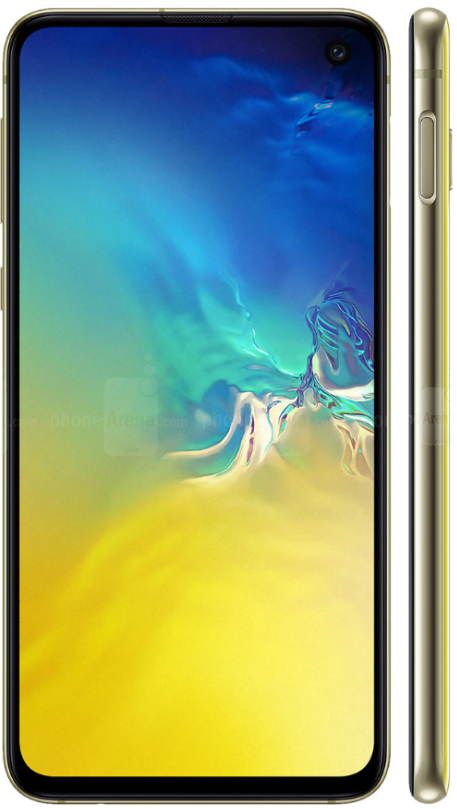
The Samsung S10e and S10+ are powerful smartphones that offer a range of features and capabilities. Whether you're a tech enthusiast or a casual user, these devices are designed to enhance your mobile experience.
Specifications
- Display: Dynamic AMOLED, HDR10+
- Processor: Octa-core (Snapdragon 855 for S10e, Exynos 9820 for S10+)
- RAM: 6GB (S10e), 8GB (S10+)
- Storage: 128GB/256GB (S10e), 128GB/512GB/1TB (S10+)
- Camera: Dual 12MP (S10e), Triple 12MP+12MP+16MP (S10+)
- Battery: 3100mAh (S10e), 4100mAh (S10+)
Instructions
- Charge your phone fully before using it for the first time.
- Insert your SIM card and/or microSD card into the designated slots.
- Power on your device by pressing and holding the power button.
- Follow the on-screen instructions to set up your device.
- Explore the various features and settings to personalize your experience.
Device features
Wireless PowerShare
Wirelessly charge your Galaxy Buds, Galaxy Watch,, or even a friend’s phone right from your device. See Wireless PowerShare on page 9.
Meet Bixby
Bixby learns what you like to do and works with your favorite apps and services to help you get more done. See Bixby on page 30.
Camera
Enjoy a full kit of pro lenses with an ultrawide lens that provides a full field of vision, just like the human eye. See Camera on page 59.
Security
Use your face or fingerprint to unlock your device. See Flexible security on page 33.
Expandable storage
Expand storage with a supported microSD card. See Memory card on page 126.
Night mode
Use a darker theme to keep your eyes comfortable at night. See Night mode on page 121.
Gestures only navigation
Don’t like navigation buttons on your screen? Use gestures instead! Sethe e the Navigation bar on page 21.
Water and dust resistance
This device is rated IP68 using the Ingress Protection rating system. See Maintaining water and dust resistance on page 154.
Infinity display
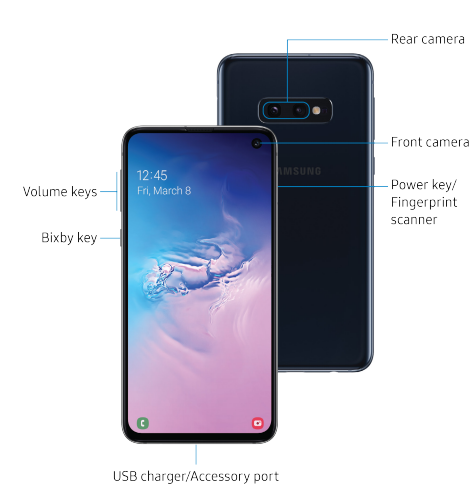
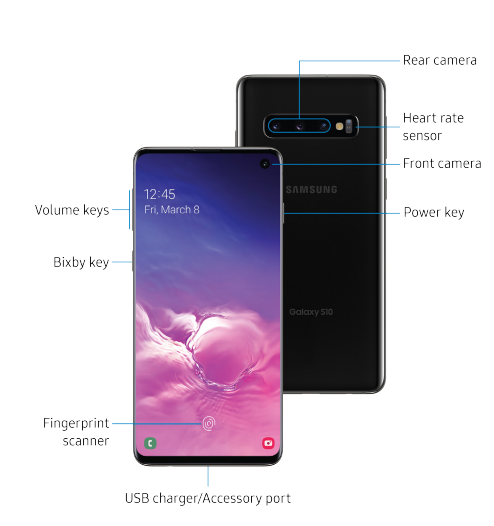
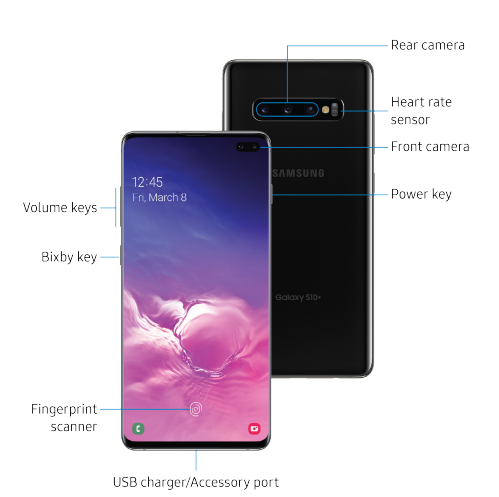
Enjoy every inch of your dynamic AMOLED screen without the interruption of keys or buttons.
Assemble your device
Your device uses a nano-SIM card. Your SIM card may be preinstalled, or you may be able to use your previous SIM card. Contact your carrier for more details.
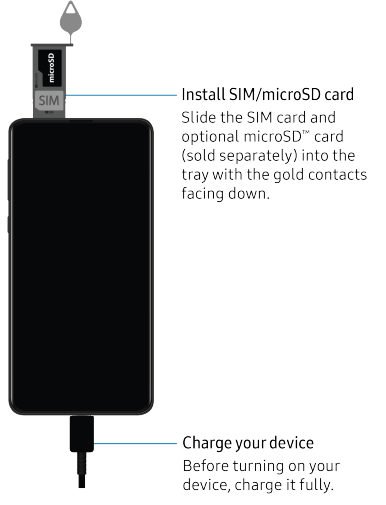
- NOTE: Use only charging devices and batteries that are approved by Samsung. Samsung charging devices and batteries are designed for your device to maximize battery life. Using other charging devices and batteries may void your warranty and may cause damage.
- NOTE: Your device is IP68 rated for dust and water resistance. To maintain the water-resistant and dust-resistant features of your device, make sure that the SIM card/Memory card tray openings are maintained free of dust and water, and the tray is securely inserted prior to any exposure to liquids. For more information, see Maintaining water and dust resistance on page 154.
- NOTE: While charging, the device and the charger may become hot and stop charging. This usually does not affect the device’s lifespan or performance and is in the normal range of operation. Remove the device from the charger and wait for the device to cool down.
Wireless PowerShare
Wirelessly charge your compatible Samsung devices using your phone. Some features are not available while sharing power.
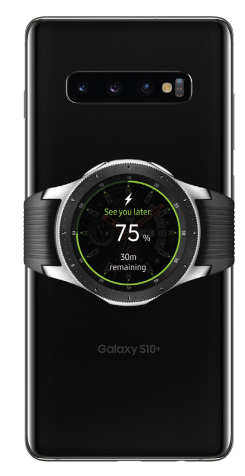
- For best results when using Wireless PowerShare, please note:
- Remove any accessories or covers before using the feature. Depending on the type of accessory or cover, Wireless PowerShare may not work properly.
- The location of the wireless charging coil may vary by device, so you may need to adjust the placement to make a connection. When charging starts, a notification or vibration will occur, so the notification will help you know you have made a connection.
- Call reception or data services may be affected, depending on your network environment.
- Charging speed or efficiency can vary depending on device condition and the surrounding environment. Do not use headphones.
- Only devices that support the wireless charging feature can be charged using this feature. Some devices may not be charged.
- To charge properly, do not move or use either device while charging.
- If the remaining battery power drops below a certain level, power drops below a certain level, power sharing will stop.
- From Quick Settings, tap Wireless PowerShare.
- With the phone face down, place the compatible device on the back of the phone to charge. A notification sound or vibration occurs when charging begins.
NOTE Wireless PowerShare is limited to Samsung or other brand smartphones and accessories with WPC Qi wireless charging. Check samsung.com for compatibility. May not work with certain accessories, covers, or other brand devices. It may affect call reception or data services depending on your network. The speed and power efficiency of chargers by device.
Device maintenance
View the status of your device’s battery, storage, and memory. You can also automatically optimize your device’s system resources.
Quick optimization
The quick optimization feature improves device performance through the following actions:
- Identifying apps that use excessive battery power and clearing unneeded items from memory.
- Deleting unnecessary files and closing apps running in the background.
- Scanning for malware.
To use the quick optimization feature:
- From Settings, tap Device care > Optimize now.
Battery
View how battery power is used for your various device activities.
- From Settings, tap Device care > Battery for options:
- Battery usage: View power usage by app and service.
- Power mode: Select a power mode to extend battery life.
- Usage by apps: View power usage by app today or over the past week.
- More options > Settings: Configure advanced battery settings and notifications.
Storage
View the device memory and usage. You can also mount, unmount, or format an optional memory card (not included).
Device storage
Quickly optimize your device’s memory, increasing available memory.
- From Settings, tap Device care > Storage > Clean now.
Troubleshooting
Should you have performance issues with your device, you can send diagnostic information to Samsung. You can also check for software updates,, and if necessary, reset services on your device.
System updates
Check for and install available software updates for your device.
- From Settings, tap System updates for the following options:
- Check for system updates: Manually check for available software updates.
- Show system update history: View previous software updates.
- Use Software Upgrade Assistant: Install a tool to install system updates.
Faqs
Does the Samsung S10e/S10+ support wireless charging?
Can I expand the storage on the S10e/S10+?
Are the S10e and S10+ water-resistant?
Do the S10e and S10+ have a headphone jack?
What is the screen size of the S10e/S10+?
Can I use facial recognition to unlock the S10e/S10+?
Do the S10e and S10+ have a dual SIM option?
Is there a fingerprint sensor on the S10e/S10+?
What version of Android does the S10e/S10+ run?
Do the S10e and S10+ have a 3.5mm to USB-C adapter included?
More samsung manuals
- Samsung Tab S2 T810 User Manual | Settings & Configurations
- Usage Guide: Samsung S20 FE 5G G781U User Manual
- How to Pair: Samsung SM-R322 Gear VR User Manual | Functions
- Set Up: Samsung Tab E nook T560NU User Manual
- Initial Set-up: Samsung 6 Series Smart LED User Manual
- Samsung SSD Data Migration v3.1 Setup Guide
Leave a Comment