
Usage Guide: Samsung S20 FE 5G G781U User Manual
Content
Samsung S20 FE 5G G781U
Introduction
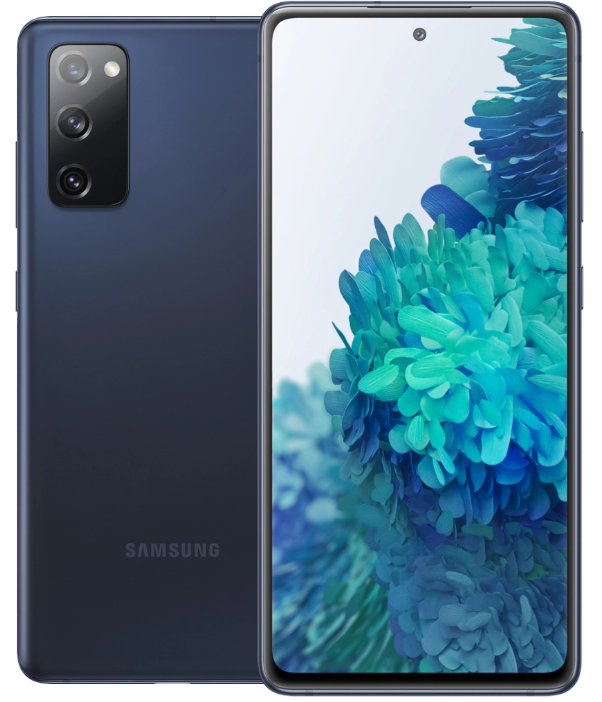
The Samsung S20 FE 5G G781U is a powerful smartphone that combines cutting-edge technology with a sleek design. It offers a range of features and capabilities that make it perfect for both work and play.
Specifications
- Display: 6.5-inch Super AMOLED, 2400 x 1080 pixels
- Processor: Qualcomm Snapdragon 865
- RAM: 6GB
- Storage: 128GB (expandable up to 1TB with microSD card)
- Camera: Triple rear camera (12MP + 12MP + 8MP), 32MP front camera
- Battery: 4500mAh
- Operating System: Android 11
- Connectivity: 5G, Wi-Fi 6, Bluetooth 5.0, NFC
- Dimensions: 159.8 x 74.5 x 8.4 mm
- Weight: 190 grams
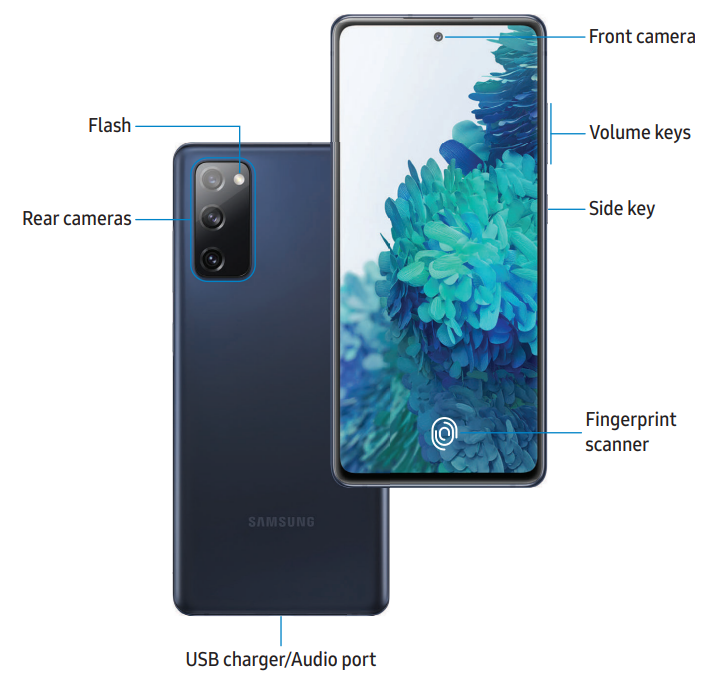
Overview
Instructions
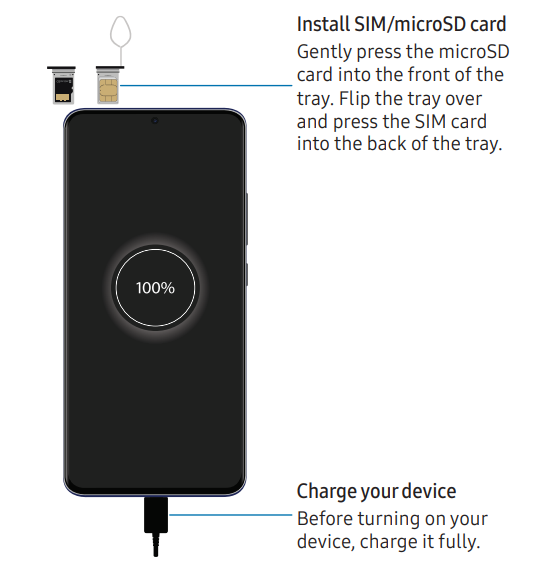
- Insert your SIM card into the SIM card slot.
- Power on the device by pressing and holding the power button.
- Follow the on-screen instructions to set up your device.
- Connect to a Wi-Fi network for internet access.
- Install your favorite apps from the Google Play Store.
- Customize your device settings according to your preferences.
- Transfer your data from your old device using Smart Switch.
- Explore the various features and functionalities of the Samsung S20 FE 5G G781U.
Set up your device
Charge the battery | Wireless power sharing
Your device uses a nano-SIM card. A SIM card may be preinstalled, or you may be able to use your previous SIM card. Contact your carrier for more details.
- NOTE: The use of mobile devices on an aircraft or a ship may be subject to federal and local guidelines and restrictions. Check with the appropriate authorities and always follow crew instructions regarding when and how you may use your device.
- NOTE: Wall charger sold separately; use only Samsung-approved chargers and cables. To avoid injury or damage to your device, do not use incompatible, worn or damaged batteries, chargers,, or cables. Using other charging devices and batteries may void your warranty and may cause damage. For more information on your device, including charging compatibility, please visit samsung.com.
- NOTE: Your device is IP68 rated for dust and water resistance. To maintain the water-resistant and dust-resistant features of your device, make sure that the SIM card tray openings are maintained free of dust and water, and the tray is securely inserted prior to any exposure to liquids. For more information, see Maintaining water and dust resistance.
Charge the battery
Your device is powered by a rechargeable battery.
TIP While charging, the device and the charger may become hot and stop charging. This usually does not affect the device’s lifespan or performance and is in the device’s normal range of operation. Disconnect the charger from the device and wait for the device to cool down. For more information, visit samsung.com/us/support/answer/ANS00076952.
Wireless power sharing
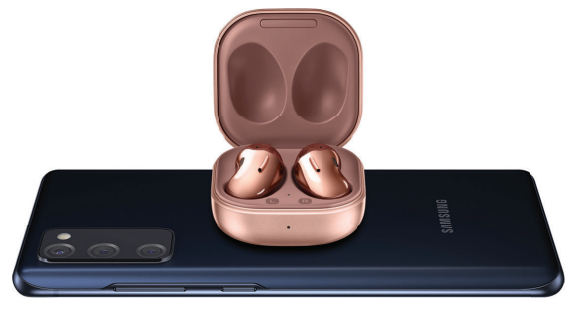
Wirelessly charge your compatible Samsung devices using your phone. Some features are not available while sharing power.
- From Settings, tap
 Battery and device care > Battery > Wireless power sharing.
 - Tap Battery limit and choose a percentage. Once the device you are charging has reached this level of charge, wireless power sharing automatically turns off.
- Tap
 to turn on the charging feature.
 - With the phone face down, place the compatible device on the back of the phone to charge. A notification sound or vibration occurs when charging begins.
NOTE Wireless power sharing works with most Qi-Certified devices. Requires a minimum 3of 0% battery to share. The speed and power efficiency of charging vary by device. May not work with some accessories, covers, or other manufacturers. If you have trouble connecting or if charging is slow, remove any covers from each device.
For best results when using WirelessPower Sharing, please note:
- Remove any accessories or covers before using the feature. Depending on the type of accessory or cover, Wireless power sharing may not work properly.
- The location of the wireless charging coil may vary by device, so you may need to adjust the placement to make a connection. When charging starts, a notification or vibration will occur, so the notification will help you know you've made a connection.
- Call reception or data services may be affected, depending on your network environment.
- Charging speed or efficiency can vary depending on device condition or the surrounding environment.
- Do not use headphones while charging with Wireless Power Sharing.
Start using your device
Turn on your device
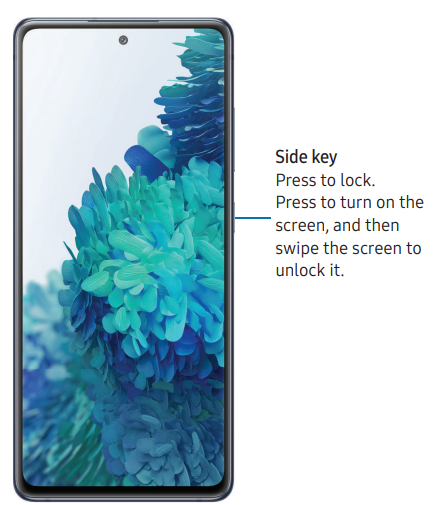
Use the Side key to turn your device on. Do not use the device if the body is cracked or broken. Use the device only after it has been repaired.
- Press and hold the Side key to turn the device on.
- To turn the device off, press and hold the Side and Volume down keys at the same time, and tap Power off. Confirm when prompted.
- To restart your device, press and hold the Side and Volume down keys at the same time, and tap Restart. Confirm when prompted.
TIP: To learn more about powering off your device from Settings, tap Advanced features > Side key > How to power off your phone.
Use the Setup Wizard
The first time you turn your device on, the Setup Wizard guides you through the basics of setting up your device.
Follow the prompts to choose a default language, connect to a Wi-Fi® network, set up accounts, choose location services, learn about your device’s features, and more in Transfer data from an old device. Use Smart Switch™ to transfer contacts, photos, music, videos, messages, notes, calendars, and more from your old device. Smart Switch can transfer your data via USB cable, Wi-Fi, or computer.
Visit: samsung.com/us/support/owners/app/smart-switch to learn more.
- From Settings, tap Accounts and backup > Bring data from old device.
- Follow the prompts and select the content to transfer.
Visit: samsung.com/smartswitch for more information.
Lock or unlock your device..e
Use your device’s screen lock features to secure your device. By default, the device locks automatically when the screen times out. For more information about screen locks, see Lock screen and security.
Navigation
A touch screen responds best to a light touch from the pad of your finger or a capacitive stylus. Using excessive force or a metallic object on the touch screen may damage the surface of the screen,, and the damage will not be covered by the warranty.
Tap
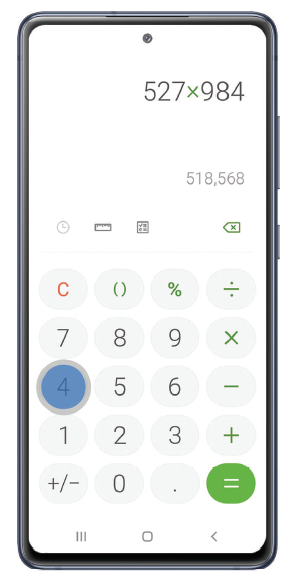
Lightly touch items to select or launch them.
- Tap an item to select it.
- Double-tap an image to zoom in or out.
Swipe
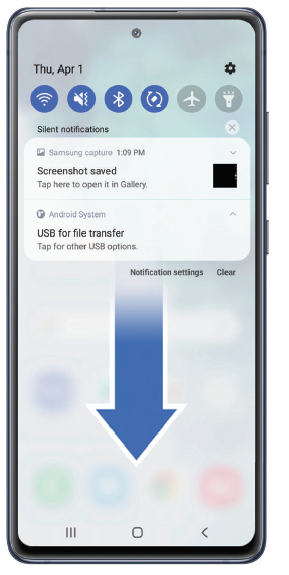
Lightly drag your finger across the screen.
- Swipe the screen to unlock the device.
- Swipe the screen to scroll through the Home screens or menu options.
Drag and drop
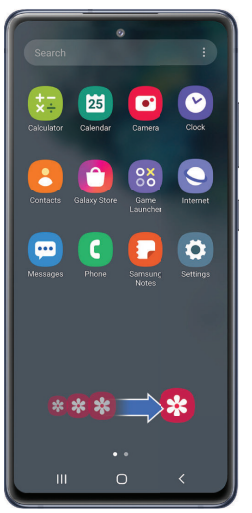
Touch and hold an item, and then move it to a new location.
- Drag an app shortcut to add it to a Home screen.
- Drag a widget to place it in a new location.
Zoom in and out
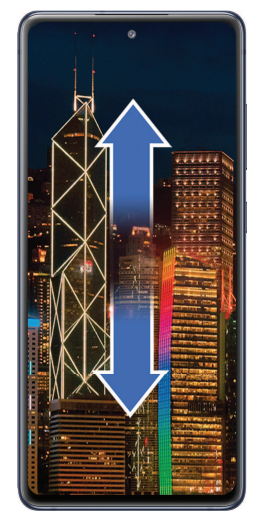
Bring your thumb and forefinger together or apart on the screen to zoom in and out.
- Move your thumb and forefinger together on the screen to zoom out.
- Move your thumb and forefinger apart on the screen to zoom in.
Touch and hold
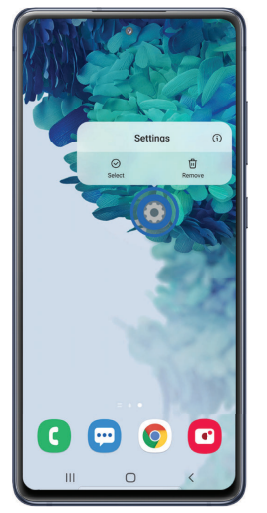
Touch and hold items to activate them.
- Touch and hold a field to display a pop-up menu of options.
- Touch and hold a Home screen to customize the Home screen.
Navigation bar
You may navigate your device by using either the navigation buttons or full-screen gestures.
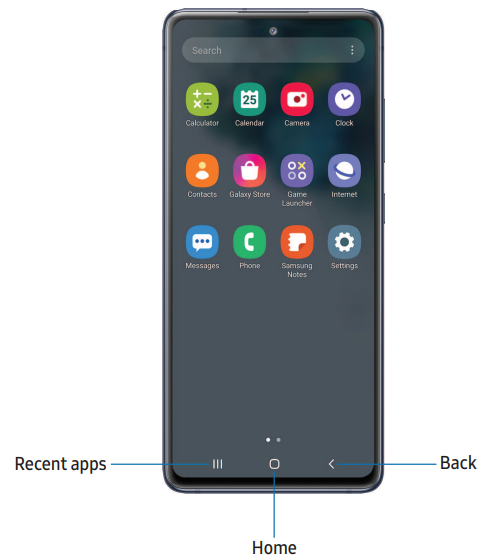
Navigation buttons
Use buttons along the bottom of the screen for quick navigation.
- From Settings, tap Display > Navigation bar > Buttons.
- Tap an option under Button order to choose which side of the screen the Back and Recent apps icons display.
Navigation gestures
Hide the navigation buttons at the bottom of the screen for an unobstructed screen experience. Instead,, swipe to navigate your device.
- From Settings, tap Display > Navigation bar > Swipe gestures to enable the feature.
- Tap an option to customize:
- More options: Choose a gesture type and sensitivity.
- Gesture hints: Display lines at the bottom of the screen where each screen gesture is located.
- Show button to hide keyboard: Show an icon on the bottom right corner of the screen to hide the keyboard when the device is in portrait mode.
Maintaining water and dust resistance
CAUTION: To avoid electric shock and damage to your device, do not charge the device while it is wet or in an area where it could get wet. Do not handle the device, charger,, or cords with wet hands while charging.
The device is not impervious to dust and water damage in any situation. All compartments must be closed tightly.
Follow these tips carefully to prevent damage to the device and maintain dust and water resistance performance:
- Water resistant based on IP68 rating, which tests submersion in fresh water deeper than 1.5 meters or keeping it submerged for more than 30 minutes. If the device is exposed to fresh water, dry it thoroughly with a clean, soft cloth; if exposed to liquid other than fresh water, rinse with fresh water and dry as directed.
- Any device that uses accessible compartments or ports that can be opened should have these sealed or closed tightly to prevent liquid from entering the system.
- If the device has been immersed in water or the microphone or speaker is wet, sound may not be heard clearly during a call. After wiping the device with a dry cloth, dry it thoroughly before using it.
- Do not expose the device to water at high pressure.
- If the device is dropped or receives an impact, the water and dust resistant features of the device may be damaged.
NOTE: quid other than fresh water may enter the device faster. Failure to rinse the device in fresh water and dry it as instructed may cause the device to suffer from operability or cosmetic issues.
Faqs
Is the Samsung S20 FE 5G G781U waterproof?
Does the device support wireless charging?
What is the maximum expandable storage capacity?
Does the phone have a headphone jack?
Is the device compatible with 5G networks?
What version of Android does the device run?
Does the phone have a fingerprint sensor?
Can I use two SIM cards on this device?
What colors are available for the device?
Does the device come with a charger?
More samsung manuals
- Settings & Configuration: Samsung S10e and S10+ Mobile User Manual
- Set Up: Samsung Tab E nook T560NU User Manual
- Samsung Tab S2 T810 User Manual | Settings & Configurations
- Samsung SSD Data Migration v3.1 Setup Guide
- How to Pair: Samsung SM-R322 Gear VR User Manual | Functions
- How to Install: Samsung Galaxy Tab A T580 User Manual | Set Up Accounts
Leave a Comment