
Setup: Xgimi Elfin Portable Projector Instruction Guide
Content
XGIMI Elfin Portable Projector
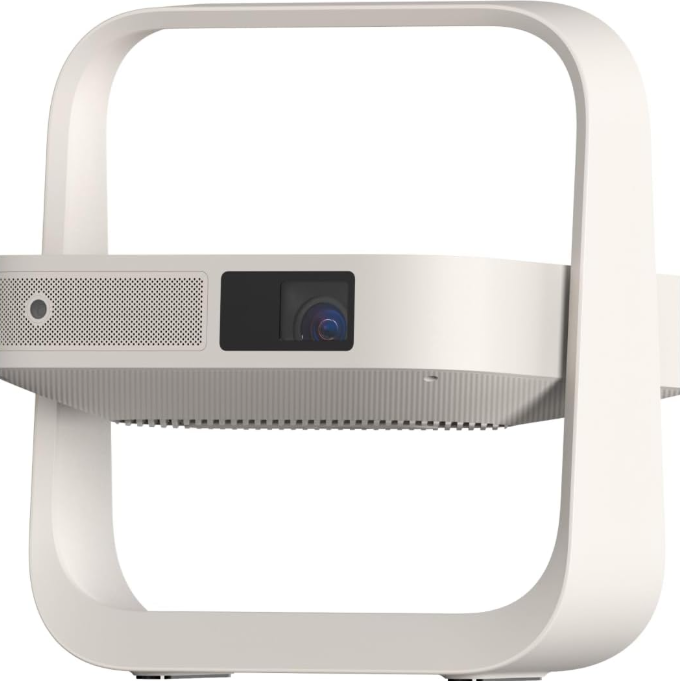
Introduction
The XGIMI Elfin Portable Projector is a compact, high-performance smart projector designed for home entertainment, mobile presentations, and on-the-go viewing. With its sleek, book-sized design and lightweight build, the XGIMI Elfin is perfect for users who want a true 1080p experience without the bulk of traditional projectors. This portable projector delivers vibrant colors, sharp images, and immersive sound, making it ideal for movie nights, gaming, and streaming in any environment.
Key benefits include native Full HD 1080p resolution, 600 ISO lumens brightness, and advanced features like auto focus, auto keystone correction, and intelligent screen alignment. The XGIMI Elfin supports HDR10 and HLG formats, ensuring rich contrast and lifelike visuals. It's built-in Harman/Kardon speakers provide balanced audio, while the Android OS and streaming app shortcuts offer seamless access to your favorite content.
Targeted at home users, travelers, and casual presenters, the XGIMI Elfin is suitable for living rooms, bedrooms, outdoor gatherings, and small offices. The projector is available for purchase online and in select electronics stores, with an estimated price range of $550–$650, depending on retailer and promotions.
Specifications of the XGIMI Elfin Portable Projector
- Display Type: 0.33" DLP (DMD)
- Resolution: 1920x1080 (Full HD)
- Brightness: 600 ISO Lumens (up to 800 ANSI lumens in some tests)
- Aspect Ratio: 16:9
- Lamp Type: LED
- Lamp Life: 25,000–30,000 hours
- Throw Ratio: 1.2:1
- Image Size: 40"–200"
- Throw Distance: 3.5'–17.4'
- Auto Focus & Keystone: Yes
- 3D Support: Full HD 3D (Frame Packing & Side by Side)
- Audio: 2 x 3W Harman/Kardon speakers, Dolby Audio, DTS-HD
- Connectivity: HDMI 2.0, USB, Audio Out (Mini Jack), Wireless Networking
- Operating System: Android OS
- Weight: 2.0 lbs
- Dimensions: 1.90" x 7.64" x 7.56"
- Power Consumption: 65W
Compared to similar portable projectors, the XGIMI Elfin stands out with its true 1080p resolution, high brightness, and advanced smart features, making it a top choice for users seeking a balance of performance and portability.
Overview
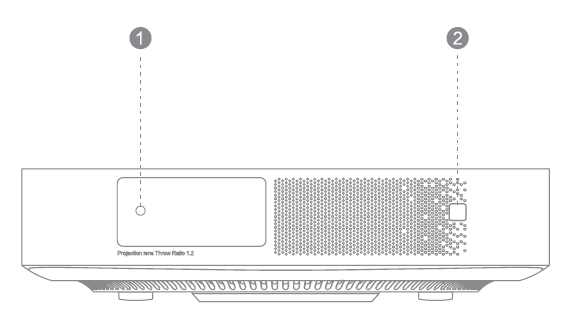
Front View
- Auto Focus ToF Part
- Auto Keystone Correction
Note: To prevent auto keystone correction failure, avoid blocking the sensor.
Button&input View
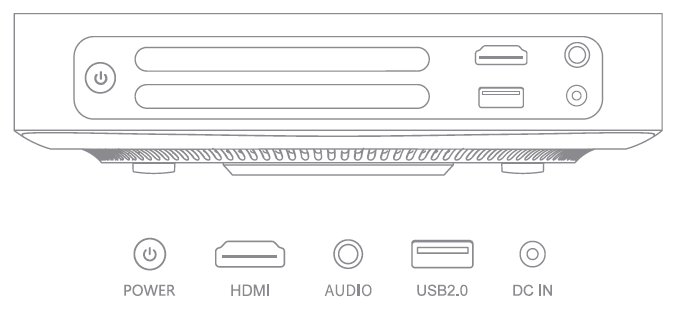
USB Output: SVDC, O.SA
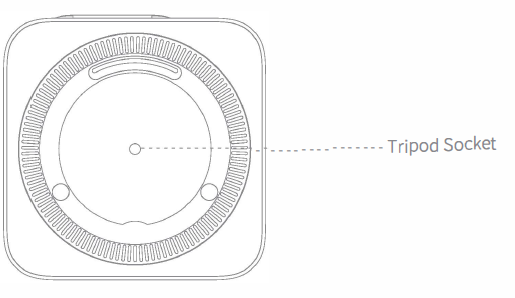
Bottom View
Remote View
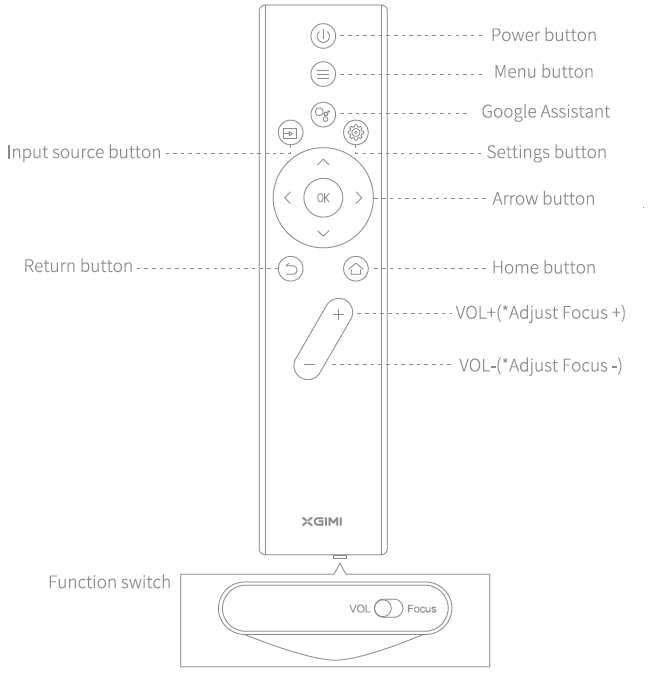
- To adjust the volume, switch to "VOL" first, as seen above. Then use the VOL+/- button to adjust. *"
- To adjust the focus, switch to "Focus" first, as seen above. Then use the VOL+/- button to adjust.
Getting Started
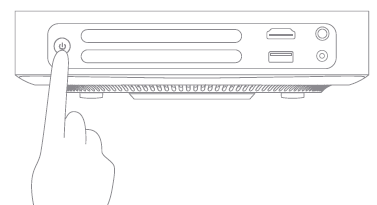
Device on/off
Connect to the power source, and press the " <!J "button to turn on the device. When the device is on, press the " <!J button to turn off the device.
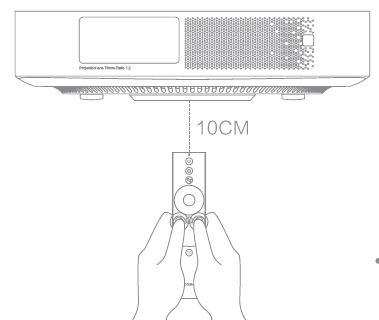
Remote Control Pairing
"Position the remote control within 10 cm of the device. Press" simultaneously. 0 6_ An indicator light will begin flashing as the remote control enters pairing mode. Release 1the 10CMbuttons when the flashing begins. After hearing a" ding" sound, the connection is successful. If pairing fails, wait for 30 seconds and repeat the steps above.
Function Description of Remote Control Functions
Focus adjustment
When the function switch at the bottom of the remote control is moved to the right (Focus), the automatic focus function is enabled. You can adjust the focus by using the" VOL+/-" button. When the function switch is moved to the left (VOL), focus adjustment is disabled. You can use the" VOL+/-" button to control the device volume.
Shortcut
To access the shortcut menu, short-press the Settings button" ".
".
Automatic Focus Adjustment/Remote Focus Adjustment
- When the automatic focus adjustment function is enabled, the frame will be adjusted automatically when you turn on the device or move it to another location.
- You can enable automatic focus by using the switch at the bottom of the remote control. Move the switch to the right (Focus) so that the "VOL+/-" button can be used to adjust the frame. El Extra spacing between keystone & correction
- When the automatic keystone correction function is enabled, the frame will be adjusted automatically if you move the device to another location.
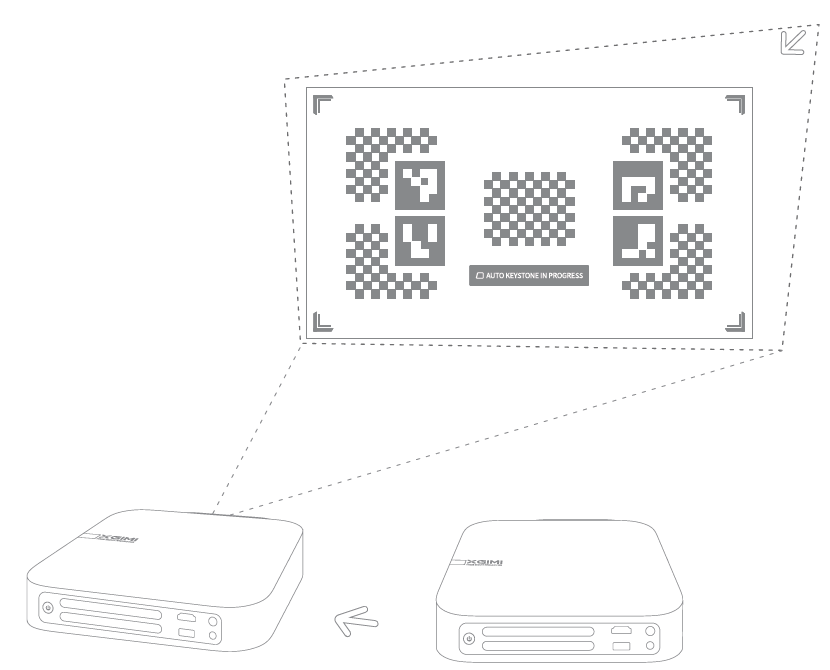
When the automatic obstacle avoidance function is enabled, the frame will automatically avoid obstacles if there are obstacles in the projection area. When the automatic screen alignment function is enabled, the frame will automatically match the screen if there is a 16:9 or 16:10 screen in the projection area.

Press the button on the remote control to enter the "Keystone Correction" page. Select "Auto Keystone Correction" to enable the automatic keystone correction function. Select "Manual Keystone Correction" to adjust the four points and the size of the frame.
CE Maintenance
- The product shall only be connected to a USB interface of version USB 2.0.
- The adapter shall be installed near the equipment and shall be easily accessible.
- EUT Operating temperature range: -l0°C-40°C.
- Adapter:
The plug is considered a disconnect device of the adapter
Power supply and ADP (rating):
Input: AC 100-240V, 50/60Hz, I.SA
Output: DC 19.0V, 3.42A - The device complies with RF specifications when the device is used at a distance of 20 cm away from your body.
- To prevent possible damage to hearing, do not listen at high volume levels for long periods.
Troubleshooting the XGIMI Elfin Portable Projector
Common issues with the XGIMI Elfin include image distortion, focus problems, and connectivity errors. If the image appears blurry, use the auto focus feature or manually adjust the lens. For keystone distortion, enable auto keystone correction in the settings. If the projector fails to connect to Wi-Fi, restart the device and ensure the network is compatible.
Occasional error codes may appear during startup or updates. Most can be resolved by restarting the projector or performing a factory reset. If the projector overheats, turn it off and let it cool down before use. For persistent issues, consult the user manual or contact XGIMI support.
The XGIMI Elfin comes with a 1-year limited warranty. For technical support, visit the official XGIMI website or contact customer service. Preventive measures include regular cleaning of the lens and ensuring proper ventilation during use.
Pros and Cons of the XGIMI Elfin Portable Projector
Pros
- True 1080p resolution for sharp, detailed images
- High brightness (600–800 lumens) suitable for various lighting conditions
- Compact, lightweight design for easy portability
- Advanced smart features: auto focus, auto keystone, Android OS
- Excellent built-in audio with Harman/Kardon speakers
- Long lamp life and energy-efficient LED source
Cons
- Not as bright as some high-end projectors for very large screens
- Limited lens shift and no optional lenses
- Some users report minor lag with external audio devices
- The price is higher than basic portable projectors
The XGIMI Elfin offers excellent value for money, especially for users who prioritize image quality and smart features in a portable projector.
Customer Reviews of the XGIMI Elfin Portable Projector
Users consistently praise the XGIMI Elfin for its sharp 1080p image, vibrant colors, and ease of use. Many highlight the auto focus and keystone correction as standout features, making setup quick and hassle-free. The built-in speakers receive positive feedback for their clarity and volume, though some recommend external speakers for larger rooms.
Common complaints include occasional connectivity issues and the need for a dark room for optimal brightness. The projector holds an average rating of 4.5 stars on major retail sites, with users recommending it for home entertainment and casual use. Frequent mentions include its portability, smart features, and overall value compared to similar models.
Faqs
How do I set up the xgimi Elfin Portable Projector for the first time?
What should I do if the xgimi Elfin Portable Projector image is blurry or out of focus?
Can the xgimi Elfin Portable Projector connect to smartphones or laptops for streaming?
How bright is the xgimi Elfin Portable Projector, and can it be used in well-lit rooms?
What are the main audio features of the xgimi Elfin Portable Projector?
How do I maintain and clean the xgimi Elfin Portable Projector to ensure long-lasting performance?
What should I do if the xgimi Elfin Portable Projector is not connecting to WiFi?
Does the xgimi Elfin Portable Projector support 3D playback and HDR content?
More xgimi manuals
- Setup: Xgimi MoGo 2 Pro Projector User Manual
- Setup: Xgimi Horizon Pro Projectors User Manual
- Setup: Xgimi Horizon Ultra Home Projector User Manual
- Setup: Xgimi MoGo Pro+ Portable Projector User Manual
- Setup: Xgimi Horizon & Horizon Pro Projector User Manual
- Setup: Xgimi Halo+ Portable Projector User Manual
Leave a Comment