
Setup: Xgimi Horizon & Horizon Pro Projector User Manual
Content
XGIMI Horizon & Horizon Pro Projector
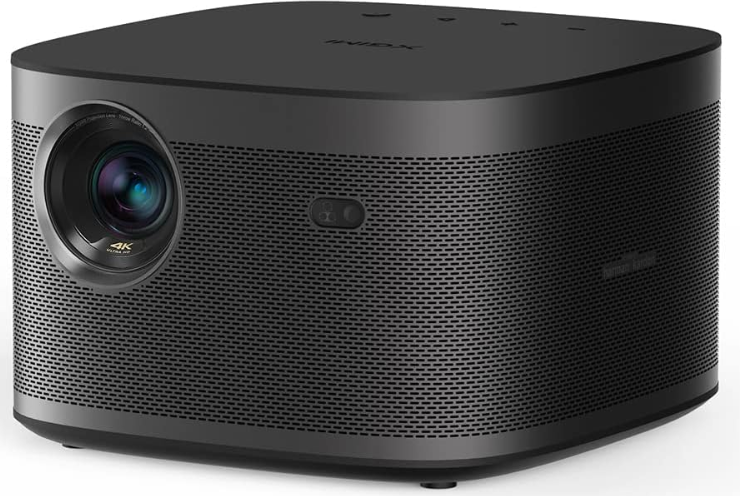
Introduction to XGIMI Horizon & Horizon Pro Projector
The XGIMI Horizon & Horizon Pro Projector series represents a breakthrough in portable 4K home theater technology, combining professional-grade image quality with intelligent automation features designed for modern living spaces. These premium smart projectors deliver true 4K resolution (3840 x 2160 pixels) with exceptional brightness and color accuracy, transforming any room into a personal cinema.
The XGIMI Horizon Pro 4K projector stands out with its 1,500 ISO lumens brightness output, making it suitable for both darkened home theaters and naturally lit rooms. The newer HORIZON S Pro elevates the experience further with 1,800 ISO lumens, advanced Duallight 2.0 technology, and Dolby Vision support. Both models feature Android TV 10.0 built in, eliminating the need for external streaming devices, while Harman Kardon dual 8-watt speakers deliver premium audio without additional equipment.
These projectors target home entertainment enthusiasts, gamers, and professionals seeking a compact yet powerful projection solution. The intelligent screen adaptation technology automatically adjusts image positioning, focus, and obstacle avoidance, making setup effortless even for first-time users. With throw ratios of 1.2:1 and the ability to project screens up to 200 inches, the XGIMI Horizon & Horizon Pro Projector series offers unprecedented flexibility in display size.
Pricing ranges from approximately $1,500 to $2,500 USD,, depending on the model and retailer, with both versions widely available through major electronics retailers and online platforms. The investment delivers exceptional value for users seeking a premium 4K projection experience without the bulk and complexity of traditional projectors.
Technical Specifications & Performance Metrics
Display & Resolution Performance
- Native Resolution: 3840 x 2160 pixels (4K UHD)
- Total Pixel Count: 8.3 million pixels
- Aspect Ratio: 16:9 (4K HD standard)
- Display Type: 0.47" DLP x 1 optical engine
- Color Processing: 8-bit color depth
- Maximum Screen Size: 200 inches (HORIZON Pro) / expandable display
- Throw Ratio: 1.2:1 (40-200 inch range)
Brightness & Color Technology
- HORIZON Pro: 1,500 ISO lumens
- HORIZON S Pro: 1,800 ISO lumens
- Light Source: LED technology
- Lamp Life: 25,000 hours (maintenance-free)
- HORIZON S Pro Color Coverage: 99% DCI P3
- Color Accuracy: Delta E < 1 (professional grade)
- 3D Support: Full HD 3D capable
- HDR Support: HDR10 format compatible
Audio & Connectivity Features
- Internal Speakers: Dual 8-watt Harman Kardon speakers
- Audio Technology: DTS-HD & DTS Studio Sound Dolby
- WiFi: Dual-band 2.4/5GHz, 802.11a/b/g/n
- Bluetooth: 5.0 (BLE compatible)
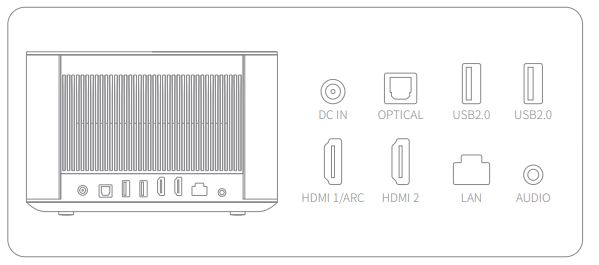
- HDMI Inputs: 2 x HDMI 2.0 (ARC supported)
- USB Ports: 2 x USB 2.0
- Network: RJ-45 LAN port
- Audio Output: 3.5mm headphone jack, optical audio
Intelligent Features & Performance
- Operating System: Android TV 10.0
- Auto Focus: Automatic sharpness adjustment
- Auto Keystone Correction: Horizontal & vertical geometric correction
- Intelligent Screen Alignment: Automatic image-to-screen matching
- Intelligent Obstacle Avoidance: Automatic scaling around objects
- Wall Color Adaptation: Automatic color temperature adjustment (HORIZON S Pro)
- Intelligent Eye Protection: Auto-dimming on person detection (HORIZON S Pro)
- Game Mode Boost: Enhanced gaming performance
- Input Lag: 1080p/60 at 34.6ms
- Audible Noise: 30 dB operation
Physical Specifications
- Dimensions: 8.19" x 8.58" x 5.35" (20.57 x 21.59 x 13.46 cm)
- Weight: 6.3-6.4 lbs (2.86 kg)
- Power Consumption: 200 Watts
- Input Voltage: 100V-240V (universal)
- Cooling System: Silent operation design
Overview
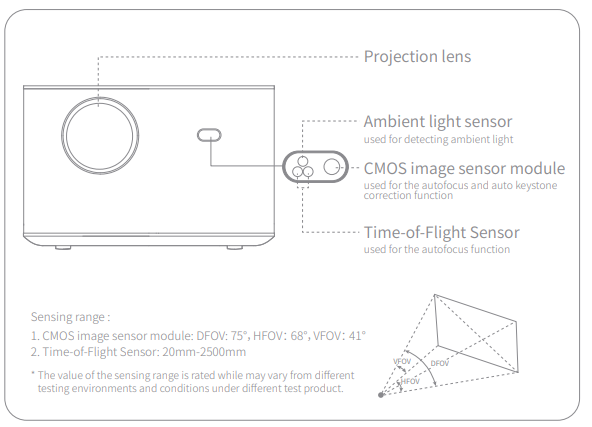
Front view
Rear view
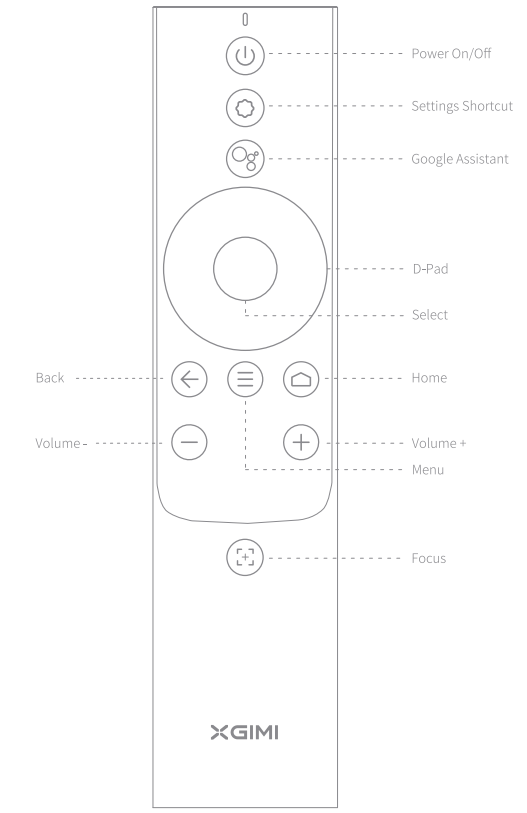
Remote
Setup Guide & Installation Instructions
Pre-Installation Preparation
- Before setting up your XGIMI Horizon & Horizon Pro Projector, ensure you have adequate space for the projected image. The 1.2:1 throw ratio means you need approximately 1.2 times the screen width as distance from the projector. For a 100-inch screen, position the projector roughly 8-10 feet from the wall. Choose a stable, elevated surface or use the flexible stand included with the HORIZON S Pro to achieve optimal positioning without tilting.
- Ensure your installation location has proper ventilation, as the projector requires adequate airflow around the lens and rear vents. Avoid placing the projector near heat sources, direct sunlight, or humid environments. Clean the lens with a soft, dry cloth before first use to remove any manufacturing residue.
Initial Power-On & Auto Configuration
- Connect the power cable to a standard outlet and press the power button on top of the projector. The device will automatically perform its 15-second autofocus calibration sequence, which you can observe on the projected image. This intelligent focus system ensures sharp clarity without manual adjustment.
- The projector will automatically detect your screen size and position through its Intelligent Screen Alignment technology. If obstacles like furniture or plants are detected, the image will automatically scale around them using Intelligent Obstacle Avoidance. Allow 30-60 seconds for this automatic calibration to complete on first startup.
WiFi & Network Connection
Access the Settings menu via the remote control and navigate to Network Settings. Select your WiFi network from the available options and enter your password. The XGIMI Horizon & Horizon Pro Projector supports both 2.4GHz and 5GHz bands—use 5GHz for faster streaming and 2.4GHz for better range. For a wired connection, use the RJ-45 LAN port for maximum stability.
- Bluetooth Pairing
- Go to Settings > Bluetooth to enable wireless audio devices. Put your Bluetooth speaker or headphones in pairing mode and select it from the available devices list. Bluetooth 5.0 ensures a stable connection within 30 feet of the projector.
- HDMI & External Device Connection
- Connect your gaming console, streaming device, or media player to either HDMI 2.0 ports. The second HDMI port supports ARC (Audio Return Channel) for connecting soundbars or receivers. USB ports accept external hard drives or thumb drives for direct media playback.
Troubleshooting Initial Setup Issues
If autofocus fails, manually press the focus button on the remote and adjust until the image sharpens. If the image appears distorted, use the keystone correction feature in Settings to straighten horizontal and vertical angles. If the WiFi won't connect, restart the projector and ensure your router is within range. For persistent issues, perform a factory reset through Settings > System > Reset.
More settings
At any interface, you can press the "O" button on the remote control to quickly set your device. To configure more settings, go to the "All Settings" page.
The main settings are described as follows:
Brightness and color
Select a brightness mode, such as standard, bright, or eye-protection, and adjust the brightness level.
If the "Environmental Adaptation" function is enabled, the device can automatically adjust the brightness based on the ambient brightness.
Image mode
Select different image modes in different scenarios, such as movie, football, office, and game, to adjust the image parameters of the video or signal source. The low-latency option is available in game mode.
Sound effect
Select different sound effects in different scenarios, such as movies, music, and sports, to enjoy the optimal sound experience.
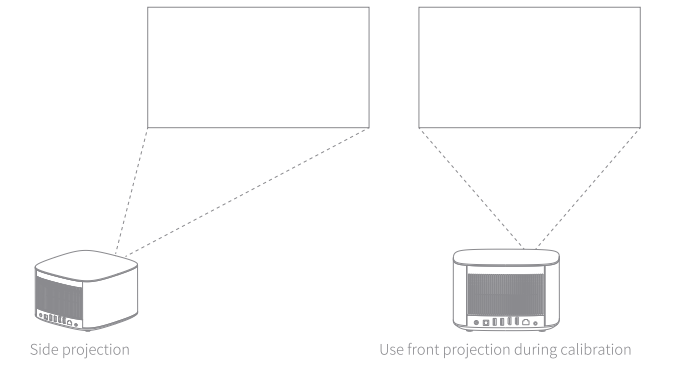
Focus calibration
If the automatic focus adjustment function is not as good as before after long-term use, you can tune the automatic focus adjustment function through "Focus Calibration".
Note: When calibrating, make sure that the device is in the front projection state and that it is 1 to 2 meters away from the wall or screen.
Keystone calibration
If you are not satisfied with the effect of the automatic keystone correction function, you can recalibrate the automatic keystone correction function through "Keystone Calibration".
Note: When calibrating, make sure that the device is in the front projection state and that it is 1 to 2 meters away from the wall or screen.
Gyro calibration
If the automatic keystone correction function is not as good as before after long-term use, you can recalibrate the gyro through "Gyro Calibration" to optimize the effect of automatic keystone correction.
Note: Make sure that the device is placed horizontally during calibration.
Troubleshooting Common Issues & Solutions
Image Quality Problems
- Blurry or Unfocused Image: Press the autofocus button on the remote to trigger automatic refocusing. If manual adjustment is needed, use the focus ring on the lens. Ensure the lens is clean and the projector is positioned at the correct distance from the screen.
- Distorted or Keystone Image: Access Settings > Display > Keystone Correction and adjust horizontal and vertical sliders until the image appears perfectly rectangular. The XGIMI Horizon & Horizon Pro Projector supports up to ±40 degrees of correction.
- Color Inaccuracy or Washed Out Colors: Check the wall color adaptation setting (HORIZON S Pro feature) and ensure it matches your actual wall color. Adjust brightness and contrast in Settings > Picture. If colors remain dull, verify that HDR is enabled for compatible content and check the color temperature setting—set to "Warm" for cinema viewing or "Cool" for brightly lit rooms.
- Connectivity & Software Issues
- WiFi Connection Drops: Move the projector closer to your router or switch to the 2.4GHz WiFi band for better range. Update the projector firmware through Settings > System > About to ensure optimal connectivity performance.
- Bluetooth Audio Stuttering: Ensure no other Bluetooth devices are competing for connection. Restart the projector and re-pair the audio device. Move closer to the projector if experiencing interference from other wireless devices.
- Apps Not Loading or Freezing: Clear the app cache by going to Settings > Apps > [App Name] > Storage > Clear Cache. If the issue persists, uninstall and reinstall the application. Ensure adequate WiFi bandwidth is available by disconnecting other devices.
- No Signal from HDMI Input: Verify the HDMI cable is fully inserted into both the projector and source device. Try the alternate HDMI port. Restart both the projector and the external device. Check that the HDMI input is selected as the active source through the input menu.
How do I install apps?
- XGIMI supports Android TV with the native Google Play Store. You can install apps from Google Play.
- Install apps from your U disk or other external storage devices. For the first installation, you need to agree to install unknown apps from File Manager and UI Configuration.
Why does the outer frame leave an irregular shadow after keystone correction?
TI DLP projections cannot fill the whole screen. The true resolution fills only the actual display area and leaves the surrounding area unused. After a keystone correction is complete, some of the display area will become shadow (unused) because XGIMI projectors use digital correction. Therefore, it is normal to have some shadow in the background of the picture.
Is it normal that the adapter gets warm after it is inserted into the projector?
Our adapters are tested and certified by security regulations. Normally, the electric power transmission can cause heat or a small frictional sound, which should not be a concern.
What can I do when there is no picture or when the sound and picture are not in sync?
For wireless projections, this issue may occur due to the app performance or the Internet speed.
If the projector is connected to an HDMI or Bluetooth speaker, this issue may occur due to the brand and compatibility issues of the connected device.
What can I do if the focusing function does not work properly?
To resolve this issue, verify the following conditions:
- The auto-focusing function is turned on in the focus settings.
- No object is in front of the projection lens or the sensor module.
If this issue persists, open "System Settings" to perform focus calibration.
What is the support period for device software updates?
According to the regulations of Android TV, this product will support software updates for at least 3 years.
How to delete the device and personal data?
- Delete the account in "Settings" -> "Accounts and Sign In" , select your account, and then select "Remove account".
- Perform a factory reset of the device in "Settings"->"Device preferences "->" About"->" Factory reset", and the device data will be removed.
If you still have questions, please contact service@xgimi.com.
Warranty & Support
XGIMI products typically include a 2-year limited warranty covering manufacturing defects. Register your projector on the official XGIMI website to activate warranty coverage. For technical support, contact XGIMI's customer service through their website or authorized retailers. Keep your purchase receipt and serial number (located on the rear panel) for warranty claims.
Comprehensive Pros & Cons Analysis
Key Advantages of XGIMI Horizon & Horizon Pro Projector
- True 4K Resolution: The 3840 x 2160 native resolution delivers exceptional clarity with 8.3 million pixels, providing sharper images than 1080p projectors at comparable price points.
- Intelligent Automation: Automatic focus, keystone correction, screen alignment, and obstacle avoidance eliminate complex setup procedures, making the XGIMI Horizon & Horizon Pro Projector accessible to non-technical users.
- Exceptional Brightness: At 1,500-1,800 ISO lumens, these projectors perform well in partially lit rooms, unlike traditional projectors requiring complete darkness.
- Compact & Portable: At only 6.4 lbs and measuring 8.19" x 8.58" x 5.35", the projector offers remarkable portability for a 4K device.[4]
- Premium Audio Integration: Dual Harman Kardon 8-watt speakers deliver quality sound without requiring external speakers, though expansion options remain available.
- Built-in Android TV: No external streaming device needed—Netflix, Prime Video, and other apps are pre-installed and ready to use.
- Extensive Connectivity: Dual HDMI 2.0 ports, USB connections, WiFi, Bluetooth 5.0, and LAN port provide flexible connection options for any device.
- Long-lasting LED Technology: 25,000-hour lamp life eliminates expensive replacements required by traditional projectors.
Notable Limitations & Considerations
- Limited Peak Brightness in HDR: While 1,500 lumens suits most environments, the RGB LED engine limits peak brightness in HDR content compared to laser-based projectors, resulting in less dramatic highlights.
- Color Accuracy Trade-offs: Although color processing is solid, traditional projectors may offer superior color volume in high-brightness scenarios.
- Premium Price Point: At $1,500-$2,500, the XGIMI Horizon & Horizon Pro Projector represents a significant investment compared to budget alternatives, though the feature set justifies the cost for serious enthusiasts.
- Throw Ratio Limitations: The 1.2:1 ratio requires approximately 8-10 feet of distance for 100-inch images, making it unsuitable for very small rooms.
- Audible Noise Level: At 30 dB, the cooling fan generates noticeable sound during operation, which some users find distracting during quiet scenes.
- Gaming Input Lag: While 34.6ms input lag at 1080p/60 is acceptable for casual gaming, competitive gamers may notice a slight delay compared to dedicated gaming displays.
- Android TV Limitations: Some users prefer alternative operating systems or external streaming devices for specific app compatibility needs.
Value for Money Assessment
The XGIMI Horizon & Horizon Pro Projector series delivers exceptional value when compared to traditional home theater projectors costing $3,000-$5,000. The combination of native 4K resolution, intelligent automation, built-in audio, and Android TV integration eliminates the need for multiple component purchases. For users seeking a premium portable 4K projector with minimal setup complexity, the investment is justified.
Customer Reviews & Real-World Feedback
- User Satisfaction Overview
The XGIMI Horizon Pro 4K projector consistently receives positive feedback from users, with particular praise for its automatic setup features and image quality. Customers report that the autofocus system works exceptionally well, with the 15-second calibration process being both functional and visually entertaining. The intelligent screen alignment feature is frequently cited as a game-changer for users who previously struggled with complex projector positioning. - Commonly Praised Features
Users enthusiastically highlight the built-in Harman Kardon audio system, eliminating the need for separate speakers in smaller rooms. The 4K resolution receives consistent praise for delivering sharp text and detailed images, with gamers particularly appreciating the Game Mode Boost feature. The compact size and portability of the XGIMI Horizon & Horizon Pro Projector series appeal to users who value flexibility in placement and transportation between rooms. - Frequently Mentioned Concerns
Some users note that while the 1,500-1,800 lumens brightness is suitable for most environments, truly bright rooms still benefit from blackout curtains for optimal contrast. A few customers mention that the cooling fan produces a noticeable sound during operation, though this is acceptable for most viewing scenarios. Gaming enthusiasts occasionally reference the input lag, though it remains acceptable for casual gaming. - Purchase Recommendations & Ideal Use Cases
The XGIMI Horizon & Horizon Pro Projector is ideal for home theater enthusiasts, remote workers needing large displays, gamers seeking immersive experiences, and anyone wanting a premium 4K projection solution without complex installation. It's particularly recommended for users with limited space who value portability and automatic setup features. The projector suits both apartment dwellers and homeowners seeking flexibility in entertainment setup.
Faqs
How do I set up the xgimi Horizon & Horizon Pro Projector for the first time?
What should I do if the xgimi Horizon & Horizon Pro Projector image is blurry or distorted?
Can the xgimi Horizon & Horizon Pro Projector connect to external speakers or sound systems?
What are the key features of the xgimi Horizon & Horizon Pro Projector that enhance user experience?
Is the xgimi Horizon & Horizon Pro Projector compatible with gaming consoles and streaming devices?
How can I maintain and clean my xgimi Horizon & Horizon Pro Projector to ensure longevity?
What troubleshooting steps should I follow if the xgimi Horizon & Horizon Pro Projector remote is unresponsive?
How do I optimize the projection size and placement for the best image quality with the xgimi Horizon & Horizon Pro Projector?
More xgimi manuals
- Setup: Xgimi Halo+ Portable Projector User Manual
- Setup: Xgimi MoGo Pro+ Portable Projector User Manual
- Setup: Xgimi Aura 4K Ultra Short Throw Laser Projector User Manual
- Setup: Xgimi Horizon Ultra Home Projector User Manual
- Setup: Xgimi MoGo 2 Pro Projector User Manual
- Setup: Xgimi Elfin Portable Projector Instruction Guide
Leave a Comment