
Setup: Xgimi MoGo 2 Pro Projector User Manual
Content
XGIMI MoGo 2 Pro Projector
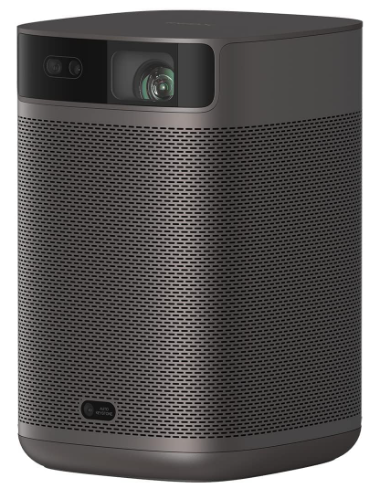
Introduction
The XGIMI MoGo 2 Pro Projector is a compact, high-performance smart projector designed for home entertainment, travel, and casual business use. With its sleek design and advanced features, this 1080p portable projector delivers cinematic brilliance wherever you go. The MoGo 2 Pro stands out with its 400 ISO lumens brightness, making it the brightest in its class, and its built-in surround sound speakers for immersive audio. Its D65 color temperature standard ensures Hollywood-grade visuals, while the upgraded ISA 2.0 technology enables fast, automatic keystone correction and autofocus for effortless setup.
Perfect for movie nights, gaming, presentations, and streaming, the XGIMI MoGo 2 Pro Projector is ideal for families, students, professionals, and anyone seeking a portable entertainment solution. It runs on Android TV 11.0, supports Chromecast, Wi-Fi 5, and Bluetooth 5.0, and features a user-friendly interface. The projector is available for around $300–$599, depending on region and retailer, and is currently shipping worldwide.
Specifications of the XGIMI MoGo 2 Pro Projector
- Resolution: 1920x1080 (Full HD)
- Brightness: 400 ISO lumens
- Aspect Ratio: 16:9
- Display Type: 0.23" DLP x 1
- Lamp Type: LED (25,000 hours lifespan)
- Image Size: 40"–200"
- Throw Ratio: 1.20:1
- Throw Distance: 3.5'–17.5'
- Keystone Correction: Horizontal & Vertical (Auto)
- Focus: Powered focus
- Speakers: Dual 8W surround sound
- Connectivity: HDMI 2.0, USB x 2, Audio Out (Mini Jack), Wireless Networking
- Smart Features: Android TV 11.0, Chromecast, Wi-Fi 5, Bluetooth 5.0
- Weight: 2.4 lbs
- Dimensions: 6.33" x 4.68" x 4.25"
- Power: 65W, 100V–240V
The XGIMI MoGo 2 Pro Projector outperforms many portable projectors in its price range, offering superior brightness, smart features, and ease of use compared to competitors like the Anker Nebula Capsule and the LG PH550.
Overview
- Front view
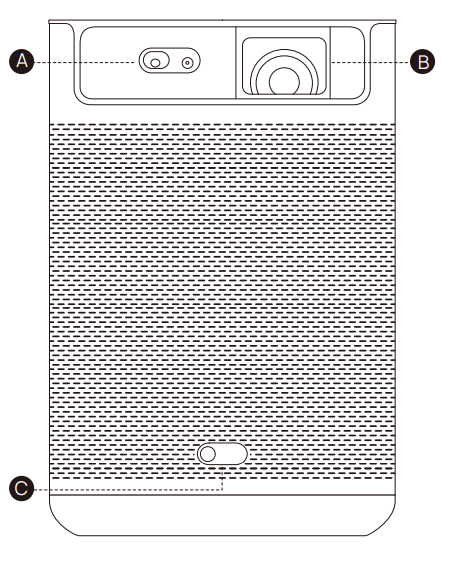
- ToF Autofocus
- Lens
- Auto Keystone Correction
Note: To prevent auto keystone correction failure, avoid blocking the sensor.
Rear view
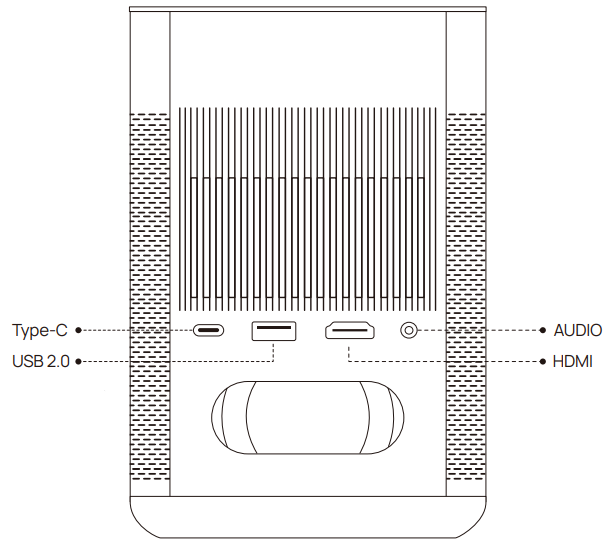
- The Type-C port only supports a power supply.
- Using a non-XGIMI standard adapter may have a certain impact on the brightness and volume. For the best experience, it is recommended to use the XGIMI standard adapter.
Remote control
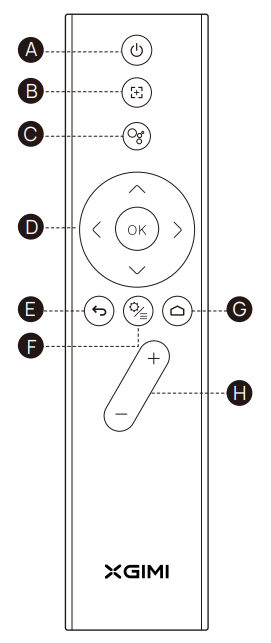
- Power
- Focus
- Google Assistant
- Navigation
- Return
- Settings / Menu
- Home
- Volume
Getting Started
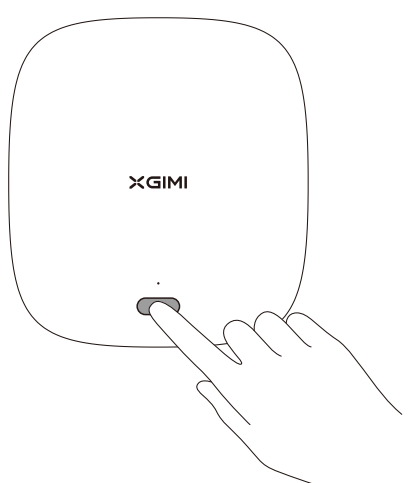
Power on / off
Connect the device to a power source and press" " to turn on the device. When the device is on, press" " to turn the device off
Remote control pairing
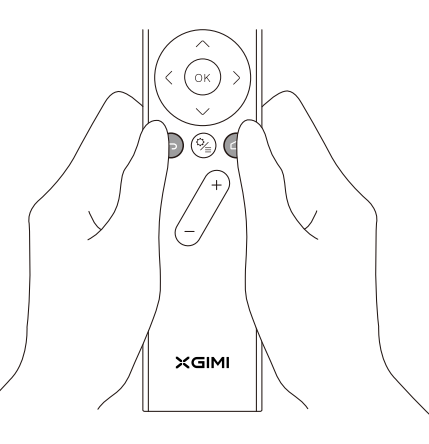
Place the remote control within 10cm of the device, press" " " "simultaneously, and an indicator light will begin flashing as the remote control enters pairing mode. Release the bu ons as soon as flashing begins, and the connection is successful when a “Ding” is heard. If pairing fails, repeat the above steps after 30 seconds.
Remote control functions
Focus adjustment function
Short-press the"  " to trigger autofocus.
Long-press the" " to trigger manual focus.
Shortcut button: To access the shortcut button for the function, briefly press the" "
Intelligent Screen Adaptation technology
When the automatic keystone function is enabled, the frame will be adjusted automatically if you move the device to another location.
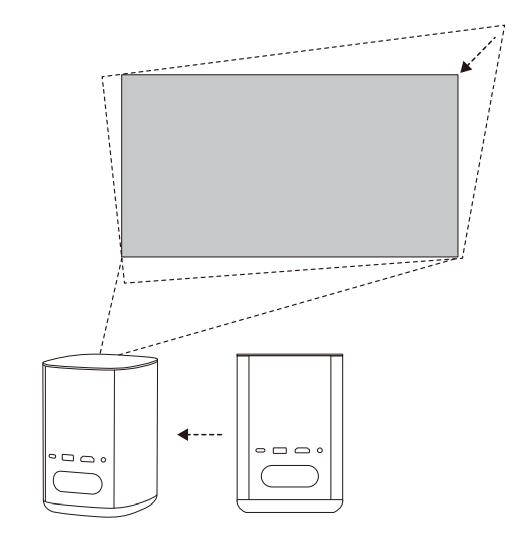
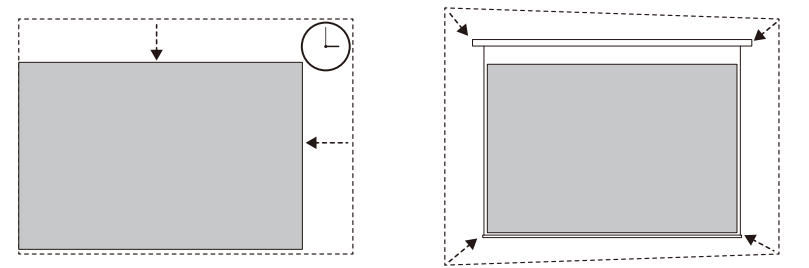
- When the automatic obstacle avoidance function is enabled, the frame will automatically avoid any obstacles that block the projection area. When the automatic screen alignment function is enabled, the frame will automatically adjust to an aspect ratio of 16:9 or 16:10.
- Press the " "on the remote control to enter the "Keystone Correction” page. Select
"Auto Keystone Correction” to enable the automatic keystone correction function. Select "Manual Keystone Correction” to manually adjust the four points and size of the projection area.
Troubleshooting the XGIMI MoGo 2 Pro Projector
- Image is blurry: Use the autofocus feature or manually adjust the focus ring.
- No sound: Check audio output settings and ensure speakers are not muted.
- Projector won’t turn on: Verify power connection and check for error lights.
- Keystone correction not working: Ensure the projector is on a stable surface and restart the device.
- Wi-Fi connection issues: Restart the projector and router, or reset network settings.
Preventive measures include regular cleaning of the lens and vents, avoiding extreme temperatures, and updating firmware. The XGIMI MoGo 2 Pro Projector comes with a 1-year limited warranty.
Pros and Cons of the XGIMI MoGo 2 Pro Projector
Pros
- Excellent brightness for a portable projector
- Fast, automatic keystone correction and autofocus
- Rich built-in audio with Dolby support
- Smart features with Android TV and Chromecast
- Compact and lightweight design
Cons
- Limited throw distance for large rooms
- No lens shift or optional lenses
- Higher price compared to basic models
The XGIMI MoGo 2 Pro Projector offers great value for money, especially for users seeking a portable, feature-rich projector with smart capabilities.
Customer Reviews of the XGIMI MoGo 2 Pro Projector
Users consistently praise the XGIMI MoGo 2 Pro Projector for its ease of use, vibrant image quality, and powerful built-in speakers. Many highlight the fast autofocus and keystone correction as standout features. The projector has an average rating of 4.5 stars on major review sites. Common complaints include the need for a dark room for optimal brightness and occasional Wi-Fi connectivity issues. Most reviewers recommend the XGIMI MoGo 2 Pro Projector for home entertainment and travel, noting its reliability and performance compared to similar portable projectors.
Faqs
How do I set up the xgimi MoGo 2 Pro Projector for the first time?
What should I do if the xgimi MoGo 2 Pro Projector image is blurry or out of focus?
Can I use the xgimi MoGo 2 Pro Projector with gaming consoles like PlayStation 5?
How does the ISA 2.0 technology work on the xgimi MoGo 2 Pro Projector?
Is the xgimi MoGo 2 Pro Projector compatible with streaming services like Netflix and Disney+?
How can I optimize the brightness and image quality on the xgimi MoGo 2 Pro Projector?
What maintenance does the xgimi MoGo 2 Pro Projector require?
Can I connect external speakers or sound systems to the xgimi MoGo 2 Pro Projector?
More xgimi manuals
- Setup: Xgimi Horizon Ultra Home Projector User Manual
- Setup: Xgimi Elfin Portable Projector Instruction Guide
- Setup: Xgimi MoGo Pro+ Portable Projector User Manual
- Setup: Xgimi Horizon Pro Projectors User Manual
- Setup: Xgimi Horizon & Horizon Pro Projector User Manual
- Setup: Xgimi Halo+ Portable Projector User Manual
Leave a Comment