
Setup: Xgimi Horizon Ultra Home Projector User Manual
Content
XGIMI Horizon Ultra Home Projector
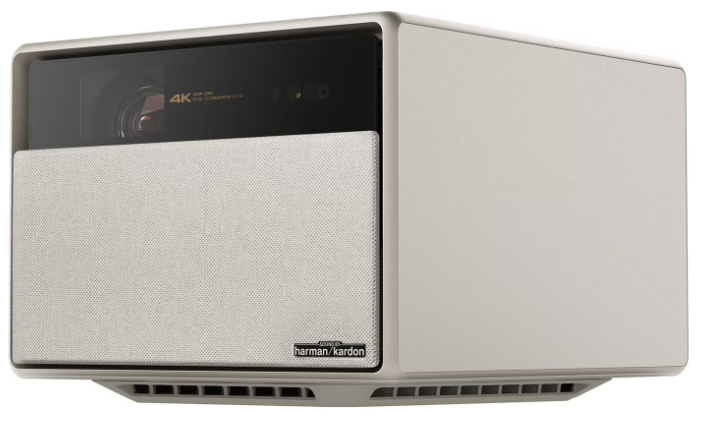
Introduction to the XGIMI Horizon Ultra Home Projector
The XGIMI Horizon Ultra home projector represents a breakthrough in 4K home cinema technology, combining cutting-edge Dual Light technology with intelligent environmental adaptation. This premium 4K projector delivers 2,300 ISO lumens of brightness with exceptional color accuracy, making it ideal for movie enthusiasts, gamers, and home entertainment professionals who demand superior image quality.
Designed for modern living spaces, the XGIMI Horizon Ultra home projector features a sophisticated retro aesthetic that complements any decor while delivering theater-grade performance. The projector's advanced Intelligent Screen Adaption 3.0 (ISA 3.0) technology automatically optimizes image quality based on ambient lighting conditions and wall colors, ensuring perfect picture quality throughout the day and night.
This 4K home projector is engineered for versatility, supporting both entertainment and gaming with low 18ms input lag and 60Hz refresh rates. The XGIMI Horizon Ultra home projector includes Dolby Vision support, Android TV 11, built-in Harman Kardon speakers, and seamless connectivity options. Priced at approximately $1,699, the XGIMI Horizon Ultra home projector offers exceptional value for consumers seeking premium home cinema experiences. The projector is widely available through major retailers and XGIMI's official channels, with a robust warranty and customer support included.
Technical Specifications and Performance Metrics
Wireless Specification
- Bluetooth version: 5.2
- Bluetooth transmitter frequency range: 2400 MHz - 2483.5 MHz
- Bluetooth transmitter power: ≤10 dBm (EIRP)
- Wi-Fi network: IEEE 802.11 a/b/g/n/ac/ax (2.4GHz/5GHz)
- 2.4G Wi-Fi transmitter frequency range: 2412 - 2472 MHz (2.4 GHz ISM Band, USA 11 Channels, Europe and others 13 Channels) 2.4G
- Wi-Fi transmitter power: ≤20 dBm (EIRP)
- 5G Wi-Fi transmitter frequency range: 5.15 - 5.35GHz, 5.470 - 5.725GHz, 5.725 - 5.850GHz
- 5G Wi-Fi transmitter power: 5.15 - 5.25GHz < 23dBm (EIRP), 5.25 - 5.35GHz & 5.470 - 5.725GHz < 23dBm (EIRP), 5.725 - 5.825GHz < 14dBm (EIRP)
Parameter
- Power Supply:19V ≅15.79A
Display and Resolution
- Native Resolution: 1920 x 1080 pixels
- Displayed Resolution: 3840 x 2160 pixels (4K e-shift)
- Aspect Ratio: 16:9 (4K HD)
- Display Type: 0.47" DLP chip with XPR technology
- Color Processing: 8-bit
Brightness and Light Source
- Brightness Output: 2,300 ISO lumens
- Light Source: Dual Light (RGBB LED + Red Laser hybrid)
- Lamp Life: 25,000 hours
- Color Gamut: Mass production color accuracy with Delta E ≈ 1
Gaming and Performance Features
- Input Lag: 18ms at 4K/60Hz (Game Mode)
- Refresh Rate: 60Hz
- 3D Support: Full HD 3D (Top and Bottom, Frame Packing, Side by Side)
- HDR Support: Dolby Vision, HDR10, HLG
- MEMC Technology: Yes
Physical Specifications
- Dimensions: 10.43" x 8.82" x 6.69" (H x W x D)
- Weight: 11.5 lbs
- Power Consumption: 300 Watts (100V-240V)
- Noise Level: 28 dB
Connectivity and Ports
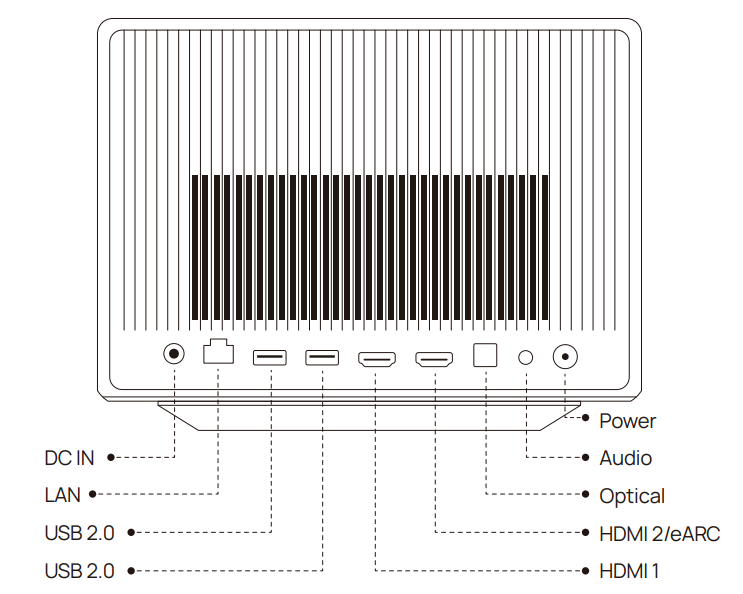
- HDMI: 1x standard HDMI + 1x HDMI with eARC support
- USB: 2x USB 2.0 ports
- Network: RJ-45 LAN port
- Audio: Mini jack audio output + Optical audio output
- Wireless: WiFi and Bluetooth connectivity
Audio System
- Built-in Speakers: 12.0 Watts x 2 (Harman Kardon)
- Supported Audio Formats: Dolby Digital, DTS, and more
Overview
Rear view
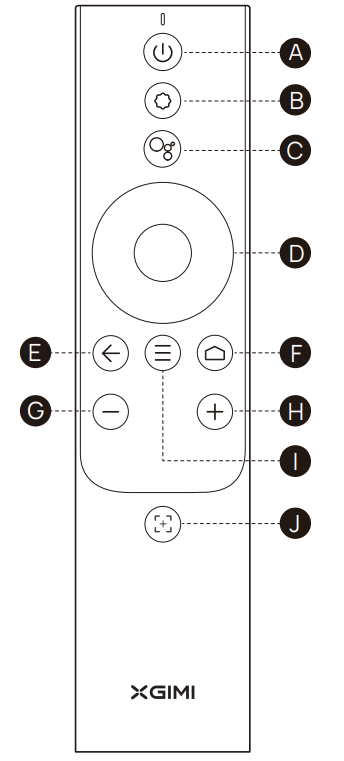
Remote control
Getting Started
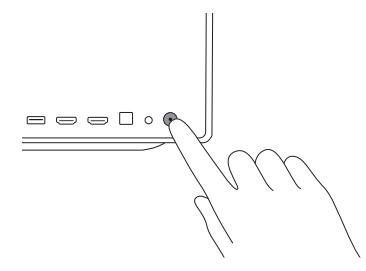
Power on / off
- Connect to the power source, and press the power button on the back to turn on the device.
- When the device is on, press the power button on the back to turn off the device.
Intelligent Screen Alignment
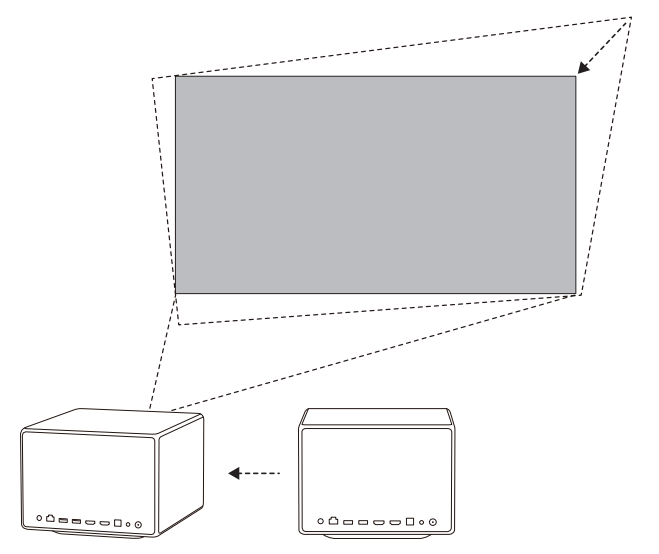
When Auto Keystone Correction is enabled, the display will be adjusted automatically to a square image whenever you move the device slightly or to another location. In addition, Auto Keystone Correction will not interfere with the projected content during the process, and the device will continue to work well on white, flat walls.
Google Assistant
- Google Assistant can be activated by pressing the"
 "button on the remote control.
 - Using your voice, you can quickly access entertainment, control smart devices, and get answers on screen.
Settings
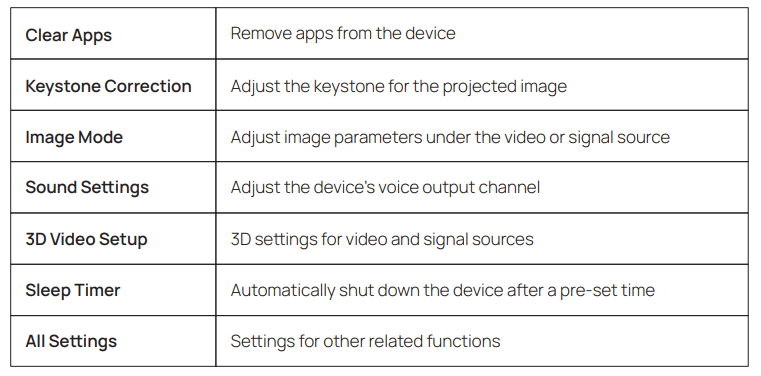
Adjust device and image settings at any interface by pressing " " on the remote control. Specific functions for various settings are as follows:
Setup Guide for Your XGIMI Horizon Ultra Home Projector
Pre-Installation Considerations
Before setting up your XGIMI Horizon Ultra home projector, select an appropriate installation location. The projector requires a throw distance between 4.3 and 17.5 feet, with a throw ratio of 1.20:1 to 1.50:1. Ensure adequate ventilation around the projector to prevent overheating, maintaining at least 12 inches of clearance on all sides. For optimal viewing, XGIMI recommends using a projection size of 60-120 inches for the best image quality.
Step-by-Step Setup Process
- Unpack and inspect your XGIMI Horizon Ultra home projector, verifying all components,, including the remote, power cable, and documentation.
- Position the projector on a stable, level surface or ceiling mount, ensuring it faces the projection surface directly. Use the built-in feet or mounting hardware for secure placement.
- Connect the power cable to the projector and a grounded electrical outlet. The XGIMI Horizon Ultra home projector supports 100V-240V input for international compatibility.
- Power on the projector using the remote control. The device will perform initial boot procedures and display the Android TV 11 home screen.
- Connect to your network via WiFi or Ethernet. Select your network from the available connections and enter your password. This enables access to streaming apps and software updates.
- Connect your content source devices using HDMI 2.1 ports for optimal performance. The XGIMI Horizon Ultra home projector supports multiple HDMI devices simultaneously.
Configuration and Optimization
Access the Settings menu to enable Intelligent Screen Adaptation 3.0 features. Activate Wall Color Adaption to automatically calibrate brightness and color based on your projection surface (works with color temperatures from 3000K to 15000K). Enable Auto Focus and Auto Keystone for hands-free image optimization. For gaming, activate Game Mode to reduce input lag to 18ms and optimize refresh rates.
Safety Precautions
Never look directly into the projector lens during operation, as the laser and LED light sources can cause eye damage. Keep the projector away from water and moisture. Do not block ventilation ports during operation. Allow adequate cooling time before moving the device after extended use.
Correct use of the device:
- Do not face the lens into the eyes,, as injury to the eyes can be caused by the strong projector light. Do not block the air inlet/outlet of the device in order to avoid damage to internal electronic devices arising from normal heat dissipation failure of the device.
- Do not wipe the lens directly with cleaning tools, including paper and cloth,, etc., in order to avoid damage to the lens; please clean up the dust on the lens surface through clean air blowing. Do not wash the device with chemicals, detergents,, or any liquid to avoid corrosion of the circuit board by rainwater, moisture, and mineral-containing liquids.
- Keep the device and its components and accessories out of reach of children.
- Ensure that the device is used in a dry and ventilated environment.
- Do not store the device in overheated or overcooled places because extreme temperatures will shorten the lifespan of electronic devices. Permissible storage and usage environments should have a temperature range of 0°C to 40°C.
- Do not put the device into any heating equipment (such as a dryer or microwave oven) for drying.
- Do not extrude the device firmly or place barriers on it or its back to avoid damage to the device.
- Do not throw, strike, or sharply shake the device to avoid damage to the internal circuit board. Do not try to disassemble and assemble the device yourself. Please contact XGIMI after-sales service for any issues.
- Do not repair any product on your own. In the case of normal operation failure of the device or any component, consult XGIMI after-sales service promptly or return it to the factory for repair.
- Operations in the 5.15-5.35 GHz band are restricted to indoor usage only.
- When installing and operating the device, the distance between the radiator and the body should be at least 20cm.
- As with any bright sources, do not stare directly into the beam, RG2 IEC 62471-5:2015 Complies with 21 CFR 1040.10 and 1040.11 except for conformance as a Risk Group 2 LIP as defined in IEC 62471-5:Ed. 1.0. For more information, see Laser
- Notice No. 57, dated May 8, 2019. Be cautious when using earphones with the device,e as there may be excessive sound pressure from earphones and headphones that can cause hearing loss.
Troubleshooting Common Issues with Your XGIMI Horizon Ultra Home Projector
Image Quality Problems
- Blurry or Out-of-Focus Image: Activate the Uninterrupted Auto Focus feature in settings. If manual adjustment is needed, use the focus ring on the projector lens. Ensure the projector is positioned at the correct throw distance for your screen size.
- Distorted or Misaligned Image: Enable Intelligent Screen Alignment in the ISA 3.0 settings. The projector will automatically correct geometric distortion and keystone issues. For manual adjustment, use the digital keystone controls for horizontal and vertical correction.
- Dim or Low Brightness: Verify the projector is in High Power mode rather than Eco mode. Check that the Color Filter and Dynamic IRIS are functioning properly. Ensure adequate ventilation, as overheating reduces brightness. Clean the lens and air vents to remove dust accumulation.
- Color Accuracy Issues: Enable Wall Color Adaptation if projecting on colored walls. Adjust color temperature settings between 3000K and 15000K. For optimal results, use the projector in dimly lit environments. Reset color settings to factory defaults if problems persist.
Connectivity and Software Issues
- WiFi Connection Problems: Restart the projector and your router. Verify you're entering the correct WiFi password. Move the projector closer to your router to improve signal strength. Check that your network supports 2.4GHz or 5GHz connectivity.
- HDMI Input Not Recognized: Verify you're using HDMI 2.1 compatible cables for best performance. Restart both the projector and the source device. Try different HDMI ports. Check that your source device supports the projector's resolution and refresh rate requirements.
- Android TV 11 Performance Issues: Clear the app cache through Settings > Apps. Restart the projector completely using the power menu. Update all apps and Android TV software through the system settings. Factory reset if persistent issues occur (this will erase all user data).
Gaming-Related Problems
- High Input Lag in Games: Activate Game Mode to reduce input lag to 18ms. Turn off MEMC (Motion Estimation, Motion Compensation) technology. Disable Auto Focus and Auto Keystone for faster response times. Connect gaming devices directly via HDMI 2.1 for optimal performance.
Warranty and Support
Your XGIMI Horizon Ultra home projector includes comprehensive warranty coverage. Contact XGIMI customer support through their official website for technical assistance, RMA procedures, or warranty claims. Keep your proof of purchase and product registration for warranty validation. Extended warranty options may be available through authorized retailers.
Advantages and Disadvantages of the XGIMI Horizon Ultra Home Projector
Key Advantages
- Exceptional Brightness: The 2,300 ISO lumens output ensures vibrant, visible images in well-lit rooms and daylight conditions, unlike traditional projectors requiring complete darkness.
- Dual Light Technology: The hybrid LED and laser light source delivers superior color accuracy (Delta E ≈ 1) with extended lamp life of 25,000 hours, reducing replacement costs.
- Dolby Vision Support: As the first standard throw 4K home projector supporting Dolby Vision, the XGIMI Horizon Ultra home projector brightens highlights 40x more and enhances darks 10x more than standard content.
- Gaming Performance: Low 18ms input lag and 60Hz refresh rate make the XGIMI Horizon Ultra home projector suitable for competitive gaming and fast-action content.
- Intelligent Automation: ISA 3.0 technology with auto-focus, auto-keystone, and wall color adaptation eliminates manual adjustments for convenience.
- Built-in Entertainment: Android TV 11 with streaming app access, Harman Kardon speakers, and Google Assistant integration provide complete entertainment solutions.
- Portability: Weighing 11.5 lbs with compact dimensions, the XGIMI Horizon Ultra home projector can be easily repositioned or transported.
Notable Disadvantages
- Premium Pricing: At $1,699, the XGIMI Horizon Ultra home projector represents a significant investment compared to budget-friendly alternatives.
- Native Resolution Limitation: While displaying 4K content, the native resolution is only 1920 x 1080, using pixel-shifting technology for 4K output.
- Wall Color Dependency: The Wall Color Adaptation feature performs best in dimly lit environments and may show variable results on non-standard colored walls.
- Throw Distance Requirements: The 4.3-17.5 feet throw distance may limit placement options in smaller rooms or tight spaces.
- Audible Noise: At 28 dB, the cooling fan produces noticeable sound during operation, which some users may find distracting in quiet viewing environments.
- Limited 3D Support: Full HD 3D support is limited to 1080p resolution, not extending to full 4K 3D capabilities.
Real User Reviews and Customer Feedback
- Overall User Satisfaction
Users consistently praise the XGIMI Horizon Ultra home projector for its exceptional brightness and color accuracy, making it stand out in the premium home cinema market. Customers highlight the automatic adjustment features as game-changers for convenience, particularly the Wall Color Adaptation and auto-focus capabilities that eliminate setup frustrations. - Commonly Praised Features
Gaming enthusiasts appreciate the low input lag and fast refresh rates, with many noting that the XGIMI Horizon Ultra home projector performs comparably to dedicated gaming displays. Movie lovers celebrate the Dolby Vision support and color accuracy, describing images as "theater-quality" and "vibrant." The built-in Android TV and Harman Kardon speakers receive positive feedback for providing complete entertainment without external devices. - Frequent User Concerns
Some users mention the price point as a barrier to entry, though most agree the quality justifies the investment. A segment of users notes that optimal performance requires dimly lit environments for the Wall Color Adaptation feature. The 28 dB noise level receives mixed feedback, with some finding it acceptable and others preferring quieter operation. - Recommendation Summary
The XGIMI Horizon Ultra home projector is recommended for users seeking premium 4K home cinema with gaming capabilities, bright room performance, and intelligent automation. It's ideal for dedicated home theater rooms, living rooms with ambient lighting, and content creators requiring accurate color reproduction. Consider alternatives if you require quieter operation, smaller throw distances, or budget-conscious options under $1,000.
Faqs
How do I set up the xgimi Horizon Ultra Home Projector for the first time?
What steps can I take if the xgimi Horizon Ultra Home Projector image is blurry or out of focus?
Can I connect gaming consoles to the xgimi Horizon Ultra Home Projector, and what is the input lag?
How does the xgimi Horizon Ultra Home Projector handle different wall colors during projection?
What are the main connectivity options available on the xgimi Horizon Ultra Home Projector?
How do I maintain and clean the xgimi Horizon Ultra Home Projector to ensure longevity?
What video formats and HDR standards does the xgimi Horizon Ultra Home Projector support?
What should I do if my xgimi Horizon Ultra Home Projector does not power on or respond?
Tags
More xgimi manuals
- Setup: Xgimi MoGo Pro+ Portable Projector User Manual
- Setup: Xgimi MoGo 2 Pro Projector User Manual
- Setup: Xgimi Horizon & Horizon Pro Projector User Manual
- Setup: Xgimi Elfin Portable Projector Instruction Guide
- Setup: Xgimi Halo+ Portable Projector User Manual
- Setup: Xgimi Horizon Pro Projectors User Manual
Leave a Comment